Personal Models
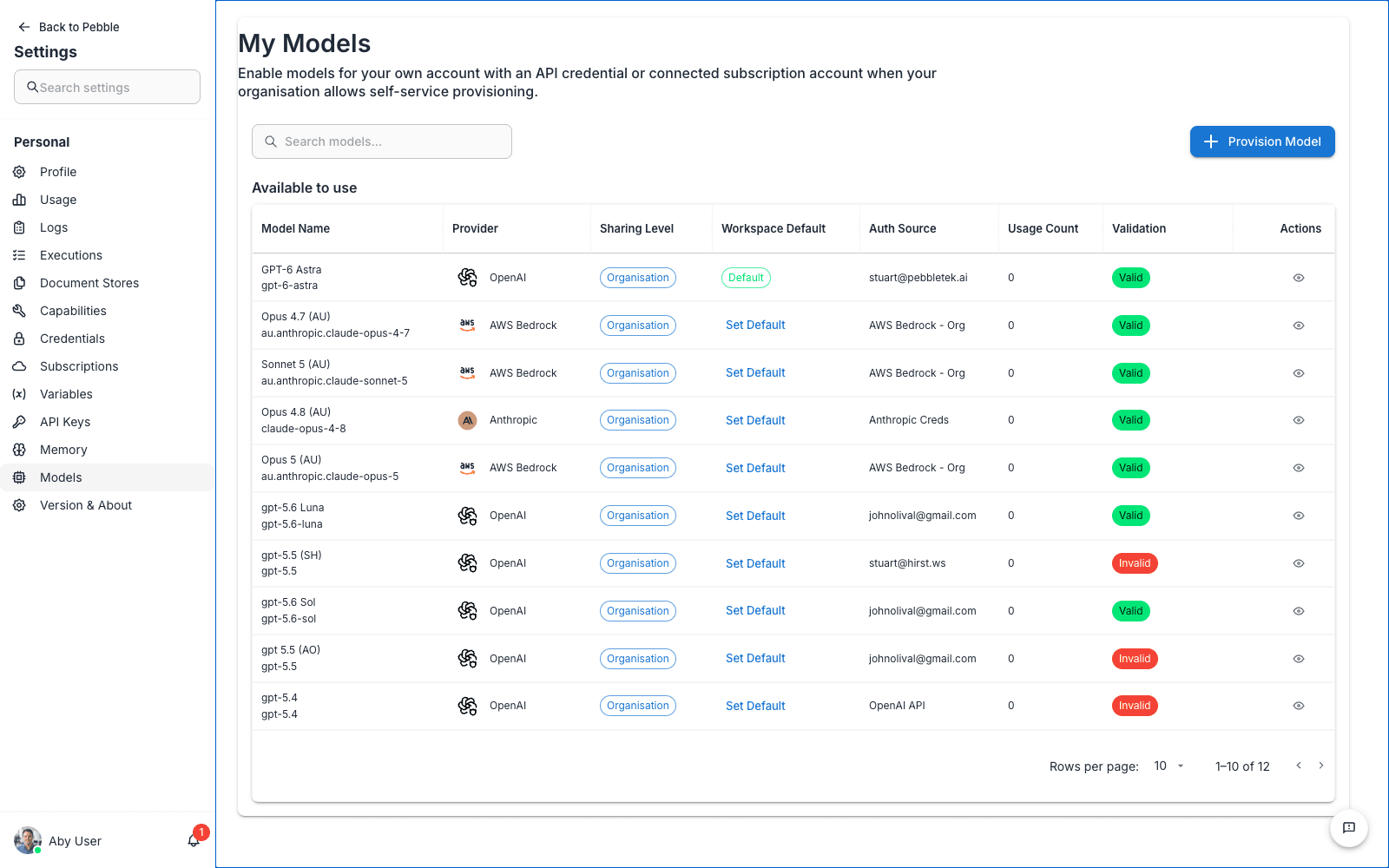
The Models page under Settings is where you turn on, for your own account, the AI models your organisation has made available to you.
Why there is a personal Models page
Models in PebbleAI flow through a provisioning chain:
Platform admin  →  Organisation admin  →  You
   (enables)        (shares to org)       (self-enables)
Your organisation admin chooses which models from the platform catalogue to make available to your workspace. This page is where you choose, from that shared set, which ones you actually want to appear in your PebbleChat model selector.
This two-step design means:
- Your admin can share ten models, but you can enable just the two you use day to day, keeping your model selector uncluttered
- New models your admin shares are available to you immediately — you don’t need to ask anyone, you just come here and enable them
- Models you never use stay out of the way
The My Models table
The page shows every model currently enabled for your account:
| Column | Meaning |
|---|---|
| Model Name | The name you’ll see in the PebbleChat model selector |
| Provider | The underlying AI provider (AWS Bedrock, OpenAI, Anthropic, Google, etc.) |
| Sharing Level | How the model was made available — Organisation, Workspace, or Personal |
| Workspace Default | Shows the current default and a Set Default action |
| Auth Source | The credential or connected subscription used to authenticate calls |
| Usage Count | How many times you’ve used this model |
| Validation | Whether the model and authentication source have been validated |
| Actions | View model details; management actions depend on your permissions |
If the list is empty, click Provision Model to browse models your organisation has shared with you.
Enabling a model
- Click Provision Model in the top-right
- The dialog lists models your organisation has shared but you haven’t enabled yet
- Click Enable next to any model you want
- That model now appears in your PebbleChat model selector
Disabling a model
Click the delete icon in the Actions column to remove a model from your enabled set. The model isn’t deleted — your organisation still has it — you just stop seeing it in your model selector. You can re-enable it any time.
Auto routing
Alongside the specific models you enable, PebbleChat offers an Auto option in the model selector. Auto doesn’t pick a specific model — it routes your message to whichever model PebbleRouter (your organisation’s routing gateway) thinks is best for the task.
See PebbleChat → Model Selection for how Auto routing works, and Admin → PebbleRouter for how it’s configured.
”No models available” troubleshooting
If your PebbleChat model selector shows “No Models Available”:
- Come here (Settings → Models) and check whether any models appear
- If the page is empty, your organisation hasn’t shared any models with you — ask your admin to enable models at Admin → Models
- If there are models listed here but they don’t appear in PebbleChat, try refreshing the page
- If the problem persists, check whether the underlying credentials are still valid — an expired AWS or OpenAI key will make every model in that provider unusable
Why this isn’t the same as Organisation Models
The Organisation Models page (Admin → Models) is where admins decide which models from the platform catalogue to share with the organisation. Those decisions take effect for everyone in the org.
This page, My Models, is where you decide which of those shared models appear in your personal PebbleChat model selector. It doesn’t affect anyone else.