Logs
The Logs page under Admin → Organisation → PebbleObserve is where every individual request to PebbleAI is recorded — every chat completion, every embedding call, every tool invocation, every authentication action. This is your evidence trail when something goes wrong, when you’re investigating cost, or when compliance asks questions.
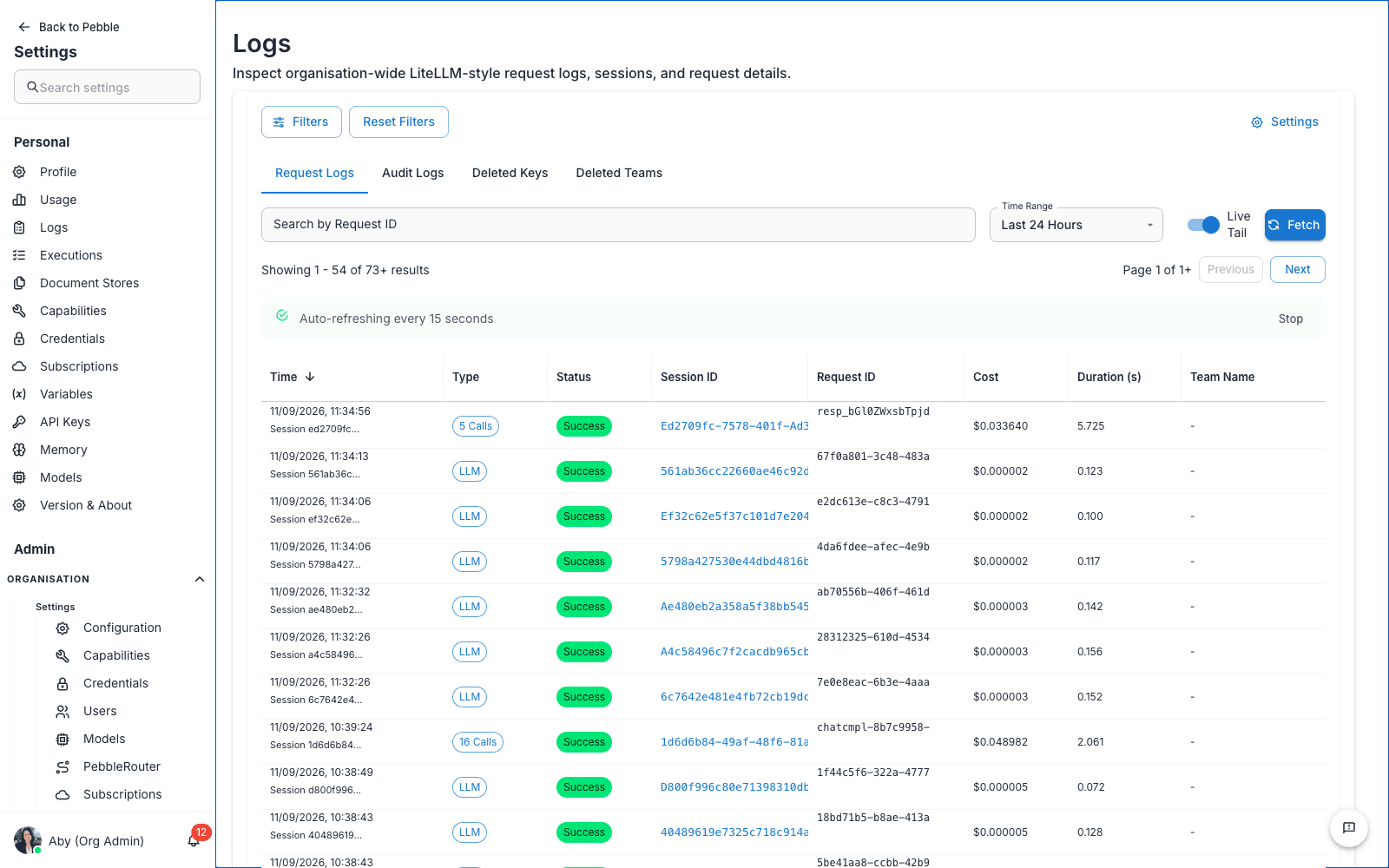
Find it at Admin → Organisation → PebbleObserve → Logs.
What you see
The page has four tabs:
| Tab | What it shows |
|---|---|
| Request Logs | Every API request — chat completions, embeddings, image generation. The default view. |
| Audit Logs | Administrative actions — credential changes, user creation, model enablement, settings updates |
| Deleted Keys | History of API keys that have been deleted (so you can prove a leaked key is no longer valid) |
| Deleted Teams | History of workspaces / teams that have been removed |
Below the tabs are filtering controls:
- Filters button — opens advanced filter dialog (model, user, status, time range, error code)
- Reset Filters button
- Search by Request ID — paste a request ID to jump straight to it
- Time Range dropdown — Last 24 Hours, Last 7 Days, Last 30 Days, custom
- Live Tail toggle — auto-refresh logs every few seconds for real-time monitoring
- Fetch button — manually refresh
The Request Logs table
Each row in the Request Logs tab represents one individual API request. Columns include:
| Column | What it shows |
|---|---|
| Time | When the request happened (timestamped to the second) |
| Type | Chat completion, embedding, image, etc. |
| Status | 200 for success, error codes for failures |
| Session ID | The PebbleChat session this request belongs to (if applicable) |
| Request ID | The unique ID for this specific request — copy and search to find it again |
| Cost | Dollar cost of this request |
| Duration (s) | How long the request took |
| Team Name | Which workspace / team the request belongs to |
Click any row to expand the full details: prompt, response, model, tokens used, headers, timing breakdown.
Use cases
Investigating a cost spike
- Set time range to the day in question
- Sort by Cost descending
- The expensive requests jump to the top — investigate the top 10
- Click a row to see the full prompt and response
- Identify the cause (a runaway agent, a huge attached file, an expensive model misuse)
Investigating a failed request
- Filter by status code (e.g.
429for rate limits,500for server errors) - Click a failed row to see the full error message
- Cross-reference against the model and the credential — is the credential expired? Has the provider rate-limited you?
- Take action: refresh credential, switch routing profile, contact provider
Tracing a user complaint
- Ask the user for the time of the issue
- Set the time range narrowly to that period
- Filter by their workspace
- Find the request, click to expand
- Read the prompt, response, and full activity trace
- Reproduce or confirm the issue
Live monitoring during a launch
- Enable Live Tail
- Watch requests stream in real time as users start using the new feature
- Filter by status to immediately spot errors
- Catch problems within seconds rather than waiting for user complaints
The Audit Logs tab
A separate audit trail of administrative actions, not user requests. This includes:
- User invitations sent / accepted / revoked
- Role assignments changed
- Credentials added, edited, or deleted
- Models enabled or disabled
- Configuration tab saves
- Routing profile changes
- API key creation and deletion
Use audit logs for:
- Compliance reviews — proving who changed what when
- Incident investigation — figuring out what changed before a problem appeared
- Onboarding sanity checks — confirming a new admin’s actions match what they say they did
Deleted Keys and Deleted Teams
These two tabs preserve a history of what’s been removed so you can:
- Prove a leaked API key is no longer active (compliance)
- Recover the configuration of a deleted workspace if needed
- Audit deletions over time
Deletion is permanent — these tabs show the record of deletion, not a recovery interface.
Filtering and searching
The Filters dialog (top-left) lets you combine several filters:
- Model — only show requests using a specific model
- User — only show requests from a specific user (by email or ID)
- Workspace — scope to one workspace
- Status code —
200,4xx,5xx, etc. - Cost range — between $X and $Y
- Duration — slow requests above a threshold
- Time range — custom start and end
Filters are AND-combined. Click Reset Filters to clear them.
Step-by-step: finding a single request you care about
- Get the Request ID from the user, the support ticket, or another log
- Paste it into the Search by Request ID box
- Press Enter
- The page jumps directly to that request, with all details expanded
This is the fastest way to investigate a specific reported issue.
Step-by-step: building a daily error report
- Set time range to Last 24 Hours
- Click Filters and set status to
>=400(any error) - Note the count and types of errors
- Click each one to investigate
- Take action — fix credentials, contact providers, file bug reports
For routine monitoring, consider scripting this against the underlying API rather than checking manually — see the PebbleObserve API & Data Platform section in the user-facing PebbleObserve docs.
Performance and retention
- Live Tail auto-refreshes every ~15 seconds. Disable it when you don’t need it — it generates load.
- Older logs are typically retained for 30–90 days depending on your install. Talk to your platform admin if you need longer retention or full archival to S3/cold storage.
- Cost data survives longer than full request bodies in some installs — check with your platform admin if you need request bodies for old time ranges.
Tips
- Bookmark Logs with a useful filter pre-applied for ongoing monitoring (e.g. errors-only for the last 24 hours)
- Use Live Tail during incident response — it’s much faster than refreshing manually
- Combine with Usage — start in Usage for the high-level picture, drill into Logs for individual evidence
- Don’t paste request bodies into chat or email — they may contain sensitive data. Reference Request IDs instead
Related
- Usage — the high-level dashboard you drill from
- Evaluations — measure quality systematically rather than reactively
- Login Activity — sign-in audit (separate from API request logs)
- PebbleObserve (user-facing) — the deeper observability platform