File Attachments
PebbleChat works with files in both directions: attach documents, spreadsheets, code, emails, and images for analysis — and receive files Pebble produces as first-class deliverables you can open in their native apps, reopen in Canvas, or save to the cloud.
Supported Formats
PebbleChat accepts a wide range of file types, including but not limited to:
| Category | Formats |
|---|---|
| Documents | PDF, Word (.docx), Rich Text (.rtf) |
| Spreadsheets | Excel (.xlsx), CSV, TSV |
| Data | JSON, XML, YAML |
| EML, MSG | |
| OpenDocument | ODF-based files (ODT, ODS, ODP) |
| Images | PNG, JPG, GIF, WebP |
| Code | Most text-based code files |
How to Attach Files
From the composer
- Click the + button in the composer and choose Attach Files
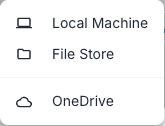
- Pick a source:
- Local Machine — browse and upload files from this computer
- File Store — pick from files already saved in Pebble, including anything you or Pebble produced in an earlier chat, without uploading again
- OneDrive — when you have a Microsoft 365 connection, browse your OneDrive and attach files straight from it
- The files appear above the message input
- Type your question about the files and press Enter
The File Store and OneDrive pickers are proper folder browsers — navigate with breadcrumbs and tick several files at once.
Drag and Drop
You can also drag files from your desktop or file manager directly onto the PebbleChat window.
Working with Attachments
Document Analysis
Upload a document and ask questions about its content:
[Attached: quarterly-report.pdf]
Summarise the key findings from this report and highlight any risks mentioned.
Data Processing
Upload structured data for analysis:
[Attached: sales-data.csv]
What were the top 5 products by revenue? Show me a breakdown by region.
Image Analysis
Upload images for description, analysis, or extraction:
[Attached: screenshot.png]
What error message is shown in this screenshot? How can I fix it?
Email Analysis
Upload email files for summarisation or action extraction:
[Attached: client-thread.eml]
What are the key action items from this email thread?
Big files are welcome — they just take a different route
Small files are read straight into the conversation. Larger files aren’t refused any more — they’re staged into the analysis sandbox instead, where Pebble works on them with code (you’ll see a progress line like “Staging sales-data.xlsx (60 MB) into the sandbox…”). That’s how a 60 MB spreadsheet gets analysed even though it would never fit in a model’s context window.
The thresholds are set by your administrators, per file type — by default files up to 25 MB are read inline and up to 100 MB are handled in the sandbox, with a session total of 200 MB. If a file is over the ceiling entirely, Pebble says so and names the limit, and an admin can raise it (Platform Settings → File Limits).
Files Pebble produces
When a response produces a file, it arrives as a thumbnail tile on the message — images and PDFs show a live preview, other types show a recognisable file icon. One deliverable, one tile: regenerating the same file updates it rather than piling up copies.
- Click the tile and the file opens the most useful way for its type — spreadsheets and documents in Canvas or their native app, images in a lightbox
- Right-click for the full menu: Open in Canvas, Open in Word / Excel / PowerPoint / Browser, Download, Show in files, and Chat About
Open in Excel (and Word, and PowerPoint) launches the file straight into the desktop app — a snackbar confirms “Opening … in Excel”, with Download as the fallback if the app doesn’t respond. Show in files jumps to the file in your file store, where everything Pebble produces is kept.
Saving to SharePoint or OneDrive
To put a produced file somewhere your team works, just ask:
Save that report to SharePoint under sites/Finance/Reports/2026Pebble saves to your personal OneDrive, a SharePoint Online site library, or an on-premises SharePoint library — whichever you name — using your own Microsoft 365 connection, and confirms exactly where the file landed. If the destination doesn’t make sense, it says so rather than guessing.
Context Persistence
When you upload a file, its content is included in the conversation context. This means:
- Follow-up questions work — You can ask additional questions about an uploaded file later in the same conversation
- Files persist across reloads — Attachments are stored with the message, so the conversation’s files are still there whenever you come back
- Multiple files are supported — Upload several files and ask questions that reference all of them
So if you need a file from a conversation weeks ago — yours or one Pebble made — you can retrieve it straight from the chat history instead of hunting for the original on your device.
Limitations
- Size limits are configurable — the defaults above can be tightened or raised by your organisation and platform admins, per file type
- Binary formats — Some complex binary formats may not be fully parseable
- Context window — Multiple large inline files consume context, which can trigger automatic conversation compression; sandbox-staged files don’t have this problem
- Image support — Image analysis requires a model that supports vision capabilities, and images have their own (smaller) transport limits on connector paths
Related
- Messages & Responses — answer-first delivery and the attachment row on messages
- User File Store — where produced files live
- Canvas — editing produced documents in place