Skills
Skills are reusable prompt templates that PebbleChat loads on demand when they match your task. Each skill is a Persona (instructions and examples) plus optional supporting files — including code that runs inside PebbleAI’s secure sandbox.
Skills are how organisations encode repeatable workflows into AI: a weekly report skill that knows how to assemble a weekly status update from your email, Jira and calendar; a PDF generator that can produce a polished branded PDF from a chat response; an incident response skill that knows the runbook steps your team follows.
Skills follow the Claude Code skill spec byte-for-byte, which means you can import any
SKILL.md-formatted skill directly from the public Anthropic skills repository or the community catalogue without modification. The vast majority of community skills run unchanged.
What a skill actually is
Every skill is a directory containing:
my-skill/
├── SKILL.md          ← YAML frontmatter + prose body (required)
├── script.py         ← optional: Python that runs in the sandbox
├── data.json         ← optional: supporting data files
└── README.md         ← optional: human-readable documentation
The SKILL.md file has two sections — frontmatter (machine-readable metadata) and body (the prose instructions the AI reads). A minimal skill looks like:
---
name: weekly-report
description: Compiles a weekly status update from email, Jira, and calendar
when_to_use: When the user asks for a weekly report, status update, or summary of their week
version: 1.0.0
---

# Weekly Report

Gather the user's activity from the last seven days and produce a polished
weekly update with sections for:

1. What I shipped
2. What I'm working on
3. What's blocking me
4. What's next

Search the user's email for anything with "status" or "update" in the subject.
Check Jira for tickets they closed this week. Check their calendar for
notable meetings. Format the result as markdown and include links.
That’s enough for a fully working skill. Add a Python file and frontmatter field pebbleRuntimes: ['python'] and the skill can also run code in the code execution sandbox to produce PDFs, charts, spreadsheets, or anything else Python can do.
Skills can also declare an allowed tools list — the specific tools, document stores, flows and other skills the skill is permitted to invoke. When a skill is used, those grants are materialised at runtime, so the skill gets exactly the capabilities its author intended and nothing more. You define the list in the full-page skill editor.
How skills are discovered
Skills integrate with PebbleChat’s existing asset discovery system. When you send a message, PebbleChat considers every skill enabled for you, matches it against what you’re asking, and picks the most relevant ones to make available to the AI. The AI then decides which skill (if any) to actually use.
You see which skill was used in the Activity Stream under the Research & Tools panel, so there’s no magic — you can always verify what ran.
Using skills in PebbleChat
You don’t have to do anything special to benefit from skills — if one is enabled and relevant, PebbleChat will discover and use it automatically. But you can also invoke one explicitly.
Automatic discovery
Just ask. If you say “give me a weekly report” and a weekly-report skill is enabled for you, PebbleChat will find it via discovery and use it. You’ll see the skill name appear in the Activity Stream under the Research & Tools panel so you can verify what the model actually used.
Explicit mention
Type / in the composer to open the Capabilities & Context menu and pick Skills. This shows every skill enabled for you, filtered by search. Click one and it becomes a chip in your message:
/weekly-report Give me my weekly update for this week, focused on the Q2 campaign launch.Explicit mention overrides discovery — the skill you named is used regardless of whether discovery would have picked it.
The Skills management page
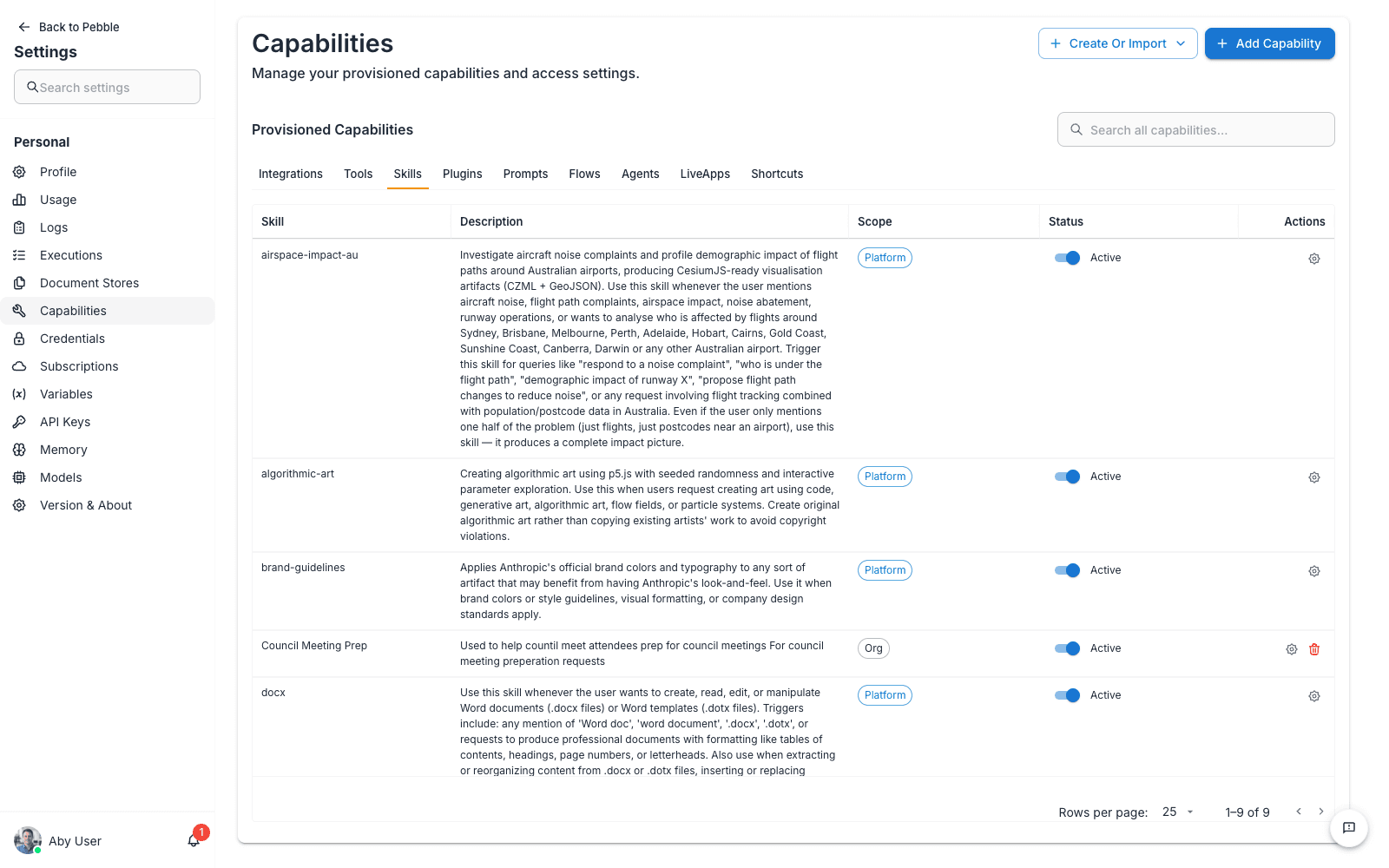
Skills are managed in the Capabilities Catalog: go to Settings → Capabilities (URL: /settings/capabilities) and open the Skills tab. This is the single management surface, where you:
- Browse every skill available to you (platform + organisation + workspace + your personal ones)
- See scope badges — platform, organisation, workspace, or personal
- Enable or disable skills for your own account
- Preview the body, supporting files, and scan results
- Create new personal skills or import them from GitHub, a raw URL, or a zip file
The old standalone Skills page at
/pebblechat/skillshas been retired — the URL now redirects to the Capabilities Catalog, so old bookmarks still land in the right place.
Scopes — who can see and use a skill
Skills exist at four scopes:
| Scope | Created by | Visible to |
|---|---|---|
| Platform | Synced from GitHub (Anthropic official, community catalogues) | Everyone on this install of PebbleAI |
| Organisation | Organisation admin | Everyone in the organisation |
| Workspace | Workspace admin | Everyone in the workspace |
| Personal | You | Only you |
Each scope has its own enablement — sharing a skill at organisation scope makes it available to everyone, but each user still chooses whether to enable it for their own model selector. The Deploy to All Users action (admin-only) bulk-enables for everyone at once and fires a notification in each user’s notifications bell.
When the same skill key exists at multiple scopes (e.g. a platform pdf-generator and an organisation-customised pdf-generator), the nearest scope wins at discovery time. This means your organisation can customise a platform skill without forking or breaking.
Examples — what skills look like in practice
The Anthropic official skills (pre-imported)
PebbleAI ships with a set of official skills from the Anthropic public skills repository:
| Skill | What it does |
|---|---|
| Generates polished PDFs from conversation content (Python) | |
| docx | Produces Microsoft Word documents (Python) |
| xlsx | Produces Microsoft Excel spreadsheets (Python) |
| pptx | Produces Microsoft PowerPoint presentations (Python) |
| mcp-builder | Helps you scaffold new MCP servers (Python) |
| webapp-testing | Walks through a web application and tests flows (Python) |
| skill-creator | Guides you through creating a new SKILL.md (prose-only) |
| slack-gif-creator | Generates animated GIFs suitable for Slack (Python) |
| frontend-design | Applies consistent frontend design rules to generated code (prose) |
| brand-guidelines | Enforces brand voice and style in generated content (prose) |
| …and more |
These are all available as soon as your platform admin enables the Skills capability.
A custom organisation skill
Imagine your organisation has a standard way of writing customer-support responses — a tone, a structure, a set of phrases to include, a set of things to never say. That’s a perfect candidate for an organisation-scoped skill:
---
name: customer-support-reply
description: Drafts a customer support reply following Acme's response standards
when_to_use: When the user is drafting or replying to a customer support ticket
version: 1.2.0
---

# Customer Support Reply Standards

You are drafting a response to a customer support ticket. Follow these rules:

1. **Always open** with a warm acknowledgement that references their specific issue
2. **Always include** a clear next step with a concrete timeline
3. **Never say** "unfortunately", "policy", or "our system doesn't allow"
4. **Sign off** with "If there's anything else we can help with, please let us know"

The tone should be warm but not saccharine, precise but not stilted, and
always assume the customer is intelligent and acting in good faith.

...
Your admin adds this at organisation scope and deploys to all users. From that day on, any time anyone in the org asks PebbleChat for help drafting a support response, this skill is auto-discovered and applied. Consistency across the whole team, updated centrally.
A skill that runs Python
Skills with code change what’s possible. A simple PDF generator skill might look like:
---
name: pdf-brand-report
description: Generates a branded PDF report from a conversation
when_to_use: When the user wants a branded PDF of the current conversation
version: 1.0.0
pebbleRuntimes: ['python']
---

# Brand PDF Report Generator

Use the `generate_pdf.py` script in this skill's directory to produce a
branded PDF of the current conversation. The script takes the conversation
content as input on stdin and writes `/workspace/output.pdf`.

Key points:
- Use the Acme brand colours: #1976d2, #ff5722
- Include the Acme logo at `/workspace/acme-logo.png`
- Always include a "Prepared with PebbleAI" footer

After the script runs, the PDF is automatically uploaded to the user's
file store and a download link is returned.
When the AI invokes this skill, PebbleChat:
- Expands the skill body into the conversation
- Stages
generate_pdf.pyandacme-logo.pnginto the sandbox at/workspace/ - Runs the script in the code execution sandbox (Python 3.12 with numpy, pandas, matplotlib, pillow, and other common libraries)
- Detects the generated
output.pdf, uploads it to your user file store, and returns a download link in the response
The entire round-trip takes a few seconds. You get a polished PDF without leaving the chat.
Creating a personal skill
You can create skills for just yourself via the Capabilities Catalog:
- Go to Settings → Capabilities and open the Skills tab
- Open Create Or Import → Create new skill (which opens the skill editor at
/capabilities/skills/new), or choose Import skill from library (/capabilities/skills/import) to bring in a skill from GitHub, a raw URL, or a zip file - Fill in the frontmatter and body (or paste an existing
SKILL.md) - The security scanner runs automatically against the skill content — you’ll see any warnings or blocks before confirming
- Save — the skill is now enabled for you and will auto-discover at chat time
Personal skills are scoped to your user account only — nobody else sees them. If you build something useful for your team, ask your workspace admin to promote it to workspace or organisation scope.
The full-page skill editor
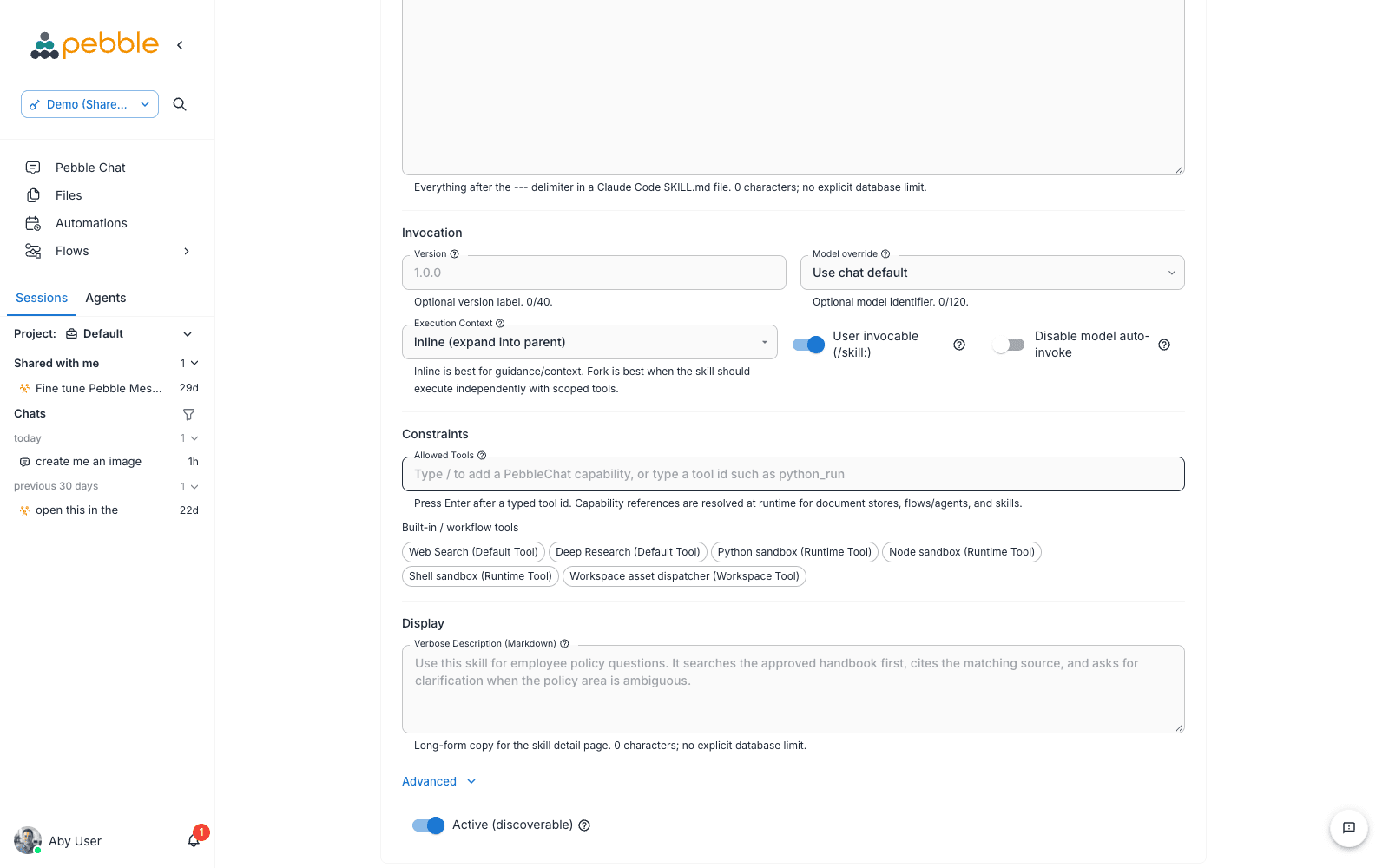
The full-page skill editor is the standard editing surface for skills — it’s what opens when you choose Create new skill, or when you open an existing skill with Edit Skill. It gives you a dedicated field for every part of the skill (Key, Scope, Name, Description, Body, When to Use, Version and the advanced JSON fields), plus two conveniences:
- Resizable fields — the long text areas (Description, Body (Markdown), When to Use, Verbose Description (Markdown), Arguments Schema (JSON array) and Hooks (JSON object)) all have a drag grip, so you can pull them taller while you write instead of scrolling inside a small box
- Allowed Tools — under the Constraints heading, the Allowed Tools field defines exactly which tools the skill may use. Type
/to open a picker covering document stores, flows/agents, and skills, or type a literal tool id (such aspython_run) and press Enter to add it. Selected tools show as removable chips inside the field, and capability references are resolved at runtime
Security
Every skill import — whether from GitHub, a raw URL, a zip upload, or direct creation — is scanned before it’s accepted. The scanner looks for dangerous patterns: shell injection, disallowed binary executables, oversize files, prompt-injection phrases, exfiltration URLs, and hidden Unicode tricks. Problems are surfaced as block (the import fails), warn (you have to acknowledge before continuing), or info (logged for context).
The scan runs in the same transaction as the import, so you never end up with a partially imported skill. If a skill is blocked, the import fails with a human-readable reason you can share with the skill author.
Limits and caveats
- Python sandbox runtime is the only shipped runtime today. Node.js and Bash are in the design but deferred — skills that declare them currently won’t run, even though they may import successfully.
- Sandbox session limits apply: 1 vCPU, 1 GiB RAM, 120-second wall-clock timeout, 30-minute idle session expiry, 512 KiB output buffer per stream. See Code Execution Sandbox for the full list.
- Network egress is default-deny. Skills that need to call external APIs must declare the domains they access so the admin can opt in (or the skill fails at runtime). Network allow-listing is a workspace-level decision.
- Platform skills are read-only from your organisation. You can disable them for your org, but you can’t edit them — the upstream definition wins. To customise, create a copy at organisation scope with the same key and yours will take precedence.
Related
- @Mentions & Tools — the Capabilities & Context picker where Skills appears alongside Document Stores, Past Chats, Assistants, Flows, Agents, Tools, and LiveApps
- Code Execution Sandbox — the platform-hosted sandbox that runs skill code (admin detail)
- User File Store — where skill output files land
- Admin → Capabilities — how admins enable and deploy skills at scale
- User Settings → Capabilities — personal view of skills enabled for your account
- Asset Sharing — how skills fit alongside flows, agents, and document stores in the broader sharing model
- Claude Code skills spec — the upstream format that PebbleAI’s Skills are byte-compatible with