Capabilities & Context
PebbleChat isn’t just a chat with a single AI model. It’s the front door to everything your organisation has built — every flow, document store, skill, tool, LiveApp, and past conversation. You bring those into your current message by typing / to open the Capabilities & Context menu, or by letting PebbleChat discover them automatically.
Typing @ does something different now: it’s for people — mention a colleague to share the conversation with them. The two triggers split the job cleanly: / equips your message, @ addresses people.
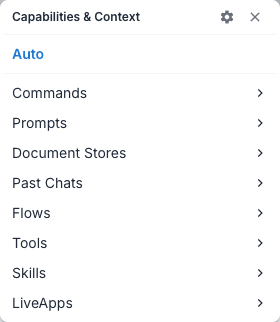
The / menu
Type / in the composer (or open the composer’s + menu and choose Manual Context) and the Capabilities & Context menu opens above the composer. Its categories, in order:
| Category | What it lets you reference |
|---|---|
| Auto | The default — no explicit selection; Pebble works out which knowledge and capabilities your message needs |
| Commands | Instant actions — start a new chat, clear your draft, switch model |
| Prompts | Prompts you’ve saved, and those shared with you — choosing one fills the message box with its text so you can adjust it before sending |
| Document Stores | Knowledge bases — collections of docs indexed for retrieval |
| Past Chats | Any earlier conversation you’ve had, used as context for the current one |
| Flows | Flows built in Flows — launch one from your conversation, with its context |
| Tools | Individual tools — web search, computational tools, MCP tools from your connected integrations |
| Skills | Reusable prompt templates with optional Python code (full detail) |
| LiveApps | Interactive mini-apps that open in the Canvas pane (full detail) |
Working the menu:
- Just keep typing after the
/to search across every category at once; or pick a category to browse it. Categories with many items grow their own filter box. - Arrow keys move the highlight; Enter (or the right arrow) selects; the left arrow goes back up; Escape closes.
- Most selections insert a chip into your message. Prompts instead fill the composer with the prompt’s text; Commands run immediately; picking a LiveApp opens the app in Canvas straight away.
- Don’t worry about
/starting an ordinary sentence — once you’ve typed more than a few words, the menu steps out of the way and Enter sends your message as usual. - The gear icon in the menu header jumps to capability management — add, remove and organise what appears here.
Commands
The Commands category runs an action on the spot rather than inserting anything:
| Command | Typed shortcuts | What it does |
|---|---|---|
| New chat | /new, /newchat, /fresh, /reset | Starts a fresh conversation |
| Clear input | /clear, /cleardraft | Empties the composer |
| Switch model | /model <name>, /use <name> | Changes the chat’s model (typed only — it takes an argument) |
| Direct message | /dm @name | Opens a private side-conversation with a participant in a shared chat |
| Open Tools | — | Opens the tools view |
The @ menu — people and sharing
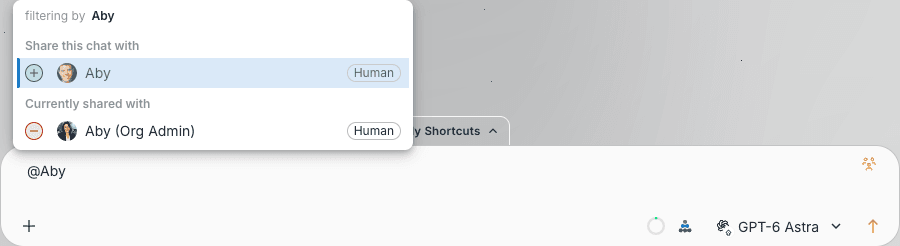
Type @ and you get a people picker, not a capability list. It groups everyone relevant to this chat:
- Share this chat with — workspace colleagues who don’t have access yet. Picking one shares the conversation with them and mentions them in your message. You have a moment to click again and undo before it takes effect, and a toast (“Shared this chat with …”) confirms it with an UNDO button.
- Currently shared with — people already in the conversation. Mention them to address them; the remove control beside a person revokes their access.
On a brand-new chat, your picks are queued — people are added and notified when you send the first message. Enter selects a person and keeps the menu open, so you can add several in one pass.
See Projects & Collaboration for the full sharing model — what recipients see, invite links, and how shared conversations behave.
Auto (the default — let PebbleChat find the right thing)
This is often the right choice. You don’t need to know which document store contains HR policies or which flow handles procurement — you just ask the question in plain English, and PebbleChat uses asset discovery to find the best match.
Asset discovery works by embedding your message and comparing it to every discoverable asset in your workspace (flows, document stores, tools, agents). The top matches get injected into the response generation automatically.
You’ll see which assets were discovered in the Activity Stream on the response — each discovered asset is shown with its name, type, and a clickable link so you can jump to the underlying asset.
Making assets discoverable
For asset discovery to work, the builder of the asset (a flow owner, a document-store creator) needs to:
- Mark the asset as Discoverable (a toggle on the asset’s settings panel)
- Give it a clear description — PebbleChat matches against the description, so “Searches the HR handbook for leave, benefits, and policy questions” is much more useful than “HR bot”
Discoverable assets are discoverable only by people who have access to them — you won’t suddenly see things your workspace doesn’t own.
Document Stores
Document Stores are curated collections of documents that PebbleChat can search and cite. Think: your employee handbook, your product documentation, a set of contracts, your engineering runbooks.
When you reference a document store, PebbleChat runs a retrieval search against it, pulls the most relevant chunks, and uses them to answer your question — citing the source.
Example
/Pebble-Docs What's the current pricing for a 100-user organisation?PebbleChat retrieves the relevant sections from the document store, generates a grounded answer, and shows you which chunks it used.
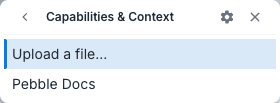
Each Document Store row in the menu shows its name. Hover over a row to read its description. The category also offers Upload a file… to bring in something new on the spot.
A Document Store can be built in Flows — any document loader, chunker, embedder, and vector store combination you can assemble there becomes a searchable Document Store here.
Past Chats
Past Chats is one of PebbleChat’s most underrated features. It lets you reference an earlier conversation as context for the current one — so you can start a fresh chat but still have PebbleChat remember something important from before. Each row shows how old the chat is at a glance.
When to use Past Chats
- “Continue where we left off.” You had a great research session yesterday and want to pick up in a new chat without losing the context.
- “Compare to that time.” You’re exploring a new approach and want PebbleChat to compare it to a previous analysis.
- “Summarise and move on.” Long conversations eventually outgrow the context window. Start a new chat, reference the old one, and PebbleChat condenses it for the new conversation.
- “Use my earlier prompt patterns.” Reference a chat where you developed a particular style or approach so the new chat inherits it.
Flows
Flows are workflows built in Flows. Pick one from the Flows category and it’s inserted into your message as a chip with the flow’s readable name — whatever you type after the chip becomes the request the flow receives when you send the message.
Flows can receive the context of the conversation you launched them from, including any files you’ve attached in the chat. For that to work, the flow’s builder sets the flow’s Start node Input Type to Pebble Chat, which starts the workflow from the originating conversation context — your request, the recent messages, and your attached files all travel with it.
When a mentioned flow replies, PebbleChat relays the flow’s answer faithfully — a flow that ends on a Direct Reply node set to deliver verbatim comes back word for word, formatting, citations and all. Follow-up questions on the same topic are routed back to the same flow rather than answered on its behalf.
You can also ask Pebble to build a new flow from the conversation itself — see Building Flows from Chat.
Inspect Flow
When a flow runs from your conversation, it appears as a row in the response’s Activity Stream with a Flow chip and the flow’s name. Click Inspect Flow on that row and the execution details drawer opens in place — the same node-by-node inspector used on the Flows Executions page — so you can see exactly what each step received and returned without leaving the conversation.
Flow-created conversations also appear in your chat history sidebar with a distinct flow icon and a readable title based on the flow’s name, so you can find and reopen them later.
Tools
Tools is the grab-bag category — anything that doesn’t fit the other buckets. Includes:
- Web search — the built-in live search
- Calculator, code interpreter — computational tools
- MCP tools — Model Context Protocol tools from connected MCP servers (Microsoft 365, Jira, custom integrations)
- Custom HTTP tools — one-off API calls your team has configured
While your connected integrations warm up you may briefly see Discovering your tools… in this category.
Select a specific tool to tell PebbleChat to use that tool for your next message. Most of the time you won’t need to — PebbleChat selects tools automatically when it needs them — but explicit tool selection is useful when:
- You want to force a web search even for a simple question
- You want to require a specific MCP tool (e.g. a Jira integration) over a more general one
- You’re debugging why a particular tool isn’t being called
Skills
Skills are reusable prompt templates — a Persona plus optional supporting files, including Python code that runs in PebbleAI’s sandbox. They’re a first-class capability with their own top-level documentation:
- Auto-discovered at chat time alongside flows, agents, and document stores
- Can execute Python in the code execution sandbox to produce PDFs, spreadsheets, charts, and other files
- Output files land in your user file store and come back as download links in the chat
- Four scopes: platform, organisation, workspace, personal — with nearest-scope-wins precedence
- Byte-compatible with the Claude Code skills spec — you can import any public
SKILL.mdwithout modification
See PebbleChat → Skills for the full guide — what skills are, how to enable them, how to create your own, and how the security scanner and execution sandbox work.
LiveApps
LiveApps are governed, interactive mini-apps that open in the Canvas pane beside your conversation. The LiveApps category behaves differently from the rest of the menu: picking one opens the app immediately in Canvas — it doesn’t insert a chip or send a chat message. Only LiveApps enabled for you are listed.
See LiveApps for the full guide — what they are, how to pin them as shortcuts, and how to ask Pebble to open one by name.
Asset Discovery vs. explicit selection
| Asset Discovery | Explicit / selection | |
|---|---|---|
| How you trigger it | Don’t — just ask your question normally | Type / and pick the asset |
| What PebbleChat uses | Top N matches by embedding similarity | Exactly the asset you picked |
| When it’s right | When you don’t know (or can’t remember) the asset name | When you know exactly which asset is correct |
| Failure mode | Might miss the right asset, or pull in something unrelated | User error — you pick the wrong asset |
| Activity Stream | Shows which assets were discovered | Shows which asset you selected |
A good pattern: start with discovery (just ask), check the Activity Stream to see what PebbleChat reached for. If the right asset wasn’t discovered, pick it from / explicitly next time, and consider asking the asset owner to improve the description.
Tips
- Mix and match. You can reference multiple things in one message — a document store, a skill, and a flow all at once.
- Write good asset descriptions. If you build flows, your descriptions directly determine whether users find them via discovery. Rewrite a vague description as a set of “when to use this” phrases.
- Check the Activity Stream. Every tool call, every discovered asset, every document retrieved is shown. It’s the best way to understand why PebbleChat answered the way it did.
- Use Past Chats for long projects. A month-long project can be broken into many smaller chats, each referencing the previous for continuity, instead of one giant thread the context window can’t hold.
- Old
@chips still work. Earlier conversations where capabilities were referenced with@read exactly as before — only the trigger for new references changed.
Related
- Advanced Features → Activity Stream — how the Research & Tools panel shows what PebbleChat did
- Building Flows from Chat — turn a conversation into a reusable flow
- Projects & Collaboration — what @ sharing does, and how shared chats behave
- LiveApps — the interactive apps you can open from the / menu
- Flows — where flows, agents and document stores are built
- Admin → Asset Sharing — how admins control which assets are discoverable