Asset Sharing & Discovery
PebbleAI doesn’t have a single dedicated “Asset Sharing” admin page — instead, sharing is configured per-asset, directly inside Flows. This page documents the sharing model, where to find it for each asset type, and how to make assets discoverable so PebbleChat can find them automatically.
The sharing model
Every asset in PebbleAI has an owner (the user who created it) and a scope that controls who else can see it:
| Scope | Visible to |
|---|---|
| Private (default) | Only the owner |
| Workspace | Everyone in the same workspace |
| Organisation | Everyone in the organisation |
| Specific workspaces | Owner picks one or more workspaces to share with |
Most new assets start as Private. The owner explicitly shares them when they’re ready for others to use.
What can be shared
| Asset type | Where the sharing UI lives |
|---|---|
| Chatflows | Flows → Chatflows → (a chatflow) → Share icon in the canvas header |
| Agentflows | Flows → Agentflows → (an agentflow) → Share icon |
| Document Stores | Settings → Document Stores → Share icon on a store card |
| Assistants | Flows → Assistants → (an assistant) → Share icon |
| Tools | Flows → Tools → (a tool) → Share icon |
In every case, look for a small share icon (typically a connected-nodes glyph) on the asset’s card, header, or detail panel.
The Share dialog
Click the share icon to open the Share dialog. It looks the same across all asset types:
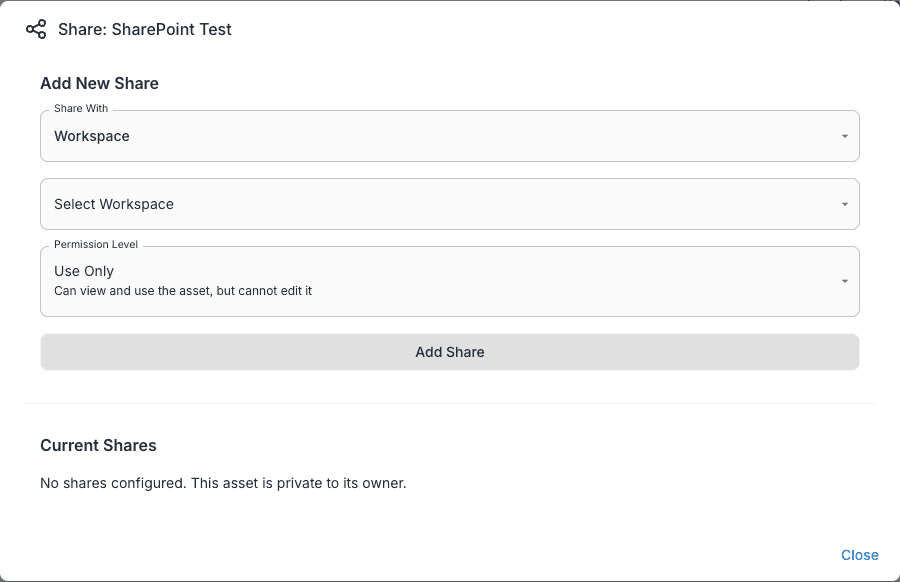
The dialog has two main sections:
Add New Share
- Share With — dropdown:
WorkspaceorOrganisation(your install may also offerUserfor direct sharing) - Select Workspace — when sharing with a workspace, pick which one
- Permission Level —
Use Only(run/use the asset, but cannot edit),Edit(modify),Admin(full control including re-sharing) - Add Share button to confirm
Current Shares
Lists every share that’s already been configured for this asset, with a Remove action on each.
If no shares have been added, this section reads No shares configured. This asset is private to its owner.
Permission levels
| Level | What recipients can do |
|---|---|
| Use Only | View, run, reference, use in PebbleChat. Cannot edit, delete, or re-share. |
| Edit | Everything in Use Only, plus modify the asset’s configuration |
| Admin | Full control — including changing sharing settings and deleting the asset |
For most sharing scenarios, Use Only is the right choice. Reserve Edit and Admin for trusted collaborators who actually need to maintain the asset.
Making assets discoverable
Sharing controls who can use an asset. Asset discovery controls whether PebbleChat finds it automatically in conversation.
These are two separate decisions:
| Sharing | Discovery | |
|---|---|---|
| Controls | Who can see and use the asset | Whether PebbleChat surfaces it without an explicit reference |
| Configured at | Share dialog (any asset type) | The asset’s configuration → Discovery tab |
| Default | Private | Not discoverable |
| Required for asset discovery in PebbleChat | Asset must at least be shared with the user | Discoverable toggle must be on |
An asset can be shared but not discoverable — users have to know the asset’s name and pick it from the / menu explicitly. An asset can also be shared and discoverable — PebbleChat finds it automatically based on embedding similarity to the user’s message.
Where the Discovery tab lives
For an agentflow, open it from Flows → Agentflows, then choose the canvas Settings gear → Configuration → Discovery tab.
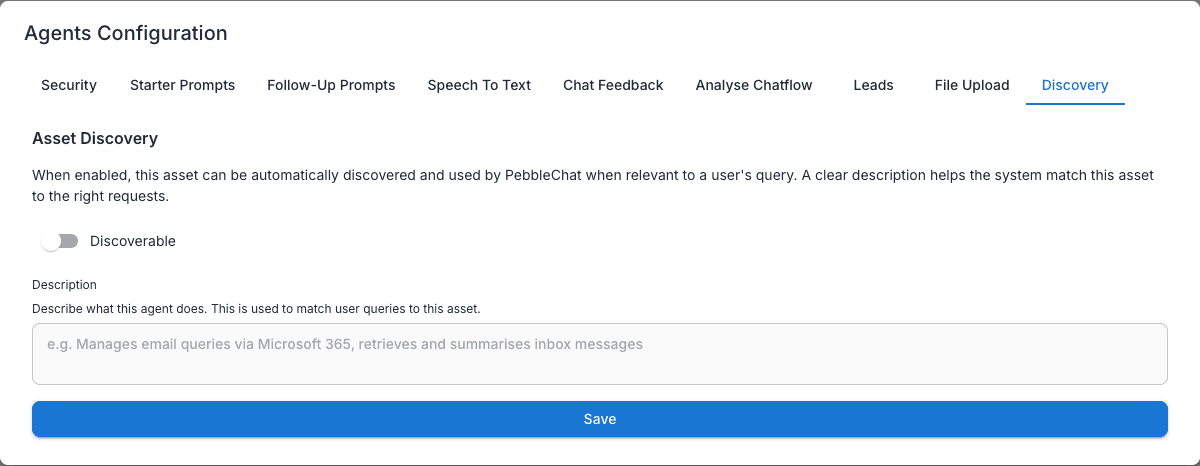
For document stores, the discoverable toggle and description are usually on the document store’s settings card.
What you set on the Discovery tab
- Discoverable toggle — on/off
- Description — a clear, natural-language description that PebbleChat uses to match the asset to user queries. This is the most important field. A good description means PebbleChat finds the asset for the right questions; a bad description means it doesn’t get found, or worse, gets found for the wrong questions.
Step-by-step: making a document store discoverable
- Open the document store in Flows
- Click the gear icon on the card → Configuration → Discovery
- Toggle Discoverable on
- Write a description that explains when the store should be used:
Searches the company HR handbook for questions about leave, benefits,
expenses, performance reviews, and company policies. Best for HR-related
questions from employees. Not for IT, finance, or product questions.- Save
- PebbleChat will now find this store automatically when users ask HR-related questions
What makes a good discoverable description
- Specific — list the topics it covers
- Time-bounded if relevant — “covers leave policies as of 2026”
- Scope-bounded — “for employees, not contractors”
- Counter-bounded — list things it does not cover, to prevent false positives
- Phrased from the user’s perspective — “questions about leave” not “leave entitlement metadata”
Step-by-step: sharing a chatflow with another workspace
- In Flows, open the chatflow
- Click the share icon
- Pick Share With: Workspace
- Select the destination workspace
- Pick Permission Level: Use Only
- Click Add Share
- Optionally also enable Discoverable on the chatflow’s configuration
- Tell the recipient workspace’s users — they’ll see the chatflow in their
@-mention list immediately
Sharing and credentials
A subtle gotcha: sharing an asset doesn’t share its underlying credentials.
If your chatflow uses an OpenAI credential at workspace scope, and you share the chatflow into another workspace, that other workspace can’t actually run the flow until they have their own credential — or until you provide an organisation-scope credential that all workspaces can see.
For shared assets that need credentials:
- Make sure the credential is at organisation scope in Credentials
- Or add a workspace-scoped credential in each destination workspace
- Or use a credential the recipient can supply themselves (rare for production flows)
Removing a share
In the Share dialog’s Current Shares section, click the Remove action on any row. The recipient loses access immediately — they no longer see the asset, and any in-flight references to it will fail.
Removing a share doesn’t delete the asset — it just revokes the sharing relationship. The asset remains in the original owner’s workspace.
Tips
- Default to Use Only. Reserve Edit and Admin for collaborators who genuinely need to maintain the asset.
- Always set a description when making something discoverable. The description is the signal PebbleChat uses to decide if the asset is relevant.
- Iterate on descriptions. Start with a draft, see whether PebbleChat finds the asset for the right questions in real conversations, refine.
- Combine with explicit references. Shared assets can still be picked from the
/menu even if not discoverable. Discovery is the autopilot; the explicit reference is the override. - Audit discoverable assets quarterly. As your organisation grows, the discoverable pool grows too. Cull stale assets to keep discovery accurate.
Why there isn’t a single “Asset Sharing” admin page
Sharing decisions are made by the owner of each asset, not a central admin. This is intentional:
- Owners know their assets best — they’re the right people to decide who can use them
- Centralised sharing creates a bottleneck (every share request goes through admin)
- Per-asset sharing lets teams self-organise without admin involvement
Admins still have leverage: they control which credentials are organisation-scope (which limits what flows can be shared usefully), and they control the Roles that determine who can share at all.
Related
- PebbleChat → @Mentions & Tools — how users invoke shared and discovered assets
- Capabilities — provisioning organisation-level capabilities (different from per-asset sharing)
- Credentials — make credentials organisation-scope so shared assets can run
- Configuration → Roles — control who can share assets in the first place
- Flows — where all the assets being shared actually live