Model Selection
PebbleChat lets you choose which AI model handles your message — including an Auto option that picks the best one for you automatically.
The model selector sits in the composer, to the left of the Send button.
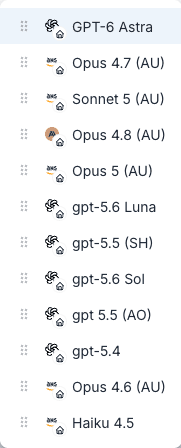
Auto — intelligent routing
Auto is the default choice and, for most users, the right one to leave selected. When you pick Auto, your message is sent to PebbleRouter — your organisation’s routing gateway — which decides which actual model to use based on:
- Capability — does the task need deep reasoning, or just a quick answer?
- Cost — cheaper models handle simpler questions; expensive models are saved for hard ones
- Availability — if one model is rate-limited or slow, routing fails over to another
- Context size — long conversations are routed to models with large context windows
- Your organisation’s routing profile — admins configure default routing strategies in Admin → PebbleRouter
The advantage of Auto is that you don’t have to think about it. The advantage of picking a specific model is that you get deterministic behaviour — the same model every time, regardless of what PebbleRouter might have preferred.
Why AWS Bedrock is often the default
In most PebbleAI installations (including the demo), the primary model provider is AWS Bedrock. Bedrock gives you access to Claude (Anthropic), Llama (Meta), Mistral, Cohere, Nova (Amazon), and other models, all running inside your AWS account — which has real benefits:
- Data residency — Bedrock traffic stays in the AWS region you configured (e.g.
ap-southeast-2for Australia), never leaving that region - Contractual coverage — Your existing AWS agreement typically covers Bedrock usage, no separate vendor contract needed
- Compliance — Bedrock is a strong fit for IRAP PROTECTED, SOC 2, HIPAA and similar regimes
- Unified billing — Bedrock charges appear on your AWS bill rather than a third-party invoice
That’s why the model selector in a typical PebbleAI install is dominated by Bedrock-hosted Claude models — Opus, Sonnet, Haiku — rather than direct Anthropic or OpenAI calls. Your organisation may also connect direct OpenAI, Google, or other providers if the use case requires it.
Switching model mid-conversation
You can change model at any time during a chat — between messages, not mid-stream. Simply pick a different model from the dropdown and send your next message. The full conversation history goes with the new model, so you don’t lose context.
Common reasons to switch:
- Started with Haiku for speed, need to switch to Opus for a hard question — common pattern, great use of the cost-latency tradeoff
- Comparing responses — ask the same question twice with different models, compare the output
- Fallback when Auto picks wrong — if routing produced an unsatisfying response, manually switch to a specific model and retry
Browsing available models
Click the model selector to open the dropdown. You’ll see:
- Auto at the top (if PebbleRouter is configured)
- Your enabled models, grouped by provider where applicable
- Each model shows its sharing scope —
Organizationmeans it’s available to everyone in your org,Personalmeans only you enabled it
If you don’t see a model you expected:
- Check User Settings → Models — your organisation may have shared it but you haven’t enabled it for your personal selector yet
- If the model isn’t in Settings → Models either, ask your organisation admin to provision it at Admin → Models
Enabling new models
Enabling a model for your personal selector is a one-click action:
- Go to Settings → Models
- Click Enable Model
- Pick the model from the list of models your organisation has shared
- It now appears in the PebbleChat model selector
There’s no restart or re-login required — the new model is available on your next message.
What the model name tells you
Model names in PebbleAI try to be self-describing. A typical name looks like:
au.anthropic.claude-opus-4-6-v1 - OrganizationDecoding:
au— AWS region (Australia)anthropic.claude-opus-4-6-v1— the model identifier as Bedrock knows itOrganization— sharing scope; this model is shared to your whole org
Shorter names like Claude 4.5 Haiku - Organization are friendly labels configured by your admin.
”No Models Available”
If your model selector shows “No Models Available”, one of these is wrong:
- Your organisation hasn’t shared any models with you yet
- The shared models have an invalid or expired credential
- Your personal enablement list is empty
Walk through the User Settings → Models troubleshooting section first, then escalate to your admin.
Related
- User Settings → Models — enable models for your account
- Admin → Models — how admins share models to the organisation
- Admin → PebbleRouter — how the Auto routing rules are configured