Messages & Responses
This page covers everything about the messages themselves — how PebbleChat thinks before it answers, how it streams its response in real time, how to export results, and how to iterate when the first answer isn’t quite right.
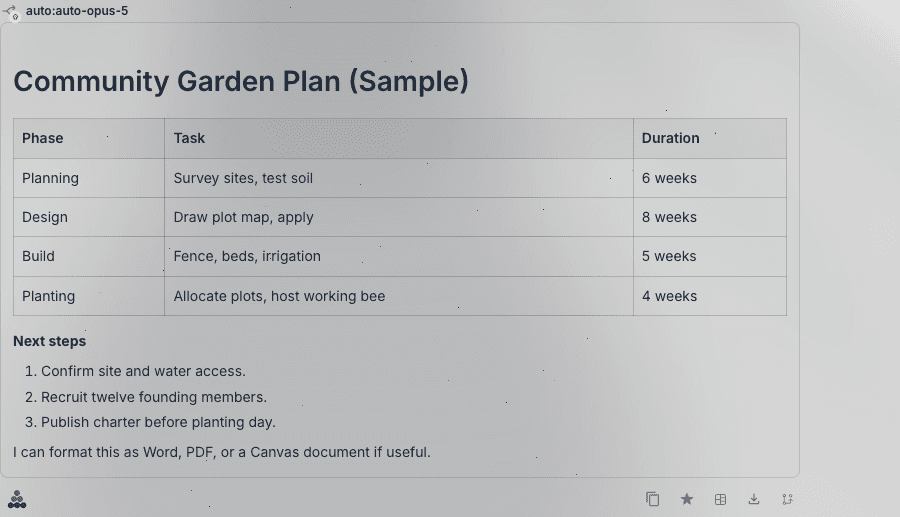
How PebbleChat produces a response
When you send a message, PebbleChat doesn’t just feed your prompt to a model and stream back the output. It goes through several phases you can watch happen in real time:
- Planning — the model thinks about how to approach your request. For reasoning-capable models (Claude Opus, o1, etc.) you can expand this into a full reasoning trace.
- Research / Tool use — if the task benefits from fresh data, PebbleChat runs web searches, calls MCP tools, queries document stores, or invokes mentioned flows. This happens inside the Activity Stream (see below).
- Finalising — PebbleChat synthesises everything it gathered into a single cohesive response.
- Response — the final answer streams in as formatted markdown.
You see all four phases play out on screen. The Advanced Features page covers the Activity Stream and thinking panels in depth.
Watching the model think
For complex tasks, PebbleChat shows a Research & Tools activity banner above the final response. Expand it and you’ll see:
- Each research step the model took (web search queries, tool calls, document lookups)
- The sources it consulted — clickable links to what it found
- Asset discovery hits — any flows, agents, or document stores PebbleChat pulled in automatically
- Per-step timing — how long each phase took
For reasoning-capable models, PebbleChat also shows a Thinking panel with the model’s chain-of-thought reasoning before the final answer. This is surfaced automatically for models that support extended thinking; you don’t need to configure it.
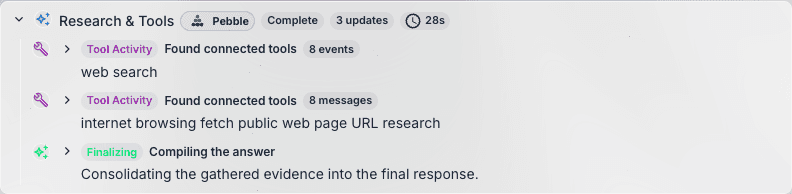
Why this matters:
- You can catch reasoning errors early — if the model is about to go down a wrong path, you’ll see it in the plan before the final answer is committed
- You see what sources were consulted — critical for trusting the response on research-heavy tasks
- You learn how the model approaches things — useful for prompt engineering and for coaching it next time
Activity Stream collapses automatically once the response is complete, with a summary at the top you can re-expand any time.
Real-time markdown streaming
Responses render progressively as markdown while they stream. You don’t have to wait for the whole response to arrive before you can start reading — headings, bullet lists, tables, code blocks and links all appear as they’re generated.
Features you’ll see streaming live:
- Formatted headings and nested lists
- Tables with full borders and alignment
- Code blocks with syntax highlighting (a copy button appears on each block when complete)
- Inline links to sources
- Bold, italics, blockquotes
- LaTeX for mathematical expressions (when the model produces it)
Auto-scroll keeps the latest content in view. If you scroll up to read something, auto-scroll pauses so you aren’t yanked back down — scroll to the bottom yourself when you’re ready.
The answer comes before the file
When a request produces a document — a report, a spreadsheet, a deck — PebbleChat streams the substantive answer first and builds the file afterwards. You’re never left watching a progress bar to find out what the answer was.
Two related guarantees:
- Only the formats you asked for. Ask for “a Word document” and you get exactly one
.docx— not a PDF-and-Word-and-Markdown pile. Ask for nothing in particular and you get the answer in chat, with a one-line offer to produce a file if you want one. - Everything the turn produced is attached to the message. Generated files appear as thumbnail tiles, and any canvas opened during the turn leaves a chip in the same row — click to reopen it, right-click for Open in Canvas, Open in browser, Download, Show in files, or Chat About. See File Attachments for the full attachment tour.
Long conversations load as you scroll
Reopening a long conversation loads the newest messages first. Scroll toward the top and older pages load automatically — or click Load older messages yourself. Messages paged in behave exactly like the rest: searchable, quotable, and included when you recall your earlier prompts with the up arrow.
If a send happens mid-response
You don’t have to wait for a response to finish before sending your next message — it joins a small visible queue above the composer and runs in order. Queued items can be removed, or steered into the running response when you’d rather redirect Pebble than wait. In shared conversations everyone’s queued turns appear together — see Projects & Collaboration.
And if a response fails mid-stream — a network drop, a model error — you get a Chat response failed alert with a Retry button rather than a silently broken turn. Retrying resumes without re-running work that already completed.
Interactive components in responses
Some answers come back as more than text. When an assistant returns a rich interface — a form to fill in, a card, or charts — PebbleChat renders it as a live, interactive component inside the message rather than showing you raw data. A response containing several charts renders each one in place, exactly where it belongs in the answer.
While a component assembles, a short animated placeholder appears in the message (with a label along the lines of “Building interface…”); it’s replaced by the finished component as soon as it’s ready.
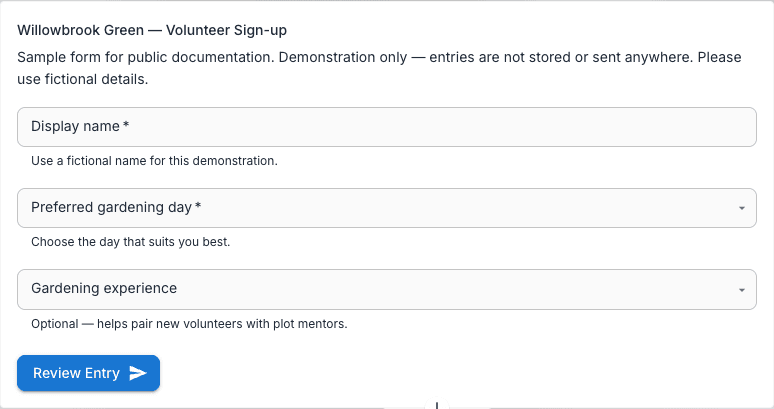
PebbleChat can also generate images and show them inline in the response — see Image Generation.
Stopping a response mid-stream
If a response is going in the wrong direction, click Stop (replaces the Send button while a response is streaming). The response halts at whatever it had produced so far, and you can:
- Edit your prompt and resend
- Start a new sibling message without the partial response affecting context
- Leave it as-is if the partial output is useful
Message actions
Hover any AI response (or your own message) and a set of action icons appears:
| Icon | Action |
|---|---|
| Copy | Copy the full message or response text (markdown preserved) to your clipboard |
| Save as prompt | Turn your message into a reusable prompt in your library |
| Open response in Canvas | Turn the response into a Text/Markdown canvas you can edit and co-author |
| Export response | Open the export menu |
| Fork conversation | Branch a copy of the conversation from this point |
| Edit | On your own messages only — edit and resend. The old version is replaced and PebbleChat generates a new response |
| Retry | On AI responses only — regenerate the response. The model re-runs with the same prompt and may produce a different answer |
The transcript also has a right-click menu: over selected text it offers Copy; over a link, Open link and Copy link; and anywhere else, conversation-level actions — Chat Info, New Chat, Add User, Chat link, and the owner’s audience controls (Lock Room, Make Private).
Exporting a response
PebbleChat can export any response into several document formats. Click the export icon and choose:
| Format | What you get |
|---|---|
| Styled document with headings, tables, lists, and code blocks preserved. Includes a “Prepared with help from Pebble AI” footer. | |
| Word (.docx) | Editable document you can continue working on in Microsoft Word, Google Docs, or Pages |
| Opens your default mail client with the response pre-populated | |
| Markdown | Raw markdown source — useful for pasting into GitHub issues, Notion pages, or other markdown-aware tools |
| HTML | Styled HTML suitable for a web page, intranet post, or CMS |
| Plain text | No formatting — just the text |
Note on complex content: Charts, rich Crayon components, and some interactive visualisations can’t be faithfully rendered in every export format. Tables and text always export cleanly. Check the exported document before sharing.
Exports include the message body only — by default they don’t include the conversation context, your original prompt, or the activity stream. This keeps exports clean for sharing.
How to formulate good messages
A few patterns that produce noticeably better responses:
Be specific about the output shape
Vague: “Help me with the pricing page” Better: “Rewrite the pricing page copy in a more confident tone. Keep the existing three-tier structure, but update the value propositions to emphasise time saved rather than features.”
Include your role and the audience
Vague: “Explain OAuth” Better: “I’m briefing a non-technical product manager on why we need to upgrade from OAuth 2.0 to OIDC. Give me a 3-paragraph explanation focused on user experience and risk, not cryptographic details.”
Show what you’ve already tried
Vague: “The query is slow” Better: “I have a Postgres query joining three tables, 10M rows. Current execution time is 8 seconds. I’ve added indexes on the join columns and run ANALYZE. What should I investigate next?”
Ask for structured output when it helps
“Respond as a table with columns: Problem, Impact, Recommendation” “Give me 5 bullet points, each with a heading in bold and a one-sentence explanation” “Return a JSON object with keys: summary, risks, next_steps”
Referring to past messages
You can scroll back to any earlier message in the conversation to re-read it. Clicking an earlier message doesn’t “rewind” the conversation — it just shows you that message. The model still has the full conversation context when you send your next prompt.
To actually branch a conversation from an earlier point — keeping everything up to that point but abandoning the later exchanges — edit the earlier message and resend. PebbleChat treats the edit as a new branch and re-runs from that point.
Iterating on a response
Common patterns for refining:
- “Make it shorter” — usually works in one step
- “Rewrite that in a more formal tone” — tone adjustments are a strength
- “Explain your reasoning for point 3” — drilling deeper into a specific part
- “Give me three alternatives” — asking for options instead of a single answer
- “That’s wrong because X — try again” — corrections with a reason work better than just “wrong”
- “Format that as a table” — post-hoc formatting adjustments
What PebbleChat does not have
A common question: “Where’s the thumbs up / thumbs down?”
PebbleChat does not have per-message thumbs-up / thumbs-down feedback today. What it has instead is the Submit Feedback modal in the help menu, which is draggable, supports screenshots, and is wired to a Jira ticket the engineering team triages.
If a response is wrong, worth correcting, or worth celebrating — use Submit Feedback. It gives the team much more actionable information than a thumbs rating.
Related
- Advanced Features — Activity Stream, thinking panels, and the context window indicator in depth
- Capabilities & Context — how the research phase uses your org’s flows and document stores
- File Attachments — the thumbnails and actions on files a response produces
- Model Selection — how picking a different model changes the thinking/response behaviour