Getting Started with PebbleChat
This page walks through the PebbleChat interface element by element, then takes you through your first real conversation. If you know your way around and just want to start chatting, skip to Your first conversation.
Opening PebbleChat
Click Pebble Chat at the top of the sidebar — it’s the first item. That’s it: you land directly in the chat, ready to type. In fact, PebbleChat is the home page — opening Pebble at its root address puts you straight into a new chat.
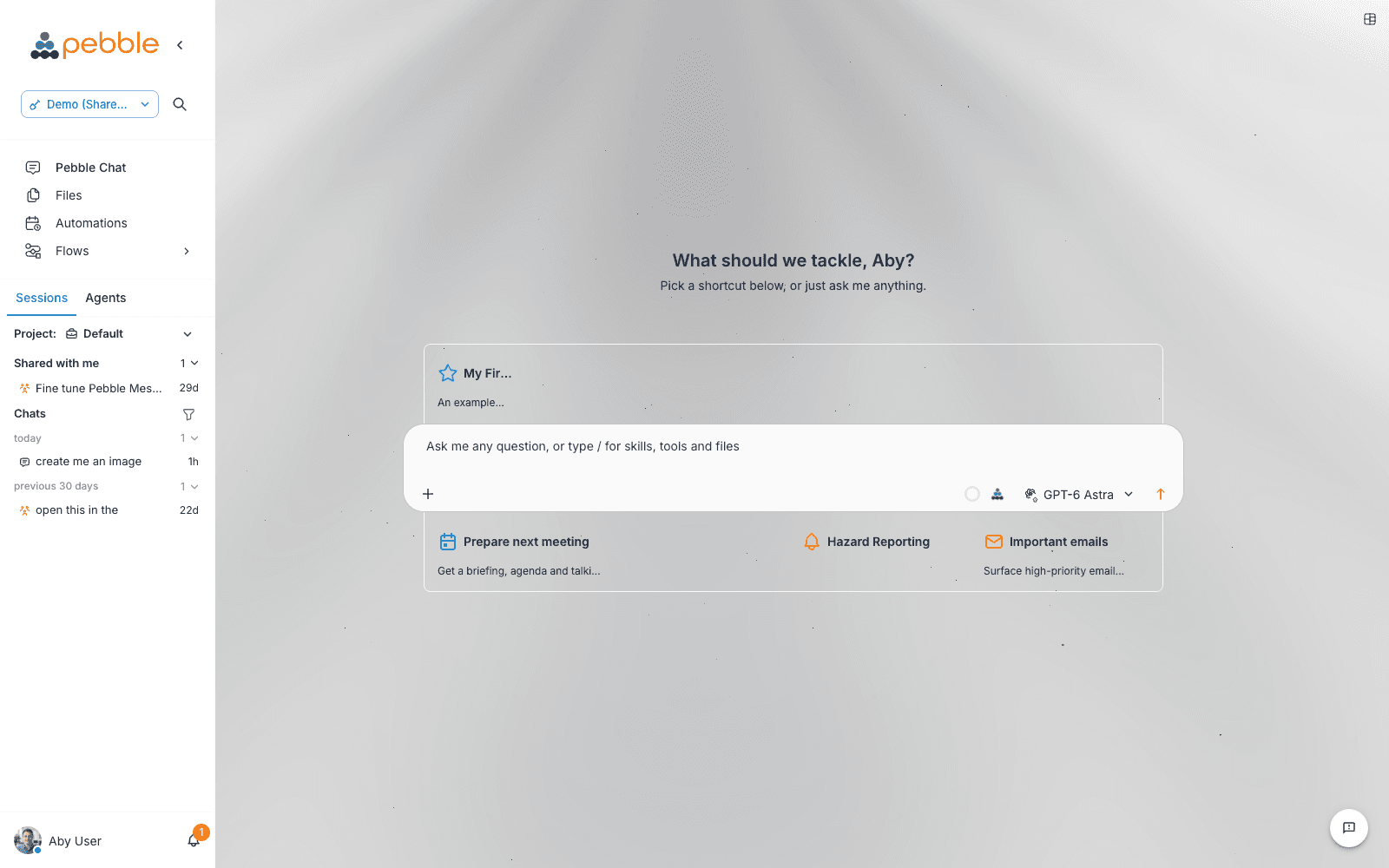
Interface tour
Everything in Pebble lives in one sidebar — there’s no top bar, and no second panel beside the chat. The screen has three areas:
1. The sidebar (left)
One rail carries the whole app, top to bottom:
- Workspace — the workspace switcher and a magnifier that searches the whole workspace (chats, files, flows)
- Navigation — Pebble Chat, Files, Automations, Flows
- Your chat history — the current project’s conversations, with search, pins, and anything shared with you (full tour)
- You — your avatar, bottom-left: profile, settings, appearance, help, and sign out
Hover any navigation item for a plain-language description of what it does. The sidebar collapses to icons and stretches to the width you like — Pebble remembers. See The Pebble Interface for the full shell tour.
2. Main chat area (centre)
Empty when you arrive (the “landing” view), populated as soon as you send your first message.
On the landing view you’ll see:
- A personalised greeting (“What should we tackle, Aby?”) with the invitation to pick a shortcut or just ask
- Your shortcut tiles — personal and organisation-curated launchers for your most-used prompts, apps and links
Clicking a prompt shortcut runs it immediately — it’s the same as typing the prompt yourself and hitting Send. Shortcuts are how you discover what PebbleChat is best at in your organisation, and how you get back into recurring work with one click. See Shortcuts & Prompts for the full picture.
3. The composer (bottom)
This is where you type — deliberately calm: one + button rather than a toolbar of icons.
- Text input — plain text, rich formatting, and the two menus: type
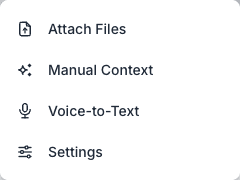
/to bring in capabilities and context,@to mention and share with people (details). Paste freely — long pastes are accepted as-is, blank lines included. The up arrow recalls your earlier prompts. - The + button — everything else lives here, each item explained on hover:
- Attach Files — from your machine, your Pebble file store, or OneDrive
- Manual Context — the same menu as typing
/ - Voice-to-Text — dictation (Voice)
- Reasoning Slider — how hard the model thinks before answering, from quick to deep, or Auto
- Settings — per-chat behaviour: sound, background processing, history handling, capabilities
- Microphone — start and stop voice input; right-click it for microphone and hotkey settings
- Model selector — which AI model to use. Defaults to Auto (intelligent routing via PebbleRouter) or your last-used model
- Send — or press Enter
Around the composer: your shortcut trays — My Shortcuts attached to the composer’s top edge and Org Shortcuts below it.
Your first conversation
The best way to learn PebbleChat is to ask it something interesting. Try any of these:
Work-focused prompts
What are the top three risks in rolling out a new CRM to a 500-person sales team, and what should we do about each of them?Draft a polite but firm reply to a client who has missed three project check-ins in a row. Keep it under 120 words.Compare the pricing of GPT-4o, Claude Opus, and Gemini Ultra for a use case that sends 10 million tokens per month, and recommend one.Research-focused prompts (will trigger web search)
What are the latest Anthropic Claude releases in 2026? Summarise the top three with dates.What's the current state of Australia's electric vehicle market compared to other OECD countries? Include sources.Task-focused prompts (great for seeing the Activity Stream)
I need to write a project brief for migrating our file shares to SharePoint. Outline the sections, draft the introduction, and list the three most important risks.I'm presenting to the board on Thursday about AI adoption. Produce a 5-slide outline with talking points for each slide.What happens next
- Press Enter or click Send
- PebbleChat starts working — you’ll see an Activity Stream banner showing the phases (Planning, Web Search, Tool Use, Finalising) when the query needs research or tool calls
- The response streams in progressively with markdown rendering as it arrives — headings, lists, tables, code blocks all appear before the response is finished. If your request produces a document, the answer streams first and the file follows
- When complete, message actions appear: copy, save as prompt, open in Canvas, export, fork, edit, retry
Tips for effective prompts
- Be specific about format. “List 5 bullet points” or “write a two-paragraph email” produces more focused output than “help me write”.
- Include your context. “I’m a marketing analyst at a B2B SaaS company” at the start of a session gives everything that follows a relevant framing.
- Ask follow-ups. Don’t start over — PebbleChat remembers the full conversation. Refine, push back, and explore rather than re-prompting from scratch.
- Experiment with models. The same prompt often produces noticeably different responses on Opus, Sonnet, and Haiku. Try the model selector.
- Save the good prompts. If a prompt works well, save it with Save as prompt on the message and pin it as a shortcut — or ask your admin to publish it to the whole team’s tray.
Going deeper — prompt engineering guides
Prompts in PebbleChat work the same way as prompts direct to the model, so the best advice lives at the labs themselves. Each guide has a slightly different voice and covers different patterns — if you’re using a specific model family, start with the matching guide:
- OpenAI — Best practices for prompt engineering — concrete do’s and don’ts, clear examples.
- Anthropic — Claude prompting best practices — XML tags, role prompting, and Claude-specific structure patterns.
- Google — Gemini prompting strategies — prompt design, few-shot examples, and iteration techniques.
On top of what those guides cover, PebbleChat gives you four ways to get leverage without longer prompts:
- Skills — if the same shape of request comes up often, a skill encodes the instructions once and reuses them. Shorter prompts, more consistent output.
- The / menu — instead of pasting content or explaining where something lives, reference the flow, document store, or past chat directly.
- Ambient Context — persistent instructions you always want followed (tone, timezone, terminology). Set it once instead of typing it at the top of every session.
- Memory — PebbleChat remembers facts and preferences across conversations. You don’t need to re-explain your role, project, or team every time.
Where to next
- Model Selection — how Auto routing works and when to pick a specific model
- Capabilities & Context — how to reference your organisation’s flows and document stores
- The Pebble Interface — the sidebar, the tour, and where everything lives
- Advanced Features — background chat, activity stream details, reasoning panels