Conversations & History
PebbleChat keeps every conversation you’ve had, organised by project. Your chat history lives right in Pebble’s sidebar, beneath the navigation — it’s where you find conversations, search them, pin them, share them, and pick up where you left off. It follows you to every page, and switching project switches the whole list with you.
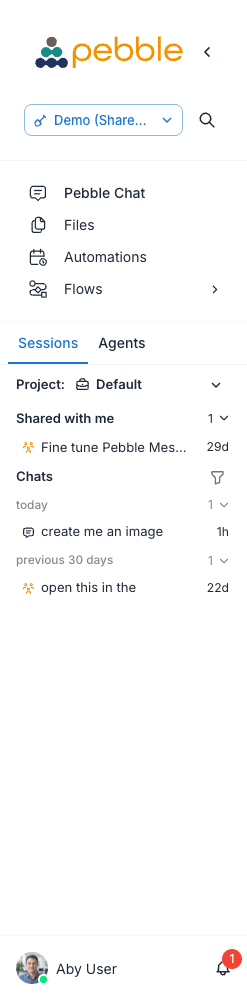
What the history shows
From top to bottom:
- Search Chats — live-filters your conversations, with a Filter chats button beside it to narrow by type: Standard, LiveApps, Tasks, Flows, or All
- Project: row — the project switcher; its menu also offers Manage projects
- Current conversation — the chat you’re in now
- Pinned — the project’s pinned chats (collapsible, with a count)
- Shared with me — conversations colleagues have shared directly with you (collapsible, with a count)
- Chats — the selected project’s conversations, grouped by date: today, yesterday, previous 7 days, previous 30 days, older
Clicking any row loads that conversation. The model, references, attached files, and per-chat settings all come back with it — you can continue as if you never left. Long lists offer Show more / Show less, and hovering a row shows its full title.
If the sidebar is collapsed to icons, the Chat history icon opens the same list as a popover.
Chats are organised by project
Every conversation belongs to a project, and the history only ever shows one project at a time — there are no nested folders to dig through. Use the Project: switcher to change context: your chat list, pinned chats, tasks and runs all follow the selected project.
The workspace switcher at the top of the sidebar switches the outer context; the project switcher here refines it.
See Projects for creating and managing projects, members and roles — and for everything about shared conversations.
Pinned chats
Pin the conversations a project keeps coming back to — the brief, the kickoff thread, the recurring report:
- Hover a conversation row
- Click the pin icon (or open the row’s Chat options menu and choose Pin chat)
- The chat moves into the Pinned section
Unpin the same way — the icon and menu item become Unpin chat.
Pins are shared. When one project member pins a conversation, other members of that project see it pinned too and can open it. Unpinned chats remain private to their owner — pinning is how a chat becomes project-visible.
Shared with me
When a colleague shares a conversation with you directly — by mentioning you with @ or using Share with… — it appears in your Shared with me section, and you’re notified (“Invited to …” with an Open conversation button). Chats shared with a whole project don’t go here: they simply appear in that project’s Chats list for every member. See Projects & Collaboration for the full sharing model.
Recognising conversation types
Each row carries a small icon telling you where the conversation came from:
- Speech bubble — a normal chat you started
- Group icon — a shared conversation
- Clipboard — a conversation created by a task run
- Flow icon — a conversation created by a flow run; these are titled after the flow (e.g. Flow - Weekly Digest) until you rename them
- Spinner — a chat still streaming (see below)
Auto-generated titles
When you send your first message in a new chat, PebbleChat automatically generates a title for it from the content. If your first message is “What’s the best way to migrate from SharePoint 2013 to SharePoint Online?”, you might end up with a title like “SharePoint 2013 to Online migration”.
Auto-titles are usually good enough, but you can rename any conversation manually — see below.
Background chat indicators
If a conversation is still running on the server (because you enabled Background processing in the chat settings and then navigated away), the sidebar row shows an animated spinner icon next to its title.
This is one of the most useful signals in the sidebar. At a glance you can see:
- Which research queries are still in flight
- Whether that agent task you started 10 minutes ago has finished
- When the background chat finishes or fails, the spinner clears
Click a row with a spinner to jump to the in-progress conversation and watch it stream in real time.
When a background chat completes, the spinner disappears, the conversation is marked as finished, and (if you have background alerts enabled) a notification fires. See Notifications and Advanced Features → Background Chat.
The Chat options menu
Hover a row and click the three-dot Chat options button. Depending on your access to the chat, it offers:
- Pin chat / Unpin chat
- Rename
- Share with… — share the conversation with a colleague or its project (details)
- Fork chat — branch a copy to explore a different direction
- Export chat… — Markdown (.md), PDF (.pdf), or Word (.docx)
- Save Learnings to Memory — distil the conversation into your memory
- Delete
Step-by-step: searching for a past conversation
- Click in the Search Chats box at the top of the history
- Type any term — it matches against conversation titles and, where supported, the message content inside conversations
- Matching rows appear; everything else is hidden
- Clear the search to see the full list again
Works well for questions like:
- “What did I ask about Q4 budget last week?”
- “Where’s that prompt I used for drafting customer apologies?”
- “When did I last talk to PebbleChat about the Acme integration?”
There’s also a workspace-wide search — the magnifier at the top of the sidebar (Search workspace) finds chats, files and flows across the whole workspace, not just this project’s history.
Step-by-step: deleting a conversation
- Hover the row and click the three-dot Chat options button
- Choose Delete
- Confirm in the Delete chat dialog
Deletion is permanent. PebbleChat does not keep a Trash or Deleted folder. If you delete a conversation you can’t get it back. If in doubt, rename it instead.
Deleting or clearing chats no longer deletes the execution records behind running or completed flows — flow progress and history remain available from the Flows Executions screen, where executions are deleted explicitly.
Resuming a conversation
Click any conversation row. The main chat area reloads with the full history — every message, every attachment, every tool call, every activity-stream step — just as it was. Type into the composer and you continue from where you left off.
Context is preserved end-to-end: if the model remembered something you said in message #3, it’ll still remember in message #50. Very long conversations load their newest messages first and fetch older ones as you scroll up — see Messages & Responses.
Starting a new chat
- Type
/newin the composer (or/newchat,/fresh,/reset) — see Commands - With the sidebar collapsed, hover the Pebble Chat icon — it becomes a New Chat button
- Right-click anywhere in a conversation and choose New Chat
A new chat greets you by name and drops you straight into the composer — and if you’d typed a draft into a previous unsent chat, it’s still there when you go back.
Tips
- Start new chats for new topics. Long sprawling conversations are harder for the model to keep coherent. Start fresh for a new topic and let the context window stay focused.
- Pin what the team needs. Pinned chats are shared with the project, so pin the brief or the reference thread instead of expecting everyone to search for it.
- Switch project before you search. The history shows one project at a time — if a chat seems to have vanished, check the Project: switcher first, or use the filter (it may be filtered to a type).
- Use background processing for long research. Kick it off, navigate away, do something else, come back to the spinner. Huge productivity win — see Advanced Features → Background Chat.
- Past Chats as context. You can reference a past conversation from the
/menu to pull it into a new one — see Capabilities & Context.