Notifications
The bell icon beside your avatar at the bottom-left of the sidebar is your notification centre. It shows a count of unread items and opens a fly-out listing everything that has happened recently that might need your attention.
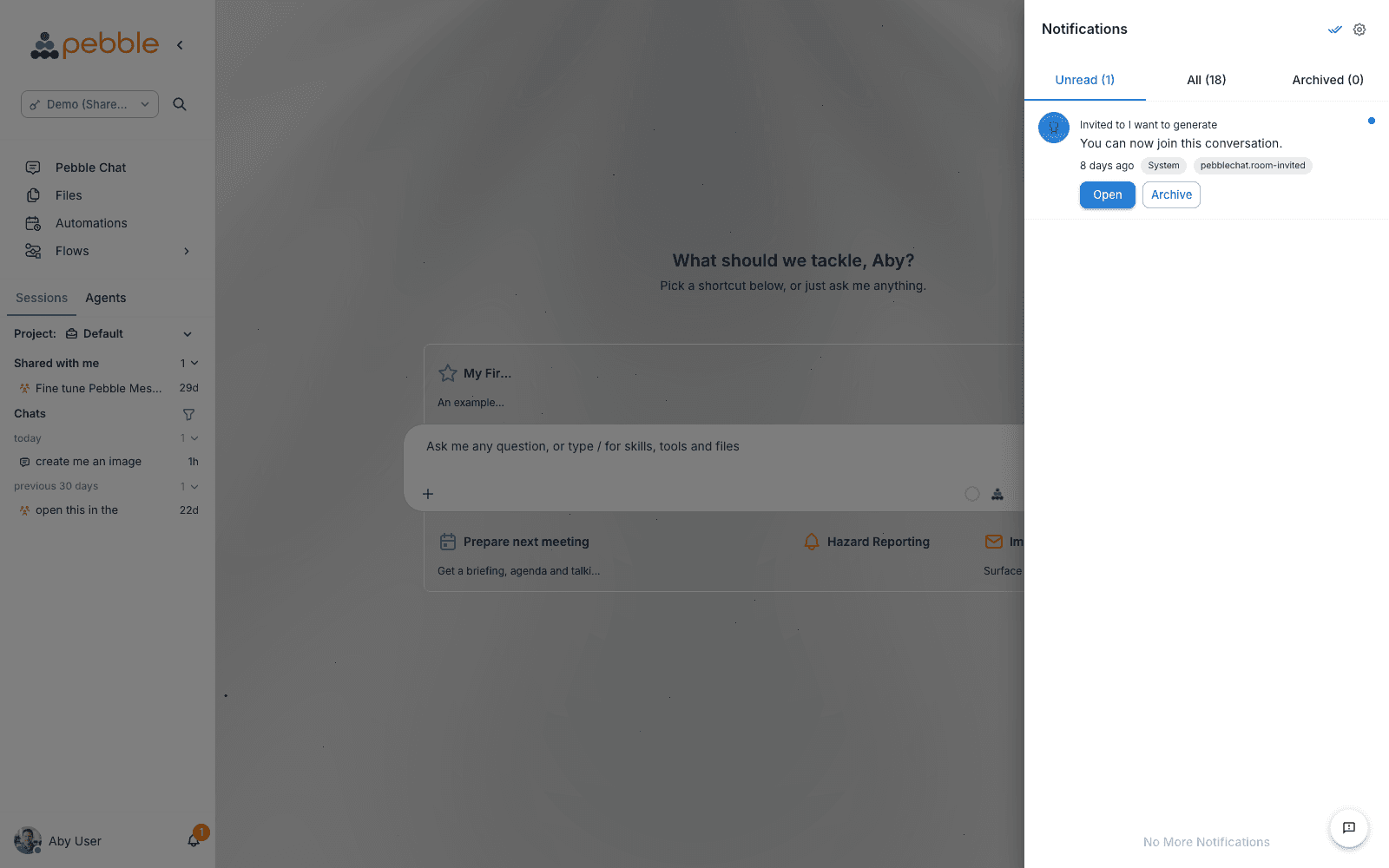
What triggers a notification
| Type | When it fires |
|---|---|
| Background chat complete | A PebbleChat conversation you left running in the background has finished. Clicking the notification jumps you directly to the completed conversation. |
| Background chat failed | A background chat could not complete — usually a credential or tool issue. |
| Shared asset | Someone in your organisation shared a flow, document store, or tool with you or your workspace. |
| Invitation accepted | Someone you invited to the organisation accepted their invite. (Admins only.) |
| System announcements | Platform-wide messages from your platform administrator — maintenance windows, new features, policy updates. |
Reading and clearing notifications
- Click the bell to open the fly-out
- Click any item to jump to the relevant screen
- Items marked as read disappear from the unread count but remain in the list until dismissed
Background chat notifications
Background chat is a feature of PebbleChat: when a long-running response is streaming, you can navigate away and it will continue on the server. When it finishes, PebbleAI fires a notification.
Open + → Settings in the PebbleChat composer to configure completion notifications. These preferences are saved to your account and apply across conversations:
- Chime — play a sound when the response finishes
- Alerts — surface a notification (and optional desktop notification) when the background chat completes
Background processing is always enabled; there is no separate switch to turn it on.
For the full background chat workflow, see PebbleChat → Advanced Features → Background Chat.
Browser notifications
PebbleAI can surface background chat completion as a native browser notification. Your browser will prompt you for permission the first time a notification is fired. If you previously declined, you can re-enable it from your browser’s site settings.
Troubleshooting
“I’m not getting any notifications”
- Confirm your browser has notification permission for demo.pebblecloud.io (or your instance’s domain)
- Confirm Alerts is enabled in the composer’s + → Settings menu
- Check that the notification fly-out doesn’t have unread items you’ve already seen in-app — the count resets when you open the fly-out
“I’m getting too many notifications”
- Disable Chime in the composer’s + → Settings menu if audio is distracting
- Disable Alerts when you don’t need completion notifications