User Management
The Users page under Admin → Organisation → Settings is where you invite people to your PebbleAI organisation, assign them roles, and manage their accounts.
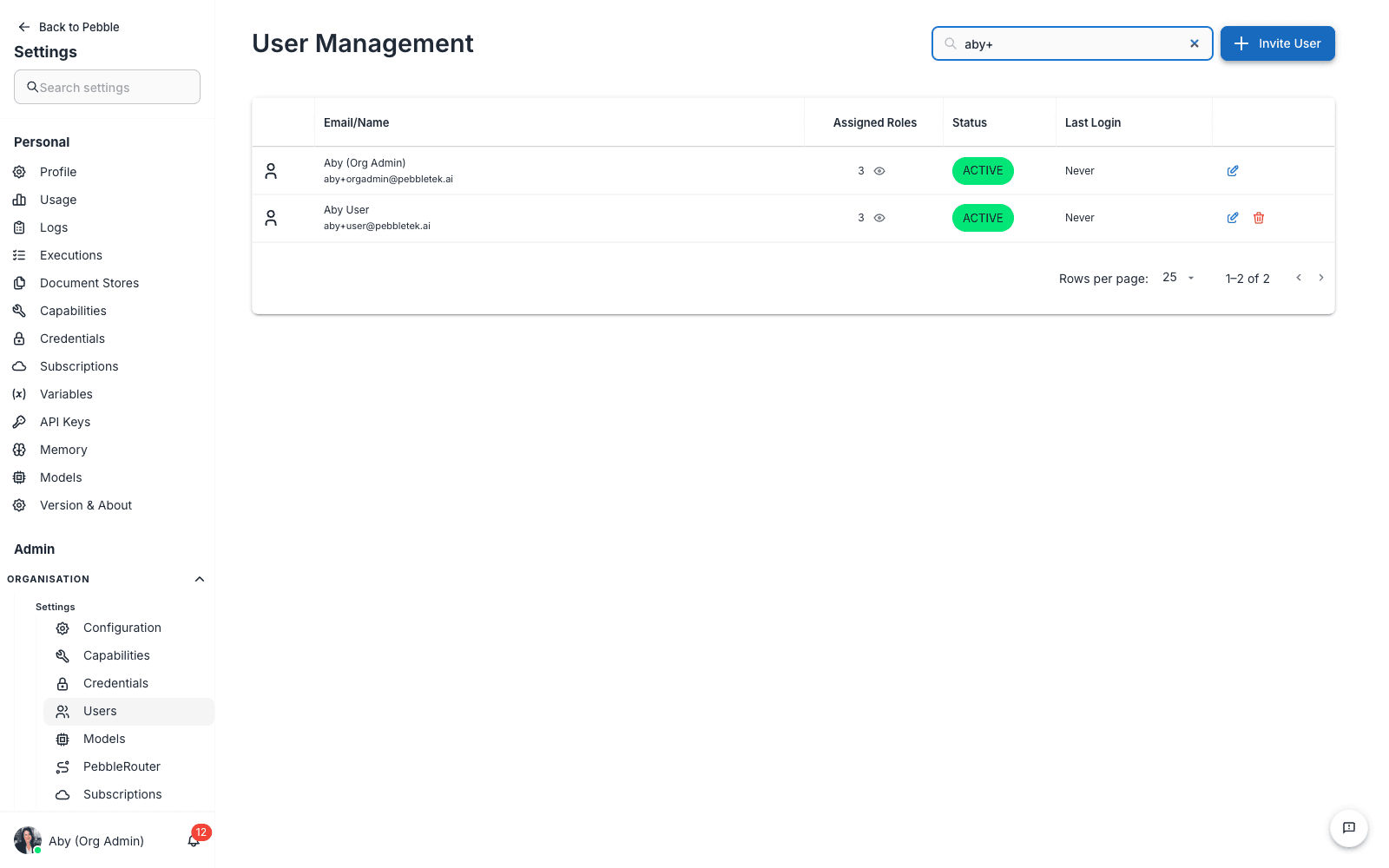
Find it at Admin → Organisation → Settings → Users.
What you see
A table of every user in your organisation, with columns:
| Column | What it shows |
|---|---|
| Email/Name | The user’s name and primary email |
| Assigned Roles | The number of assigned roles; use the eye icon to view them. Roles come from the Roles configuration (e.g. editor, admin) |
| Status | Active, Invited (not yet accepted), Deactivated |
| Last Login | When this user last signed in |
| Actions | Edit, deactivate, or delete |
Inviting users
Click the Invite User button in the top-right to open the invitation dialog.
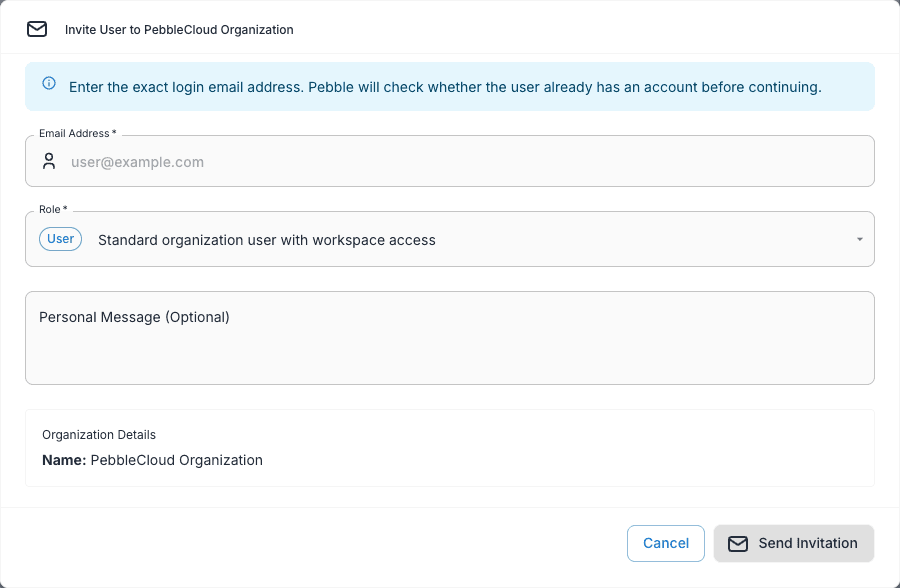
The dialog invites one email address at a time. Enter the exact login email and move out of the field; Pebble checks whether the person already has an account before enabling the next step.
| Field | Purpose |
|---|---|
| Email Address | The person’s login email |
| Role | The organisation role to assign |
| Personal Message (Optional) | A message to include in the invitation email |
| Initial Password (optional) | Appears for an email that does not already have an account. Set a password to create the user without email, or leave it blank to send a registration invitation. |
Inviting someone by email
- Click Invite User
- Enter their Email Address, then wait for the account check
- Pick a Role
- Optionally add a Personal Message
- Leave Initial Password (optional) blank if that field appears
- Click Send Invitation
An existing user signs in with the same email to accept the organisation invitation. A new user follows the registration invitation. The dialog identifies accounts that are already members or already have a pending invitation.
Creating a new account without email
For a new email address, you can set an initial password when email delivery is unavailable:
- Enter the Email Address and wait for the check to confirm that it has no account
- Pick a Role
- Enter an Initial Password (optional) that meets the displayed requirements
- Click Create User
- Share the login details with the person through your secure channel
This creates the user and adds them to the organisation without sending an invitation email. Repeat the process for each new account; this dialog does not accept a list of email addresses.
Editing a user
Click any row in the table to open the user editor. You can change:
- Roles — add or remove roles. Multiple roles allowed.
- Workspace membership — add or remove the user from workspaces
- Password — set a new password (overwrites the current one; user is not notified)
- Status — Active or Deactivated
Deactivating a user
Use the deactivate action when someone leaves the team but you might need their data later (their conversations, their owned flows). Deactivated users:
- Cannot sign in
- Don’t appear in @-mention lists
- Don’t count against your seat limit
- Can be reactivated at any time
Their data and ownership of flows is preserved.
Deleting a user
Use the delete action when you want to fully remove a user. Deletion is permanent — their account, their personal credentials, their personal memories, and their personal API keys are all destroyed.
Things owned by the user (flows, document stores) need to be transferred to another user before deletion, otherwise they become orphaned. The delete dialog walks you through ownership transfer.
Roles
User roles are defined in Configuration → Roles. The default roles are:
- viewer — read-only access to shared assets and PebbleChat
- editor — can create and edit flows, document stores, tools, and use PebbleChat with full capabilities
- admin — full organisation admin access including this page
You can create custom roles in the Roles tab and assign them to users here.
Permissions and scope
User management at this page is organisation-scoped:
- You can see and manage users in your own organisation only
- Users from other organisations or the platform itself are not visible
- Platform admin users (if any) are managed at platform level, not here
Tips
- Default to email invites. They’re more secure (the user picks their own password) and you don’t have to communicate secrets out-of-band.
- Use the bulk password-set flow only when you know what you’re doing — it’s powerful but easy to misuse.
- Audit roles quarterly. Check which users have admin or editor roles and demote anyone who no longer needs that access.
- Deactivate before delete — gives you time to recover if you change your mind.
- For SSO orgs, you can enable provisioning in Configuration → SSO Config so users are auto-created on first SSO login. Then this page is mostly for managing roles, not initial creation.
Related
- Configuration → Roles — define the roles you assign here
- Configuration → SSO Config — enable Single Sign-On to skip manual user creation
- Login Activity — audit who signed in, when, and how