Personal Credentials
Credentials store the API keys, tokens, and secret values that PebbleChat and Flows use to connect to external services on your behalf.
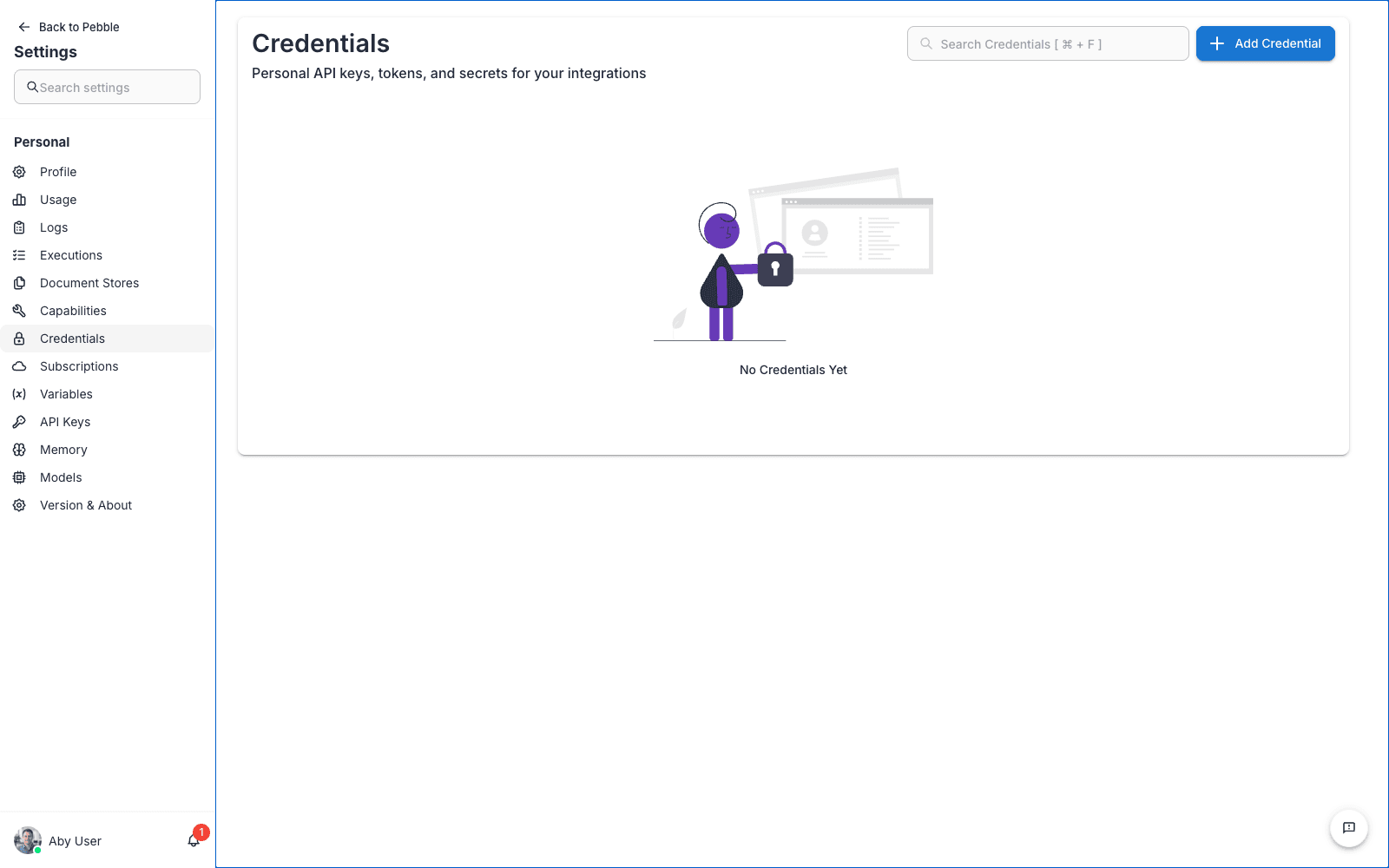
Personal credentials are scoped to you — no one else in your workspace or organisation can see or use them. This makes them the right place to store things like a personal OpenAI API key, a Zapier hook URL you don’t want to share, or a test token for a sandbox environment.
Looking for organisation credentials? See Organisation Admin → Credentials instead. Credentials at the organisation level are shared across the whole org and are typically managed by an admin. The credentials documented here are the personal equivalent.
Personal vs organisation credentials
| Personal credentials | Organisation credentials | |
|---|---|---|
| Scoped to | Just you | Your whole organisation |
| Visible to others | No | Yes (to anyone who can use the asset) |
| Use cases | Your personal API keys, test tokens, sandbox connections | Shared provider keys (OpenAI, Anthropic, AWS), the keys that power organisation-wide models and tools |
| Lives at | Settings → Credentials (this page) | Admin → Organisation → Settings → Credentials |
If a flow or capability you use references a credential, PebbleAI looks in this order: your personal credentials first, then the workspace-scoped credentials, then the organisation credentials. The first match wins.
Adding a credential
- Click the Add Credential button in the top-right
- Choose the credential type from the dropdown — PebbleAI ships with hundreds of credential types for common providers (AWS, Azure, OpenAI, Anthropic, Slack, Jira, etc.), plus a generic “API Key” type for anything else
- Fill in the required fields. These vary by credential type, but typically include an API key, token, or OAuth client ID/secret
- Give the credential a name you’ll recognise later —
My OpenAI Sandboxis better thanCredential 1 - Click Save
Once saved, the credential value is encrypted at rest. You cannot view it again from the UI — only replace it.
Editing a credential
Click a credential in the list to open the edit dialog. You can change the name and replace the secret value. The old secret value is not shown (for security); you enter the new value and save.
Deleting a credential
Click the delete icon on the credential row and confirm. Deleted credentials cannot be recovered. Any flow, tool, or PebbleChat session that was using the credential will break until you supply a replacement.
Flows credential reference
Many advanced credential types come from the underlying Flows platform (Flowise). If you’re adding a credential for a specific Flows tool or node (e.g. a custom LangChain loader, a vector store connection, or an embedding provider), the authoritative reference for what fields are required lives in the Flows integration docs:
- Flows Integrations — The full list of integrations, each with its own credential requirements and examples
- Flowise Overview — The upstream Flowise project reference (synchronised from the open-source project)
Start on the integration page for the specific tool you’re configuring — it’ll tell you exactly which fields to populate.
Security notes
- Never paste a credential into PebbleChat. Use this page to store it properly. Pasted credentials are sent to AI models and logged.
- Rotate periodically. If you suspect a credential has been exposed, delete it immediately and replace it with a fresh one from the provider.
- Use scoped tokens where possible. Most providers let you create API keys with limited permissions. A read-only key is much safer than a full-access one.
- Credentials survive logout. They stay on your account until you delete them.