Profile & Account
Your avatar and name sit at the bottom-left of the sidebar and open your profile menu. This is where you manage everything personal to you: your identity, your timezone, your personal AI context, and how you sign out.
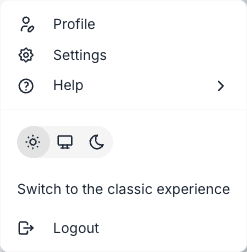
Opening the profile menu
Click your avatar at the bottom-left of the sidebar — it’s there on every page. A menu appears showing your name and a list of actions.
Menu items
| Item | What it does |
|---|---|
| Update Profile | Opens the profile editor: display name, avatar, timezone, ambient context |
| My Usage | Jump straight to your personal usage dashboard (your own spend, tokens and activity) |
| Version | Shows which version of PebbleAI the server is running — useful when reporting bugs |
| Logout | Signs you out of the current session |
Updating your profile
Display name
The name that appears above your messages in PebbleChat and in comments. Use the name you’d like your teammates to see.
Avatar
Upload an image and crop it to fit. PebbleAI supports PNG and JPG. Your avatar appears:
- Above your messages in PebbleChat
- In the profile fly-out
- In user lists in Organisation Admin
- On shared-asset ownership badges
Timezone
This is important and often missed. PebbleChat uses your timezone to answer time-based questions accurately. If you ask “what’s on my calendar today?” or “what time is it?”, PebbleChat uses your saved profile timezone first, then falls back to your browser’s detected timezone.
If time-based answers are coming out wrong (showing UTC, or your server’s local time instead of yours), the first thing to check is your profile timezone.
Personal ambient context
Ambient context is a layered system prompt. The personal layer is your slice of it — instructions that only apply when you use PebbleChat.
Common uses:
- Role / responsibilities — “I am a marketing analyst. When I ask for data, always show it as a table with the metric name in column one.”
- Preferred style — “Respond in Australian English. Be concise by default; only go long when I ask for detail.”
- Domain shorthand — “When I say ‘Q4’ I mean the financial year quarter ending 30 June.”
- Persistent preferences — “I work on the ‘Acme Integration’ project. Unless I say otherwise, assume questions are about that.”
The editor shows a live token count and remaining budget so you can see how much space you have inside the personal layer.
How layers combine
Personal ambient context is one of four layers that get combined into every PebbleChat request:
- Platform — set by the platform admin; applies to everyone on this install of PebbleAI
- Organisation — set by your organisation admin; applies to your org
- Workspace — set by workspace admins; applies inside that workspace only
- Personal — set by you; applies only to your sessions
Every layer has its own token budget. Your personal entries add on top of the others — they don’t override them.
Using the Enhance action
If you have a short draft and want a more thorough, prompt-safe version, click Enhance. PebbleChat will expand your draft into a fuller instruction while respecting the token budget. You can edit the enhanced result before saving.
Logging out
Click Logout from the fly-out. You’ll be returned to the sign-in page. Any unsaved drafts in PebbleChat are preserved across logout — when you sign back in they’ll still be in the composer.
Tips
- Check your timezone after onboarding. The browser’s detected timezone is usually right, but not always — saving your profile timezone explicitly is a one-minute fix for a problem that would otherwise show up in every time-based query.
- Keep personal ambient context short. It consumes tokens on every request. Use it for genuinely persistent preferences, not for one-off instructions.
- Don’t put secrets in ambient context. It’s visible to the AI model and gets logged with every request. Use Credentials for anything sensitive.