Activity Stream
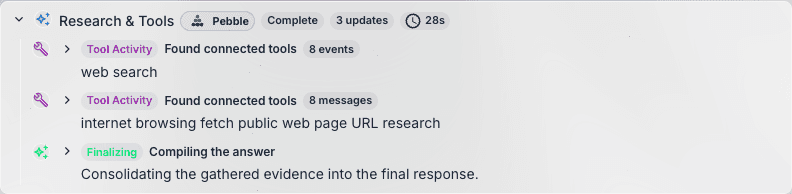
The Activity Stream is PebbleChat’s window into what the model is actually doing when it responds to you. Every web search, every tool call, every document retrieved, every asset discovered — all of it is shown, step by step, in a collapsible Research & Tools panel that sits above the final response.
Why it matters
Modern AI models don’t just answer — they plan, research, and use tools. Without the Activity Stream, you’re stuck trusting a black box. With it, you can:
- Verify sources. When PebbleChat cites a web page or a document, you click through and confirm it said what PebbleChat claims.
- Catch errors early. If the model searches for the wrong thing, you see the misstep before the response is committed.
- Learn how the model thinks. You pick up prompt-engineering patterns from watching what queries the model actually runs.
- Diagnose unexpected results. When a response is surprising, the Activity Stream usually explains why — “oh, it discovered the wrong document store”.
- Trust the response. Seeing the work builds confidence that PebbleChat did what you asked.
What you see
The Activity Stream banner appears above the final response when a message triggers any research, tool use, or multi-step work. Clicking it expands the full step-by-step trace.
Phases
Every response goes through up to four phases:
| Phase | What it means |
|---|---|
| Planning | The model is thinking about how to approach your request. For reasoning-capable models (Opus, o1) you can expand this into a full reasoning trace. |
| Web Search | Live web searches triggered to get fresh data. Each query and its top hits are shown. |
| Tool Use | Calls to MCP tools, Flows tools, custom HTTP tools, or any integration. Each call shows the tool name, status, and a summary of what came back. |
| Finalising | Synthesising everything gathered into a single response. |
Each step shows:
- Step type icon (search, tool, document, asset)
- Title — a one-line description (e.g. “Web Search: latest Anthropic Claude releases 2026”)
- Status chip — in progress, complete, error
- Details — the actual query, the tool input/output, or a preview of what the model extracted
- Timing — how long the step took
- Links — clickable links to sources, discovered assets, or tool outputs
Discovered assets
When PebbleChat uses asset discovery to pull in a flow, agent, or document store automatically, the Activity Stream shows each discovered asset with:
- Name and type (Flow, Agentflow, Document Store, Tool)
- Clickable link to navigate to the asset — useful if you want to investigate what PebbleChat actually pulled in, or edit it for next time
- Relevance score if shown, giving you a sense of how confident the matching was
Sources
For web searches, the activity stream shows each result PebbleChat considered, so you can click straight through to the originals without having to ask “what did you use?” after the fact.
How to use it
- Send a message that does research — try “What are the latest Anthropic Claude releases in 2026?” or “Search the knowledge base for our leave policy and summarise the key points”
- Watch the banner appear as soon as the response starts streaming — you’ll see “Research & Tools” with a running counter of steps
- Click to expand once the response is complete (or while it’s still running, to watch it in real time)
- Drill into each step — the step rows are clickable; they expand to show full details
- Click source links to verify
When the Activity Stream doesn’t appear
Simple conversational messages — “Hi, how are you?”, “What time is it in Sydney?”, “Summarise the above” — don’t trigger research or tool use, so there’s no Activity Stream to show. You just get the response directly.
The Activity Stream only appears when there’s something to show.
Collapsed vs expanded
- By default, the panel is collapsed to a single-line summary (“Research & Tools · 3 searches · 2 sources”) so the response stays readable
- Click to expand into the full step list
- Click to collapse again when you’re done investigating
- The expand/collapse state is remembered per-message — so if you want a particular past response’s activity always expanded, that’s what you get
For long responses
The Activity Stream scrolls independently of the rest of the chat. In a long response with dozens of steps, you can expand the panel, scroll through the steps while the response streams in below, and click any step to see details.
Activity Stream + Background Chat
If you enable Background Chat and navigate away, the Activity Stream is still recorded on the server. When you come back:
- The full step history is preserved
- You can expand and drill in exactly as if you’d watched it live
- Click any source or asset link from the completed stream
This is particularly powerful for deep research tasks you delegate to the background — you get both the final answer and the evidence trail, without having to sit and watch.
Tips
- Expand the stream when a response surprises you. 90% of “why did it say that?” questions are answered by one look at the Research & Tools panel.
- Click through at least one source on research-heavy responses. Models are pretty accurate at citing but not perfect; a single spot check goes a long way.
- Notice which assets get discovered. If PebbleChat keeps reaching for the wrong document store, that’s a signal for the asset owner to improve the discoverable description.
Related
- @Mentions & Tools — the assets and tools that appear in the Activity Stream
- Messages & Responses — how the final response is composed from activity results
- Background Chat — activity stream persists even when you’re not watching