Light & Dark Mode
PebbleAI ships with a polished light theme and a matching dark theme. The Light / System / Dark control in the profile menu switches between them instantly — System follows your operating system — and the choice persists across sessions and devices.
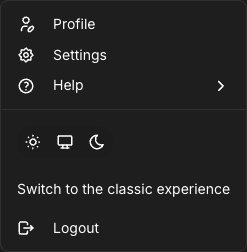
Where to find the toggle
The appearance control sits in the profile menu, at the bottom-left of the sidebar. Pick a mode and the whole interface transitions — chat bubbles, the sidebar, code blocks, forms, everything.
How theming is layered
What you see on screen is the result of three layers merged together:
- Platform theme — the defaults set by the person who installed PebbleAI
- Organisation theme — your organisation admin’s branding (logo, colours, hero image)
- Your preference — the light/dark choice stored against your user profile
The organisation layer can override the platform layer, and your personal light/dark preference is independent of both. So even when your organisation has branded PebbleAI with a specific colour palette, you can still choose whether to see it in light or dark mode.
Organisation admins configure branding under Admin → Configuration → Theme. Users configure their light/dark preference right here in the profile menu.
Why it’s worth switching
- Readability at night — Dark mode reduces eye strain for long reading sessions
- Matching your OS — If your laptop is in dark mode, setting PebbleAI the same way avoids jarring flashes when switching tabs
- Presentations and projectors — Light mode often projects more clearly in bright rooms
- Screenshots and documentation — Light mode typically prints and exports more cleanly
What stays consistent
Both themes share the same information architecture, iconography, and layout — nothing moves when you switch. Code blocks use distinct syntax-highlighting palettes tuned for each theme, and charts in PebbleObserve automatically pick colours that remain legible in whichever theme is active.
Troubleshooting
“My theme didn’t stick” Your preference is stored server-side. If you log in from a new browser and see the wrong theme, toggle it once — it’ll save to your profile.
“Colours look wrong after my admin updated branding” Refresh the page. Organisation branding changes are picked up on the next page load.
“I want to match my OS automatically” Choose System in the profile menu’s Light / System / Dark control to follow your operating system.