Personal Capabilities
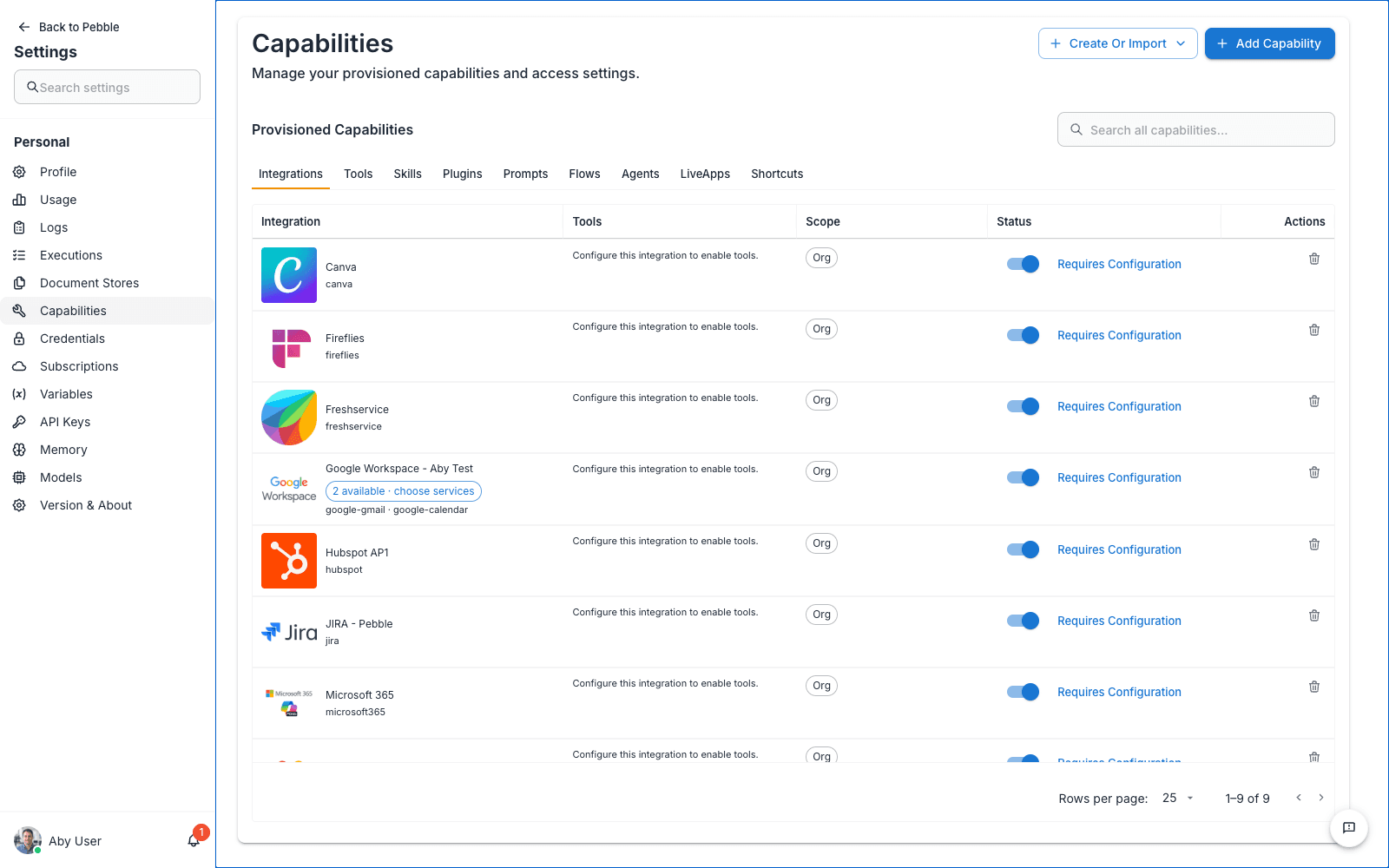
The Capabilities page under Settings shows you every capability — integrations, tools, skills, plugins, prompts, flows, agents, LiveApps and shortcuts — that your organisation has provisioned for you and your workspace.
What a capability is
In PebbleAI, a capability is any external function PebbleChat or Flows can call on your behalf. Capabilities include:
- Integrations — Connections to third-party platforms like Microsoft 365, Jira, Google Workspace
- Tools — Individual functions within those integrations (e.g. “send email”, “create Jira issue”)
- Skills — Claude Code-compatible prompt templates with optional Python code (see PebbleChat → Skills for the full guide; manage them from the dedicated
/pebblechat/skillspage) - Flows — Chatflows and Agentflows you’ve built in Flows
- Agents — Autonomous agents built in Flows
All of these are provisioned by your organisation admin via Organisation Admin → Capabilities. This page is where you see what’s been provisioned for you, and where you turn individual integrations on or off for your own use.
Skills deserve a special mention. Personal Skills enablement is viewable here (as part of the Capabilities & Context pool) but is managed primarily on the dedicated PebbleChat → Skills page, where you can browse the full catalogue, enable or disable skills, import new ones, and create your own. Both views reflect the same underlying state — changes on one appear on the other.
The Provisioned Capabilities tables
Every tab uses the same table layout, with per-column sorting and filtering, and a shared column standard:
| Column | What it means |
|---|---|
| Name (Integration / Tool / Skill / …) | The capability — integrations show their logo and connected account |
| Description | What it does (the Tools tab adds a Connection column; Shortcuts shows a Target instead) |
| Scope | Where it comes from — Platform, Org, Workspace, or User. Plugin-bundled items carry a Bundled chip naming their plugin |
| Status | Your enablement — a switch where you control it, or a label like Disabled by org / Active (via plugin) where you don’t |
| Actions | Configure, open, share, or remove |
Above the tables sit a cross-type search (Search all capabilities…), the Add Capability button for browsing the catalogue, and Create or Import for authoring your own skills or importing a plugin.
Step-by-step: connecting Microsoft 365
- Go to Settings → Capabilities
- Find the Microsoft 365 row
- If status shows “Requires User Configuration”, click the gear icon in the Actions column
- Follow the OAuth prompt to sign in to your Microsoft account
- Approve the requested scopes (mail, calendar, files — whichever your admin has enabled)
- Status will change to “Ready” and the Enabled toggle will turn on automatically
Once connected, PebbleChat can call Microsoft 365 tools on your behalf:
Show me my calendar for tomorrowDraft a reply to the last email from PriyaFind the PDF I was working on yesterday and summarise itDisabling a capability
If you want to temporarily stop PebbleChat from using a capability — for example, if you’re in a sensitive conversation and don’t want the AI to touch your email — flip the Enabled toggle off. Your authentication stays intact; you can re-enable it later without re-authenticating.
Removing a capability
Click the delete icon in the Actions column to fully disconnect an integration. This revokes the OAuth token and clears stored configuration. You’ll need to reconnect next time you want to use it.
What happens if a capability isn’t here
If there’s an integration you expect to see but don’t, it means your organisation admin hasn’t provisioned it for your workspace yet. Ask them to add it at Organisation Admin → Capabilities.
Tabs along the top
The tab strip covers every capability type, in this order: Integrations, Tools, Skills, Plugins, Prompts, Flows, Agents, LiveApps, Shortcuts. Start with Integrations (the most common), and use the other tabs to drill into what’s available to you. A few tab-specific notes:
- Tools is where per-tool switches live — an integration’s row summarises its tools, but you enable or disable individual tools here.
- Flows lists your own flows first (status Draft or Deployed, with an Open in Flows action) followed by catalogue flows you can enable.
- Shortcuts shows both your pinned deck tiles and catalogue shortcuts, with a Target column saying what each one opens. A pin whose catalogue source has moved shows an Outdated chip with a one-click re-sync.
The Prompts tab — your Prompt Library
The Prompts tab is the Prompt Library: every prompt you’ve saved from a chat (via Save as prompt on a message), plus any prompts shared with you or published to your workspace, project or organisation. Toggle a prompt off here and it disappears from your pickers and deck tiles until you want it back. From a prompt’s detail page you can pin it to your shortcuts, run it, insert it into the composer, or duplicate it into your own copy. See Shortcuts & the Prompt Library for the full guide.