Flows Models
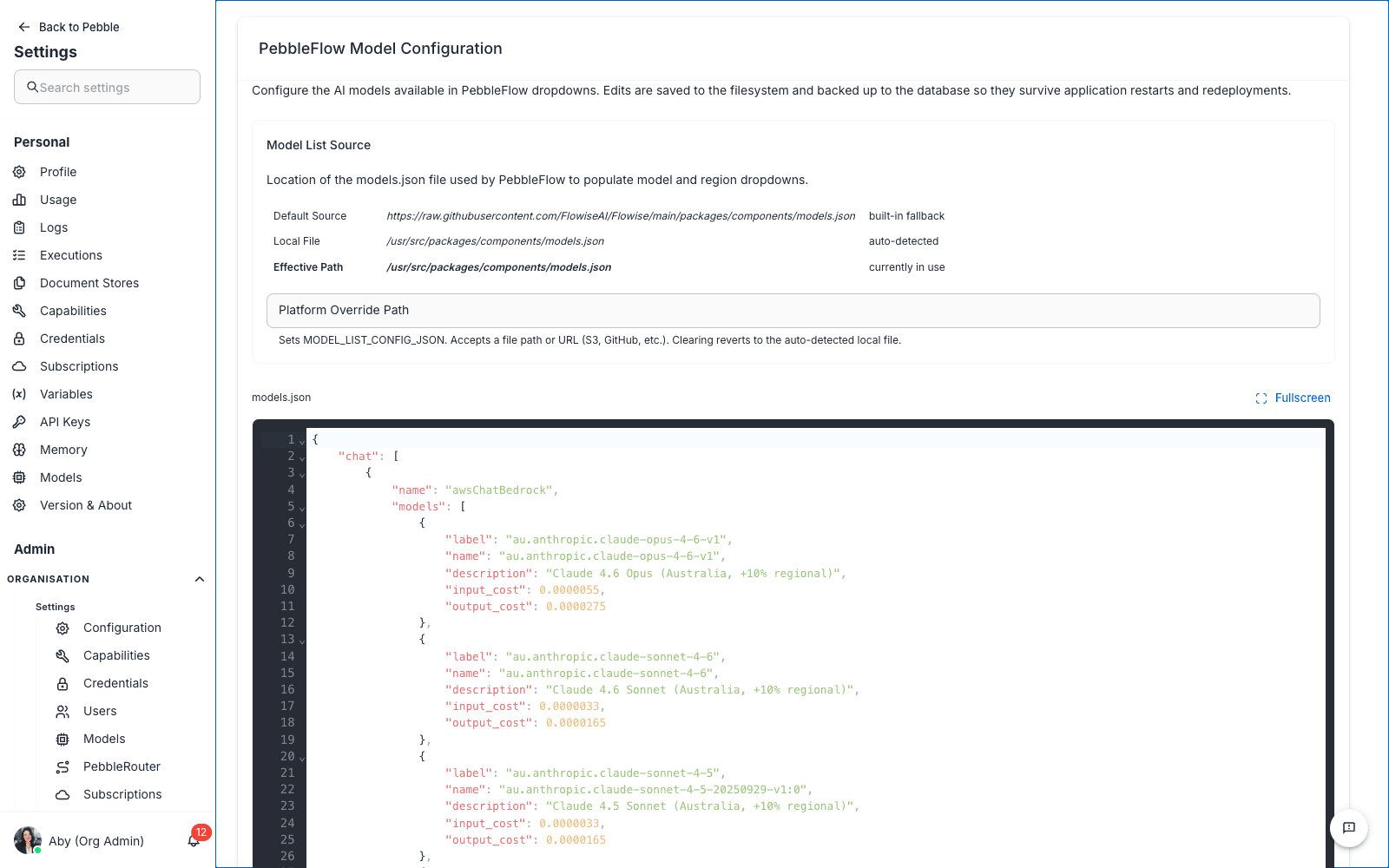
The Flows Models page is where you edit the JSON model list that powers Flows visual builders — the dropdown menus you see when configuring a Chat Model, Embedding Model, or LLM node inside a chatflow or agentflow.
Find it at Admin → Organisation → Flows → Models.
This is a power-user page. Most admins will never need to touch it. The defaults that ship with PebbleAI cover the vast majority of installs. Edit this page only when you need to add custom model definitions that aren’t in the platform catalogue, or when you’re managing models from an external URL.
What it is
Flows ships with a models.json file that defines every model the visual builder knows how to construct. When you drag a ChatOpenAI node onto a canvas, the dropdown of model names that appears comes from this file.
The page is titled flow Model Configuration and the description reads:
Configure the AI models used by the model dropdowns in Flows. Edits are saved to the filesystem and backed up in the database via the cluster sync application restarts and engine deployments.
What you see
The page has these sections:
Model List Source
Shows where the model definitions are loaded from. Two possibilities:
- Database — definitions are loaded from PebbleAI’s internal database; you can edit them here in the JSON editor below
- External URL — definitions are loaded from a URL specified by the
MODEL_LIST_CONFIG_JSONenvironment variable. The editor is read-only in this mode because the source of truth lives outside PebbleAI
The page tells you which mode you’re in. For most installs you’ll see Database mode.
Effective Path
The filesystem path where the resolved model JSON is being read from. Useful for debugging — if you’ve set an external URL but you’re seeing old models, the effective path will tell you what’s actually being used.
Platform Override Path
Allows the platform admin to override the model list at platform level for all organisations. Most orgs leave this empty.
JSON editor
A monospaced code editor showing the full model JSON. Each model entry typically has fields like:
{
  "name": "ChatOpenAI",
  "models": [
    {
      "label": "gpt-4o",
      "name": "gpt-4o"
    },
    {
      "label": "gpt-4-turbo",
      "name": "gpt-4-turbo"
    }
  ]
}
Buttons (typically below the editor)
- Save — write the current JSON to the database
- Reset to defaults — discard your edits and reload the platform defaults
- Backup — create a database backup of the current JSON
- Restore — restore from a previous backup
When to edit this page
Most admins don’t need this page. The default model JSON is updated by the platform team and ships with every PebbleAI release. You’d come here only if:
- You’re adding a custom model that isn’t in the platform catalogue (e.g. a self-hosted Llama variant)
- You want to remove a model from the visual builder dropdowns even though it exists in the catalogue
- You’re managing models centrally via an external URL (set
MODEL_LIST_CONFIG_JSONto a URL hosting your own JSON; the page becomes read-only) - You’re recovering from a misconfiguration and need to restore from backup
Flows Models vs Organisation Models
This page is completely different from Organisation Models. They serve different purposes and different audiences:
| Flows Models (this page) | Organisation Models | |
|---|---|---|
| What it controls | The dropdowns inside Flows visual builders — what nodes can be configured to call | What models are available to PebbleChat and which credentials they use |
| Format | Raw JSON | Form-based table |
| Audience | Power admins who customise the builder | All admins |
| How often you edit it | Rarely | Whenever you add/change models |
| Affects | Flows builder UX | PebbleChat model selector, PebbleRouter |
A typical install has Organisation Models populated with the half-dozen models the org actually uses, and the Flows Models JSON left at its default value. Don’t confuse the two.
Step-by-step: backing up before you edit
- Click Backup to snapshot the current JSON to the database
- Make your edits in the JSON editor
- Save
- If something breaks, click Restore and pick the backup you took
Always backup before significant edits. JSON typos can break the entire Flows builder.
Step-by-step: switching to an external URL source
- Set the
MODEL_LIST_CONFIG_JSONenvironment variable on every PebbleAI server pod to a URL hosting your model JSON - Restart the pods
- The page now shows Source: External URL and the editor is read-only
- To edit, modify the file at the URL and either restart pods or wait for the cache TTL
This is useful when you have multiple PebbleAI installs and want to manage the model list centrally from one place — your model JSON lives in a private GitHub repo or an internal HTTP endpoint, all installs read from there.
Multi-pod synchronisation
In multi-pod deployments, PebbleAI checks the database timestamp before reading the local cached file. When you save here:
- The database is updated with the new JSON and a new timestamp
- Other pods detect the timestamp change on their next sync interval
- They reload the JSON from the database
- New requests use the updated model list
This means changes propagate automatically without restarting pods. There’s a small lag (typically seconds) between save and propagation across the cluster.
Common errors
“JSON parse error” You typed invalid JSON. The editor highlights syntax errors — fix them before saving. If you’ve already saved invalid JSON and Flows has stopped working, restore from your last good backup.
“Models in Flows builder dropdowns aren’t showing my edits”
- Confirm you clicked Save
- If running multi-pod, wait a few seconds for sync, then refresh
- Check the Effective Path — if you’re in External URL mode, your edits go to the URL, not here
“I want to roll back but didn’t take a backup” Click Reset to defaults to revert to the platform defaults. You’ll lose your customisations but you’ll have a working Flows.
Related
- Organisation Models — the page you actually want most of the time
- Flows Integrations — the integration docs that explain what each model entry means