Canvas
Canvas is a workspace panel that opens beside your PebbleChat conversation, where you and Pebble co-author real artefacts together: Microsoft Word documents, text and Markdown documents, HTML files, diagrams, code files, and interactive apps. Ask Pebble to draft something and it appears in the Canvas while the content streams in. Everything is saved automatically, edits sync live between you, Pebble, and anyone the chat is shared with, and your canvases are restored whenever you reopen the chat.
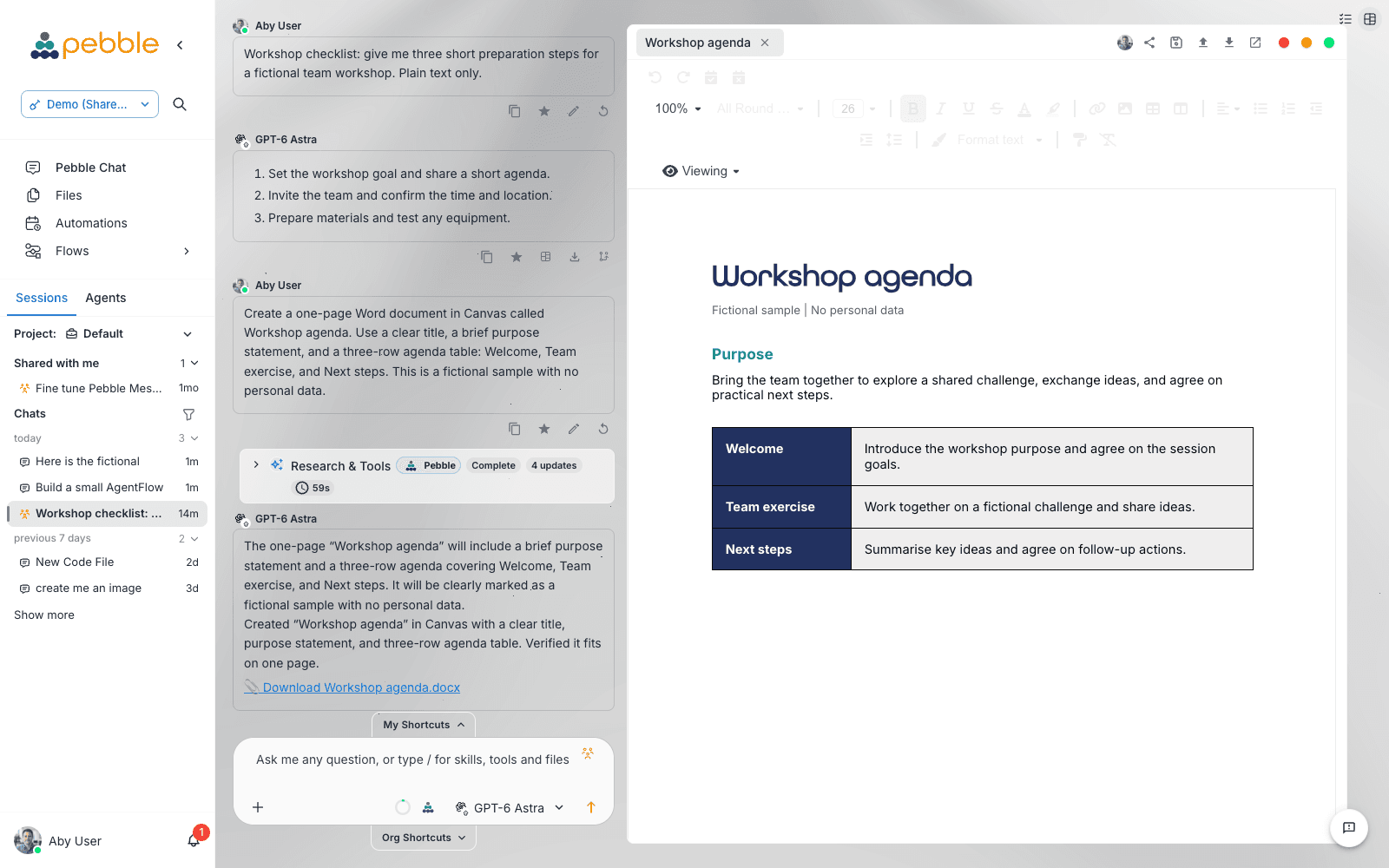
Opening a canvas
There are several ways into a canvas:
| Route | What happens |
|---|---|
| Ask Pebble | Say something like “draft a short project brief as a Word document” — Pebble creates the canvas and the panel opens automatically |
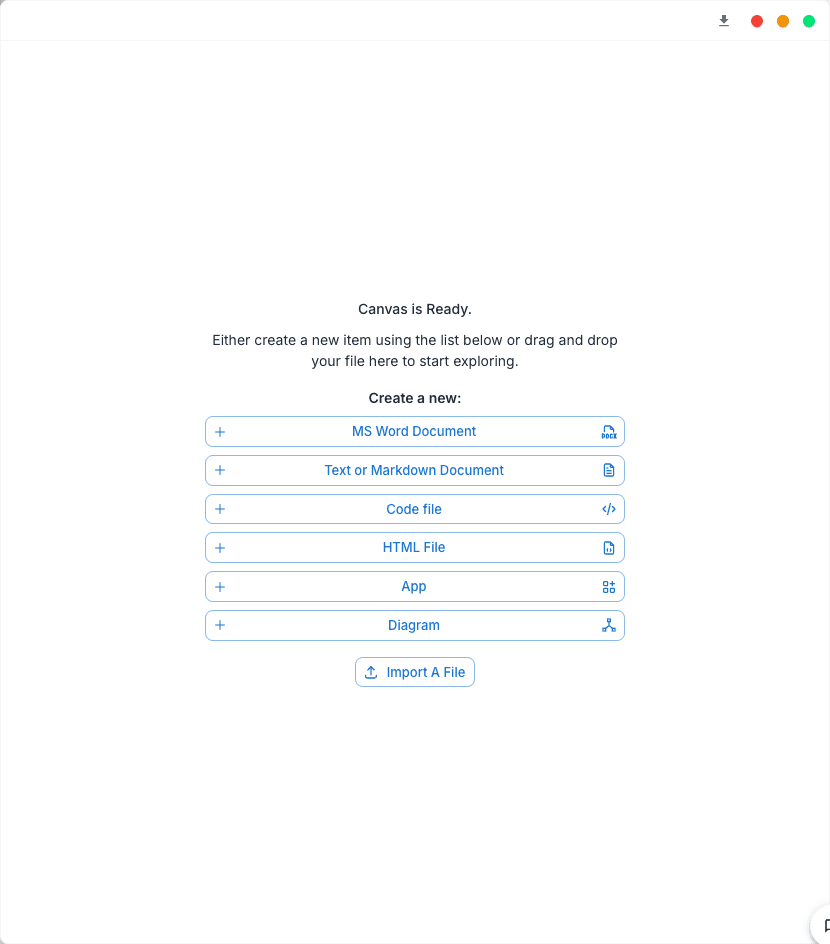
| Create manually | With the panel open and empty, pick from the Create a new: list — MS Word Document, Text or Markdown Document, Code file, HTML File, App, or Diagram |
| Import a file | Click Import a file, or drag a file onto the panel — Word (.docx), Markdown (.md, .markdown), plain text (.txt), HTML (.html, .htm), and Excalidraw diagram (.excalidraw) files each open on the matching surface |
| Open response in Canvas | Every assistant response has an Open response in Canvas action in its message action row — it turns that response into a Text/Markdown canvas |
| From a file | Right-click a file link, attachment, or canvas chip in the chat and choose Open in Canvas |
The empty panel greets you with Canvas is Ready. and the create list. Imports and drag-and-drop accept files up to 25 MB; dropping a file onto a canvas that’s already open shows a Drop to add another canvas tab overlay — the file becomes a new tab rather than replacing what’s there.
If you don’t see any Canvas controls at all, your role doesn’t have the Use Canvas permission. Ask your organisation admin.
The surfaces
Each canvas is one of several surface types, chosen when it’s created:
| Surface | Create button | What it is |
|---|---|---|
| Word | MS Word Document | A native .docx editor. Pebble generates real Word files — formatting, templates, and your organisation’s Brand Kit included — and exports preserve it all |
| Text / Markdown | Text or Markdown Document | A rich document editor for Markdown and plain text — the surface most Pebble drafts land on |
| HTML | HTML File | A standalone HTML document with visual editing, source editing, and live preview — the home for finished, styled reports and pages |
| Code | Code file | A collaborative code editor with syntax highlighting and a Run button for Python and JavaScript |
| App | App | A rendered interactive app — dashboards, forms, tables — that Pebble generates for you |
| Diagram | Diagram | An Excalidraw whiteboard where you and Pebble draw together in real time |
A further surface, LiveApp, opens in the same Canvas pane but isn’t in the create list — LiveApps are governed, sandboxed mini-apps you launch from the catalogue, shortcuts, the composer menus, or by asking Pebble. See LiveApps for the full picture.
Which surface do I want? If you want to edit what you’re looking at — a report, a draft, a styled document — use a document surface: Word, Text/Markdown, or HTML for a finished styled page. If you want a small tool that keeps computing — collecting input, filtering live data, recalculating — that’s a LiveApp. A finished report belongs on a document surface, not in a LiveApp: an app can only re-synthesise your document, never be it.
Word canvases
Word canvases are native .docx end to end. When you ask for a Word document, Pebble builds the real file first — applying formatting, any template you attached, and your organisation’s Brand Kit — then opens that same native file in the Canvas for editing. While it builds you’ll see Creating your Word document with a progress bar (“Word documents take a little longer than a chat response”).
- Formatting survives. Editing happens directly on the native file, and Export gives you back a true
.docxwith the formatting intact. - Templates are authoritative. If you attach a
.docxtemplate or source document, Pebble builds on it and preserves its styling; Brand Kit fills the gaps rather than overriding it. - Import and Export live behind the header’s import (down-arrow) and export (up-arrow) icons — each offers Word document (.docx).
HTML canvases
The HTML surface is where a finished, styled HTML document lives — a report, a landing page, a formatted hand-out. It has three modes, toggled from the toolbar:
- Preview HTML — the rendered page, exactly as it will look
- Design HTML — visual editing with a Show design tools panel: drag in blocks (sections, headings, text boxes, buttons, form fields, images, dividers) on the Add tab and adjust colours, typography, alignment, and backgrounds on the Style tab
- Edit HTML source — the raw markup
Two per-element actions appear when you select something on the page: Edit element, and Chat about element — which hands the selected element to the conversation so you can say what you want changed and let Pebble apply it.
The toolbar also carries Undo, Redo, and Print. HTML canvases have their own save button — Save HTML file — which writes the file to your /Canvas folder and keeps a version checkpoint each time. Export offers HTML file (.html). If you generate HTML with a Brand Kit configured, Pebble applies its palette, typography, and logo to new documents — while imported HTML keeps its own branding unless you ask Pebble to rebrand it.
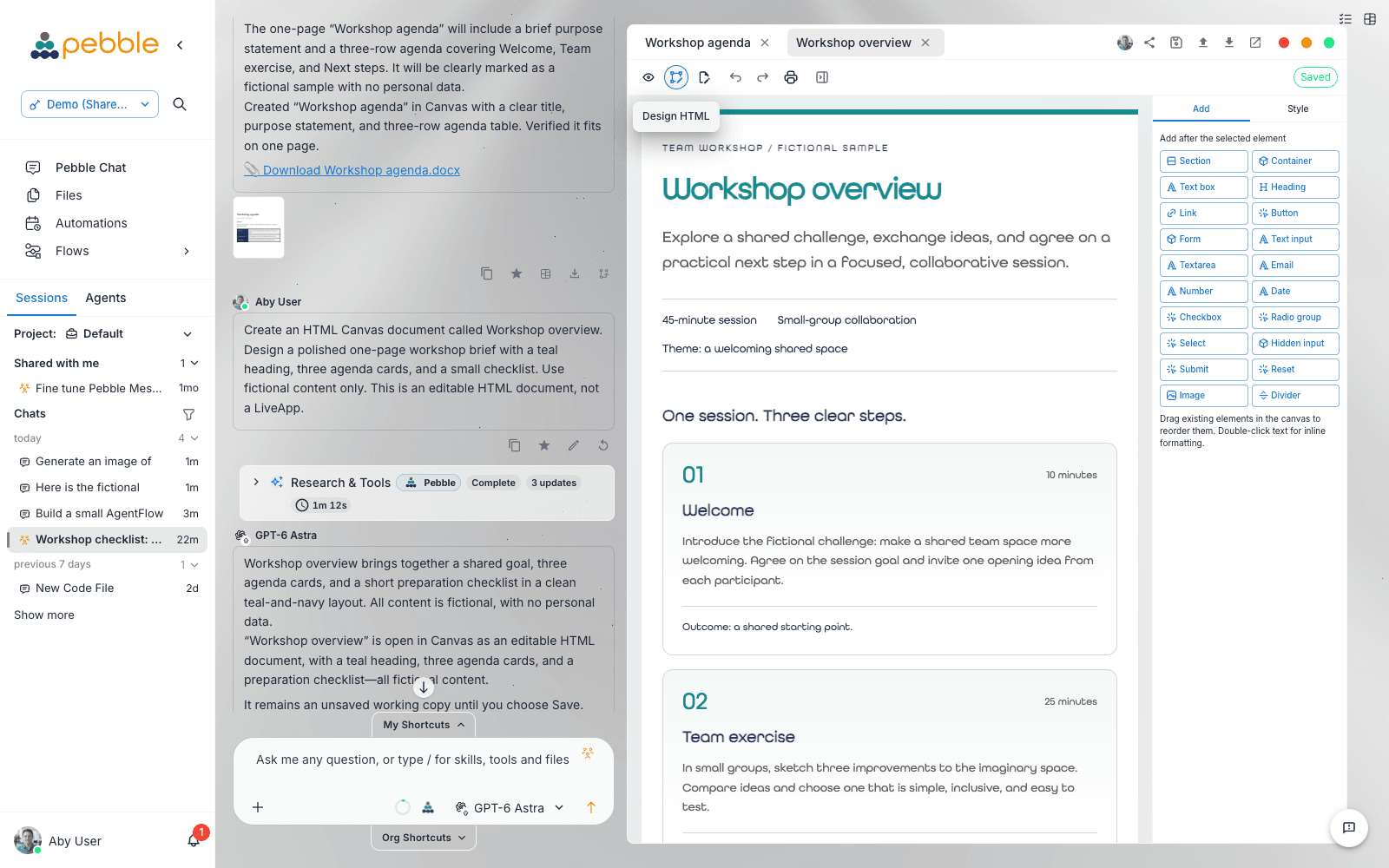
Diagram canvases
The Diagram surface is an Excalidraw whiteboard with true co-drawing: you sketch with the full Excalidraw toolset while Pebble adds, moves, styles, and connects shapes live in the same scene — you can watch its cursor work alongside yours, and anyone else in a shared chat appears with their own cursor too.
- Ask Pebble for a diagram in chat and it draws it; ask for changes and it edits in place.
- A Libraries button (top right) opens your personal and organisation shape libraries.
- Save Diagram checkpoints the scene into your
/Canvasfolder as an.excalidrawfile; Export offers Excalidraw diagram (.excalidraw), SVG image (.svg), and PNG image (.png). - Imports accept
.excalidrawfiles up to 25 MB.
Code canvases
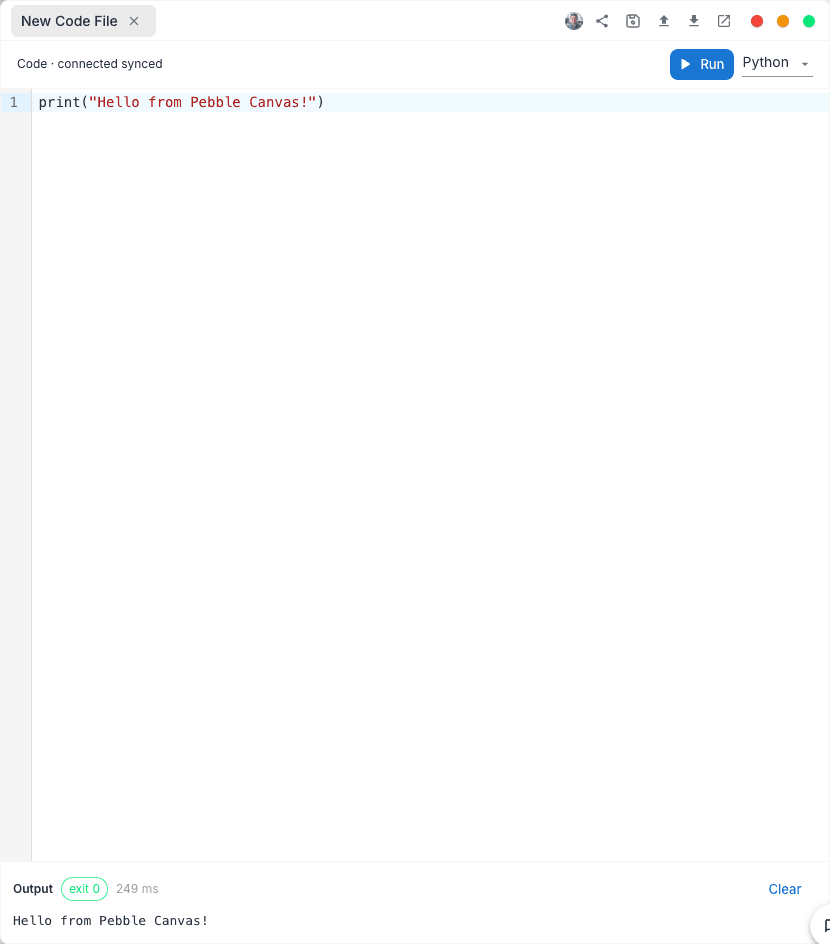
A Code canvas is a collaborative code file with a language picker offering Plain text, JavaScript, TypeScript, Python, JSON, and Markdown. The language is inferred from the canvas title’s file extension (.py, .ts, .js, .json, .md and friends) and drives the syntax highlighting.
The Run button executes the current code in a secure sandbox — the tooltip reads Run in sandbox. Only Python and JavaScript are runnable; for other languages the button is disabled with the tooltip Run is available for Python and JavaScript.
Output appears in an Output panel below the editor:
- An exit-code chip — exit 0 in green for success, red otherwise
- The run duration in milliseconds
- stdout, with stderr shown in red, or (no output) if there’s neither
- A Clear button to reset the panel
App canvases
The App surface renders a small interactive app — a dashboard, form, or table — that Pebble builds for you. It’s render-only: you don’t edit the app directly, you ask Pebble to change it. A fresh App canvas shows This app is empty. Ask Pebble to build it. If an app can’t be rendered you’ll see a notice, and your chat carries on unaffected.
Answers come first — and every canvas leaves a chip
When you ask a question that produces a document, Pebble answers in the chat first and builds the file afterwards — you’re never left watching a document build to find out what the answer was. And Pebble only produces the formats you asked for: no unrequested PDF-and-DOCX-and-XLSX pile.
Every canvas opened during a turn leaves a chip on the message that produced it, in the same row as any generated files — a small tile with the document type’s badge. Click it to reopen that canvas any time; right-click it for Open in Canvas, Open in browser, Download, Show in files, and Chat About.
Working together with Pebble — and with people
Canvas is genuinely collaborative:
- Pebble streams in. While the agent writes you can watch the draft take shape.
- Refine in conversation. Keep talking in the chat — “make the tone more formal”, “add a risks section” — and Pebble edits the canvas in place. Your edits and Pebble’s edits flow into the same live document.
- People collaborate too. In a shared chat, everyone sees the same canvas live — the header shows the collaborators, and on the Diagram surface you’ll see each person’s cursor. Edits sync across users, windows, and sessions.
- Everything autosaves. There is no save step for the content itself. Edits persist across reloads, and a chat’s canvases are restored when you reopen the chat.
- Tabs for multiple canvases. Each canvas in a chat is a tab in a strip under the header. Click to switch; the x on a tab closes it (the canvas itself is kept — reload the chat to bring it back); right-click a tab for more options including Rename.
- Resize the panel. Drag the panel edge to resize it; double-click the edge to reset the width.
Pop-out windows
Any canvas can be popped out into its own real OS window — ideal for a second monitor. Click Open canvas in new window in the canvas header: the canvas opens in a resizable window and the side panel collapses so you’re not seeing it twice. The header button becomes Focus canvas window, and inside the pop-out a Return canvas to Pebble control docks it back. Closing the pop-out window yourself also returns the canvas automatically, and edits stay in sync the whole time.
The header also gives every canvas window-style controls — Maximize canvas, Restore chat and canvas, and Close canvas — styled to match your platform.
Saving, exporting, and where files go
| Control | What it does |
|---|---|
| Save to Pebble files | Saves the canvas into your personal file store’s /Canvas folder, visible on the Files page. On HTML and Diagram canvases this becomes Save HTML file / Save Diagram, saving .html / .excalidraw files with version checkpoints |
| Export | Downloads the canvas to your machine in the surface’s formats — .docx for Word, .md/.txt for Text/Markdown, .html for HTML, .excalidraw/.svg/.png for Diagram |
| Import | Pulls a file from your machine into the Canvas |
| Share Canvas item | Shares the canvas artefact itself |
Saving never overwrites an existing file with the same name — a fresh name is chosen and the canvas stays linked to its saved file. Canvases also persist with the chat regardless; saving is for when you want a durable copy in your file store, outside the conversation.
For admins
Canvas access is controlled at two levels — surface toggles and role permissions:
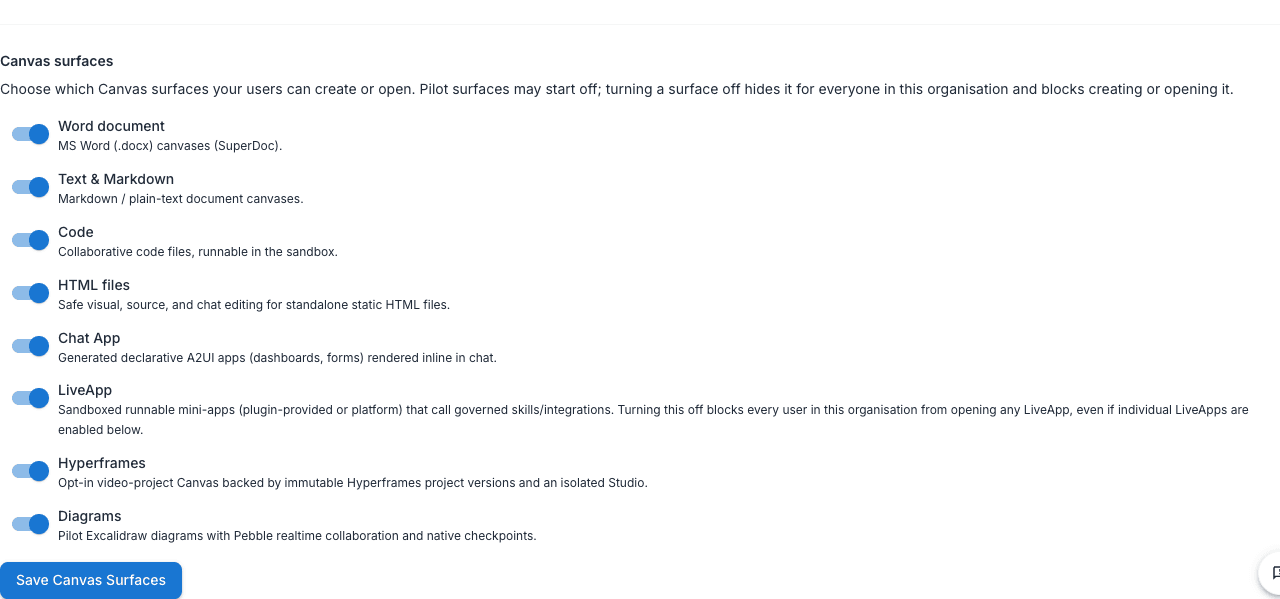
- Surface toggles: Admin → Organisation → Settings → Configuration → Chat Settings tab → Canvas surfaces section. Eight switches — Word document, Text & Markdown, Code, HTML files, Chat App, LiveApp, Hyperframes, and Diagrams — all on by default except Hyperframes (an opt-in video-project surface). Turning one off hides that surface for everyone in the organisation and blocks creating or opening it (enforced server-side). Platform admins set the platform-wide defaults under Admin → Platform → Settings → Canvas Surfaces; organisations can restrict further but never expand beyond the platform setting. The platform Canvas master switch lives in the Feature Flags tab (Canvas group → Canvas).
- Role permissions: in the Roles tab, the pebblechat category includes Use Canvas as the overall gate, plus per-surface permissions — Canvas: Word documents, Canvas: Markdown documents, Canvas: Code, Canvas: HTML documents, Canvas: Apps, Canvas: Diagrams, Canvas: Hyperframes, and Launch Live Apps — and Canvas: Manage organization diagram libraries and embeds for curating shared diagram libraries. A user needs Use Canvas and the surface permission. These are default-on for create-capable roles. Users without Use Canvas see no Canvas UI at all.
See Admin → Configuration for the Chat Settings tab and the Roles tab for role editing.
Limits and caveats
- Run supports Python and JavaScript only. Other languages get highlighting and collaboration, but the Run button is disabled.
- Imports accept Word, text, Markdown, HTML, and Excalidraw files up to 25 MB. Other file types are rejected with an error.
- Disabled surfaces stay disabled. If your organisation has switched a surface off, importing a matching file shows a message such as Word Canvas is disabled — the restriction is enforced on the server, not just hidden in the menu.
- Very large diagrams are capped — an imported
.excalidrawscene can hold up to 20,000 elements. - Diagram embeds are governed. Embedded web content in diagrams is validated against organisation policy; blocked embeds show Embed blocked by organization policy.
Related
- LiveApps — governed interactive mini-apps that open in the Canvas pane
- Projects — shared chats, where canvases become multi-user
- Shortcuts — pin a LiveApp or prompt as a one-click tile
- User File Store — where saved canvases land in /Canvas
- Admin → Configuration — the Chat Settings tab (Canvas surfaces) and Roles tab (Canvas permissions)
- Messages — the message action row, home of Open response in Canvas