Configuration
Configuration is the central settings page for your organisation. Its tab strip runs: Deployment, OAuth, Email, Theme, LiveApp Brand Kit, Ambient Context, Memory, Default Models, Chat Settings, Voice Settings, Agents, LiveApp Refresh, Value, Capabilities, SSO Config, Roles — some appear only with the matching admin permission.
Find it at Admin → Organisation → Settings → Configuration.
Inheritance: every setting on this page can either inherit from the platform-wide default, or override it for this organisation. The header banner reminds you of the inheritance order: Organisation → Partner → Platform. Keep inheritance on for most fields, then override only the values you specifically need to change for your organisation.
The core tabs are documented below in UI order; the newer tabs each get a summary at the end (Other tabs).
1. Deployment
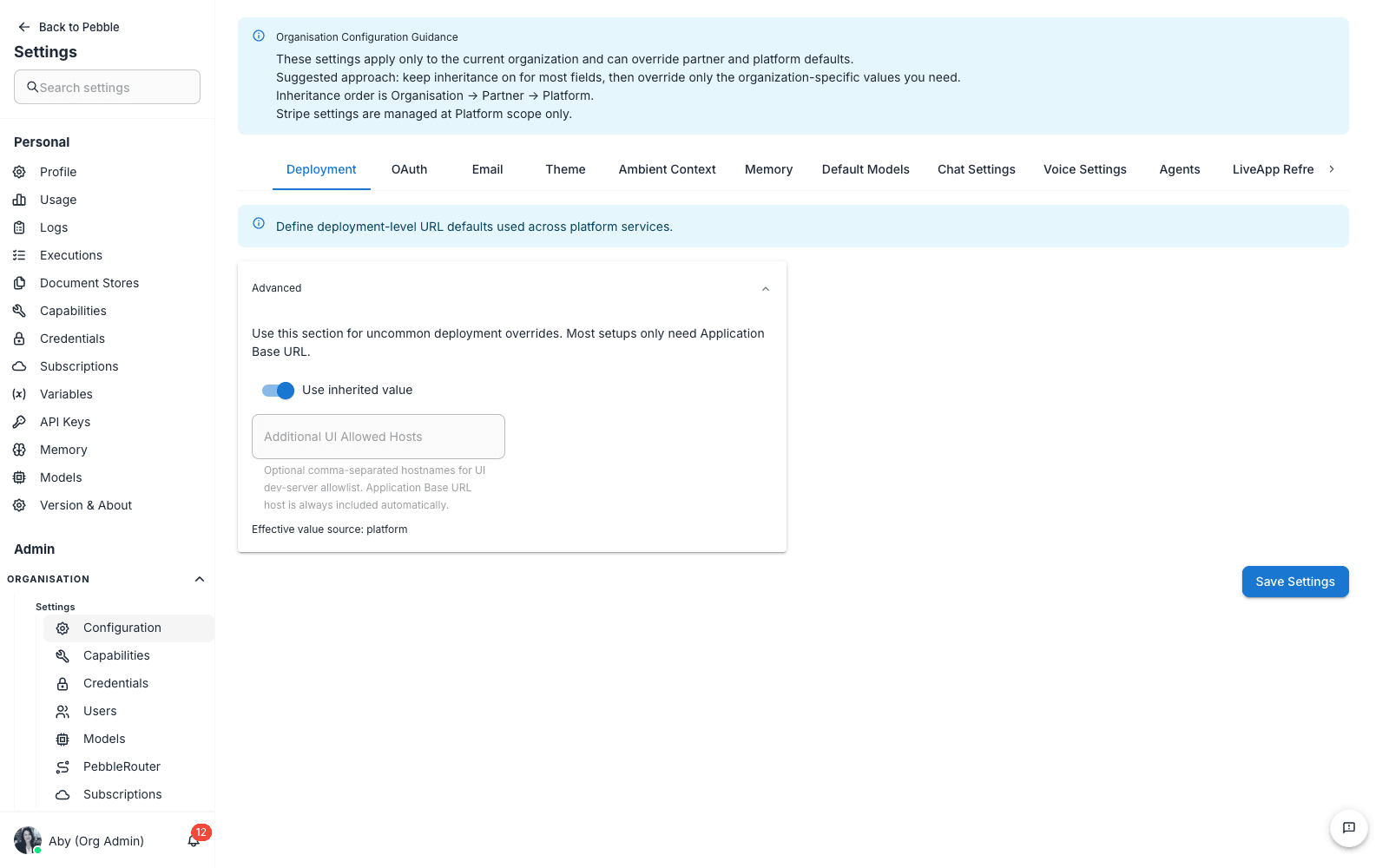
Defines deployment-level URL defaults used across PebbleAI services.
What you set here
- UI Allowed Hosts — additional hostnames PebbleAI’s UI will serve from (under the Advanced disclosure). Useful when you have a custom domain or alternate access URL beside the default.
Step-by-step: adding a custom UI hostname
- Open the Advanced section
- Add the hostname (e.g.
pebbleai.acme-corp.internal) - Click Save Settings
Most organisations using the default URL won’t need to touch this tab.
2. OAuth
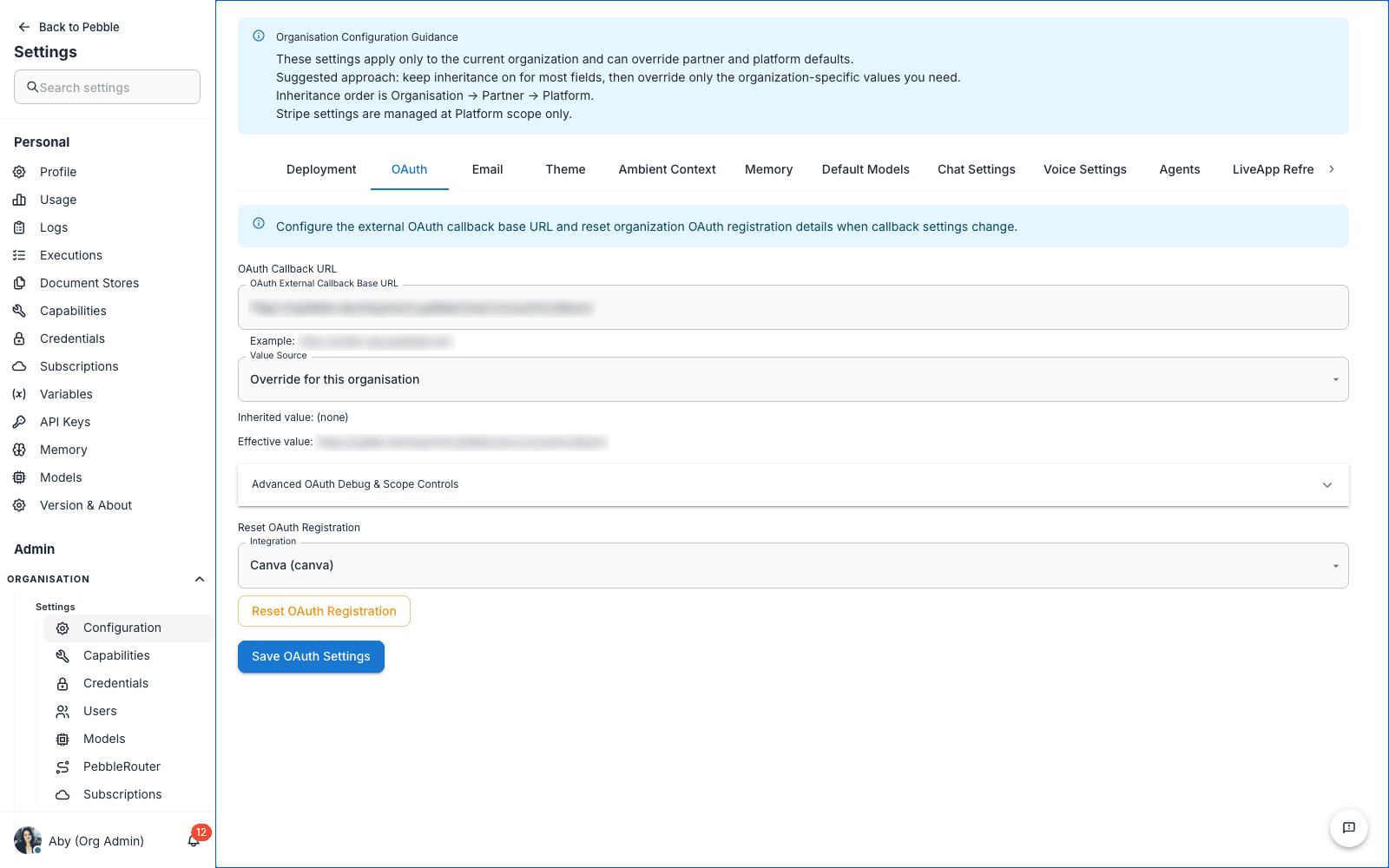
Configures the OAuth callback base URL used when integrations (Microsoft 365, Google Workspace, etc.) redirect back to PebbleAI after the user authenticates.
What you set here
- OAuth External Callback Base URL — the public URL of your PebbleAI install (e.g.
https://demo.pebblecloud.io/oauth/callback) - Value Source — Override for this organisation, or inherit from platform
- Advanced OAuth Debug & Scope Controls — diagnostic toggles for tracing OAuth flows
- Reset OAuth Registration — reset stored OAuth registration for a specific integration (e.g. Google Workspace) when something has gone wrong and you need to re-register from scratch
Step-by-step: setting the callback URL
- Enter the public-facing PebbleAI base URL plus
/oauth/callback - Set Value Source to Override for this organisation
- Click Save OAuth Settings
The Effective value below the field shows what’s currently in effect after inheritance.
Step-by-step: resetting an OAuth registration
- Pick the integration from the dropdown (e.g.
Google Workspace) - Click Reset OAuth Registration
- Confirm
Use this when an integration’s stored client ID/secret or scopes are out of sync with the provider and you need PebbleAI to forget what it knows and start over.
3. Email
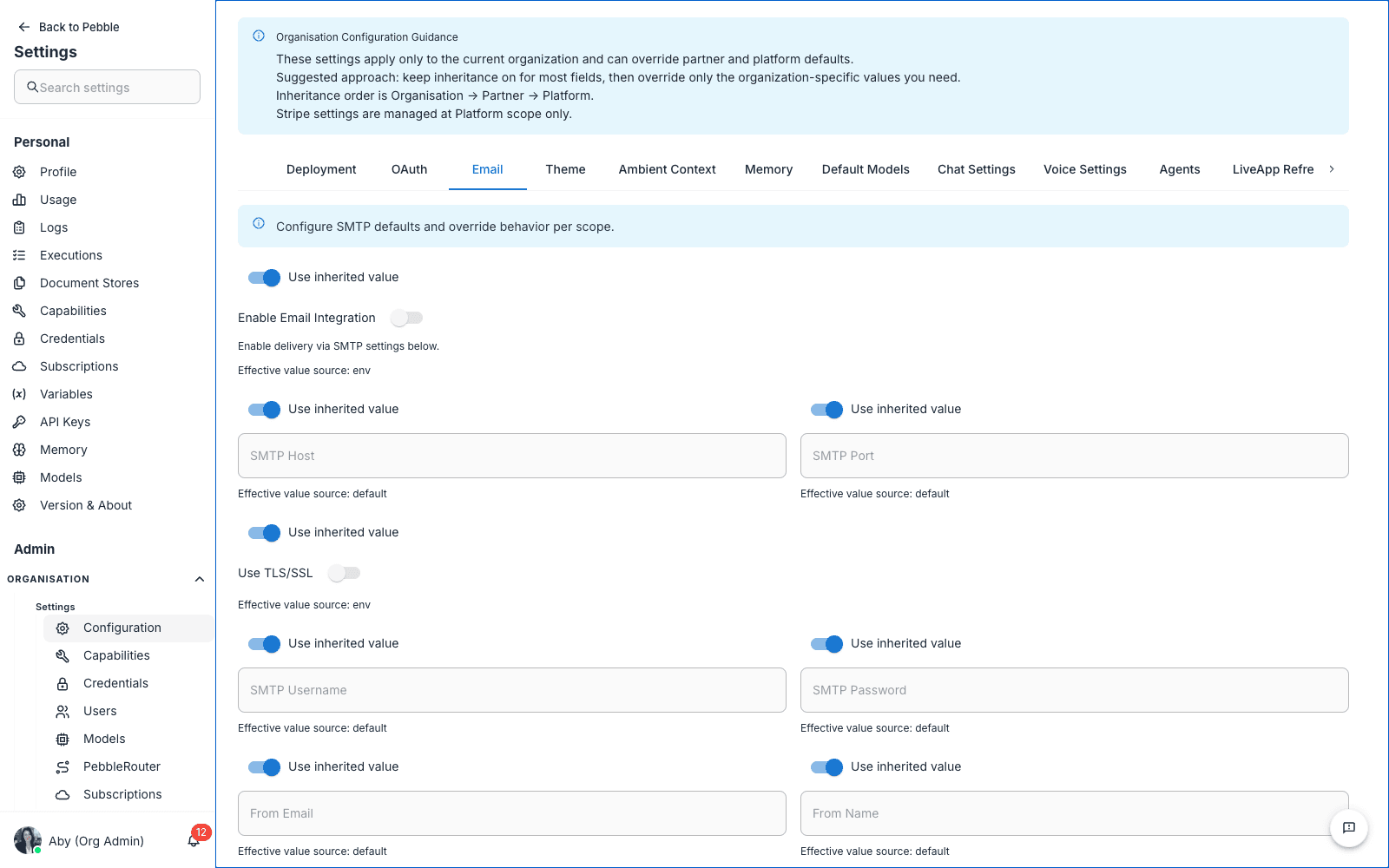
Configures the SMTP server PebbleAI uses to send transactional emails — invitations, password resets, alerts.
What you set here
- Enable Email Integration — global on/off
- Email source on SMTP setup name
- SMTP host, SMTP port — the server PebbleAI connects to
- Use SSL/TLS — encryption mode
- SMTP username, SMTP password — credentials for the SMTP server
- From address — what users see in the “From” field
Each field has an Override / Use inherited value toggle, so you can override individual fields without re-entering everything.
When to configure
- After installing PebbleAI fresh — to enable user invitation emails
- After changing SMTP providers
- When test emails aren’t arriving (re-check host, port, credentials)
Tip
Test the SMTP setup by inviting yourself to a second test account before rolling invitations out to your team.
4. Theme
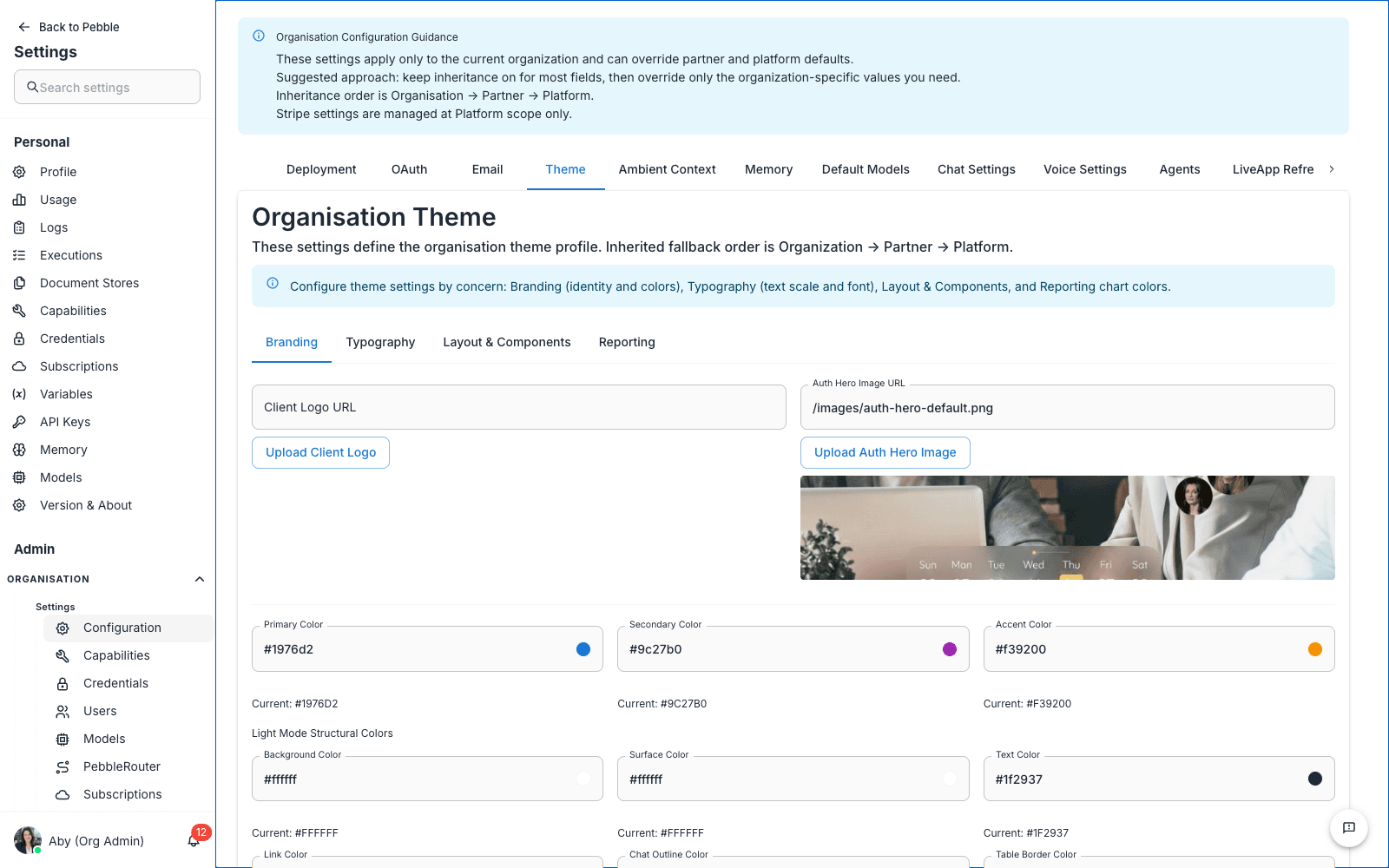
Defines the organisation theme profile. This is where branding and visual customisation live — there is no separate “Branding” page in PebbleAI; everything is here.
The Theme tab itself has four sub-tabs:
Branding sub-tab
- Client Logo URL + Upload Client Logo — the logo shown in the sidebar header and on the sign-in page
- Auth Hero Image URL + Upload Auth Hero Image — the image shown beside the sign-in form
- Primary Color, Secondary Color, Accent Color — colour pickers for buttons, links, and accent elements
- Light Mode Structural Colors — additional colour controls for backgrounds and surfaces
Typography sub-tab
Font scale and font family controls.
Layout & Components sub-tab
Component-level overrides for spacing, radius, and shadows.
Reporting sub-tab
Dedicated colour palette for charts in PebbleObserve dashboards (spend, tokens, requests, cache, multi-series). Configured separately so admin charts don’t inherit the same colours as primary action buttons, which would make them illegible.
Step-by-step: rebranding for your organisation
- Upload your logo as PNG or SVG (transparent background recommended)
- Set Client Logo URL to the uploaded file
- Pick a Primary Color that matches your brand
- Optionally upload an Auth Hero Image
- Click Save at the bottom of the tab
- Hard-refresh the browser to see the new branding
The new theme applies immediately to everyone in the organisation.
5. Ambient Context
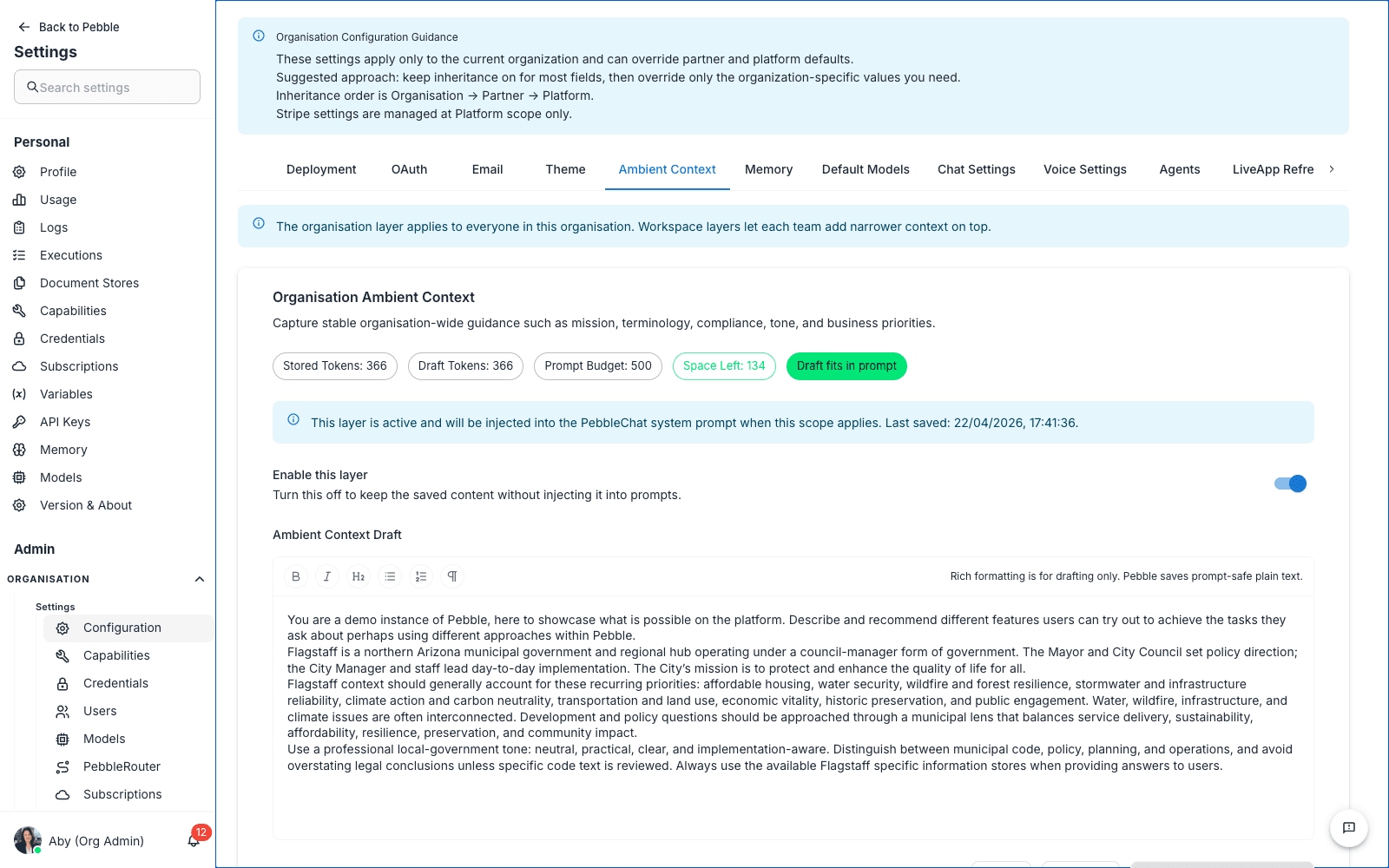
Defines the organisation layer of PebbleChat’s ambient context — the system prompt that shapes how PebbleChat responds for everyone in the org.
What you set here
- Organisation Ambient Context editor card with an Enable this layer toggle
- Ambient Context Draft — the editor for the prompt content, with Draft Tokens and Prompt Budget chips (a Draft fits in prompt chip confirms you’re within budget)
- Enhance — AI-powered action that rewrites the draft into a comprehensive prompt-safe version while respecting the token budget
- Per-workspace editors below the organisation card, one for each workspace’s layer
How layers stack
Ambient context combines four layers in this order:
- Platform (set by platform admin)
- Organisation (this page)
- Workspace (set by workspace admins)
- Personal (set by users in their profile — see Profile & Account)
Each layer adds on top of the previous; later layers can refine but can’t override the earlier ones. Each layer has its own token budget so the total doesn’t blow the model’s context window.
Step-by-step: writing your organisation prompt
- Toggle Enable this layer on
- Write your instructions in the editor — focus on persistent organisation-wide rules:
- “Always respond in Australian English”
- “We are a financial services firm regulated by APRA — never give financial advice”
- “When citing data, use APA referencing”
- “Default to terse responses unless asked for detail”
- Watch the token counter — if you’re hitting the limit, click Enhance to have AI rewrite for clarity at a smaller token cost
- Click Save Organisation Context at the bottom (the per-workspace editors save with Save Workspace Context)
Tips
- Don’t put secrets here. Ambient context is included in every PebbleChat request and is visible to users.
- Be specific about format and tone. Vague rules (“be helpful”) add token cost without changing behaviour.
- Iterate. Set it once, watch what users get from PebbleChat for a week, refine.
6. Memory
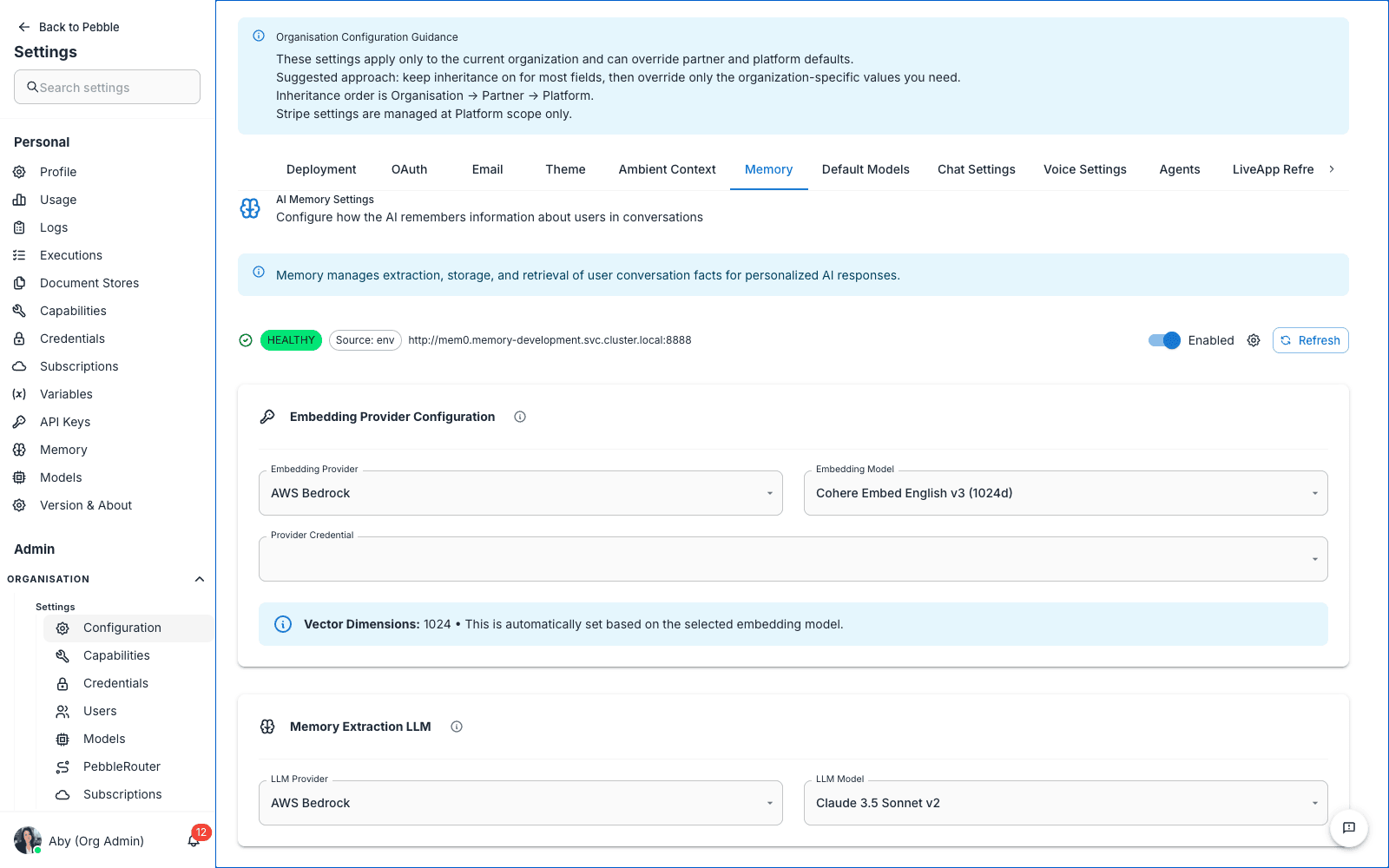
Configures how PebbleChat manages conversation memory — the system that lets PebbleChat remember context across sessions and personalise responses to individual users.
What you set here
- Enabled toggle — turn the memory system on/off for the organisation
- Embedding Provider Configuration — which provider to use for memory embeddings (e.g. AWS Bedrock)
- Embedding model — the specific model (e.g. Cohere Embed English v3 (1024))
- Vector dimensions: 1024 — auto-derived from the embedding model
- Memory Extraction LLM — the language model that extracts memories from conversations (this should be a fast, cheap model — Claude Haiku is a good default)
- Provider for the extraction LLM
When to configure
- After setting up a new organisation, before users start having conversations
- When you want to switch embedding providers (e.g. moving from OpenAI embeddings to Bedrock)
- When you need to tune memory extraction quality (try a different extraction LLM)
How users interact with memory
Once enabled, memories are extracted automatically from every PebbleChat conversation. Users see and manage their own memories at User Settings → Memory.
7. Default Models
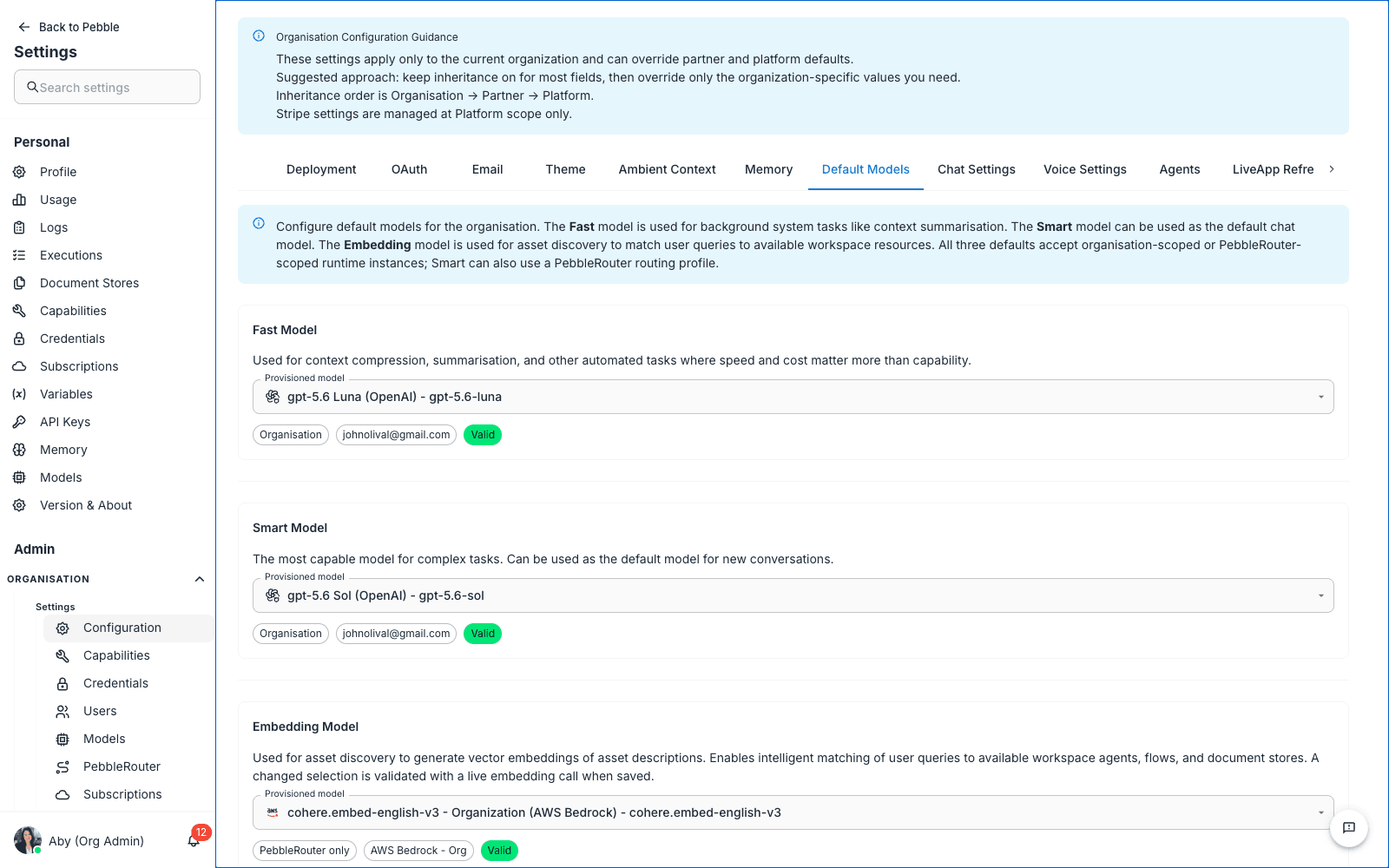
Configures the default models used for background system tasks like context compression, summarisation, and other automated work that PebbleChat does behind the scenes.
Users still pick their own model in the PebbleChat composer. Default Models is mainly for system work — compression, summarisation, embeddings — though the Smart Model also serves as the default chat model when no user preference exists.
What you set here
Each default is a Provisioned model picker listing runnable instances from Organisation Models. Options show the provider, model identifier, and chips for the instance’s scope and auth source — authentication is bound when the instance is provisioned, so there’s no credential to pick here.
Fast Model
The model used for context compression, summarisation, and other automated tasks where speed and cost matter more than capability.
A typical Fast Model: au.anthropic.claude-haiku-4-5-20251001-v1:0 (AWS Bedrock).
Smart Model
A more capable model for complex tasks that need quality. Also used as the default chat model when no user preference exists.
A typical Smart Model: au.anthropic.claude-opus-4-6-v1 (AWS Bedrock).
Embedding Model
The embedding model used for asset discovery in PebbleChat — generates the vector embeddings that PebbleChat uses to match user messages with discoverable workspace assets (flows, document stores, agents).
Workspace Overrides
Below the organisation-wide defaults, the Workspace Overrides section lets you point a single workspace at different defaults. Pick the Workspace, then set the Workspace Fast Model, Workspace Smart Model, and Workspace Embedding Model pickers. Clear workspace override removes the override so the workspace falls back to the organisation defaults.
Step-by-step: configuring defaults
- Pick a Fast Model — Claude Haiku or similar (the instance must already be provisioned in Organisation Models)
- Pick a Smart Model — Claude Opus or similar
- Pick an Embedding Model — Cohere Embed English v3, AWS Titan Embed, etc.
- Click Save Default Model Settings at the bottom of the tab
Why both Fast and Smart
Background work has two flavours: cheap-and-routine (compression, classification) and expensive-but-rare (synthesis, planning). Using a fast model for the routine work keeps cost down by orders of magnitude; using a smart model for the rare work keeps quality up where it matters.
8. Chat Settings
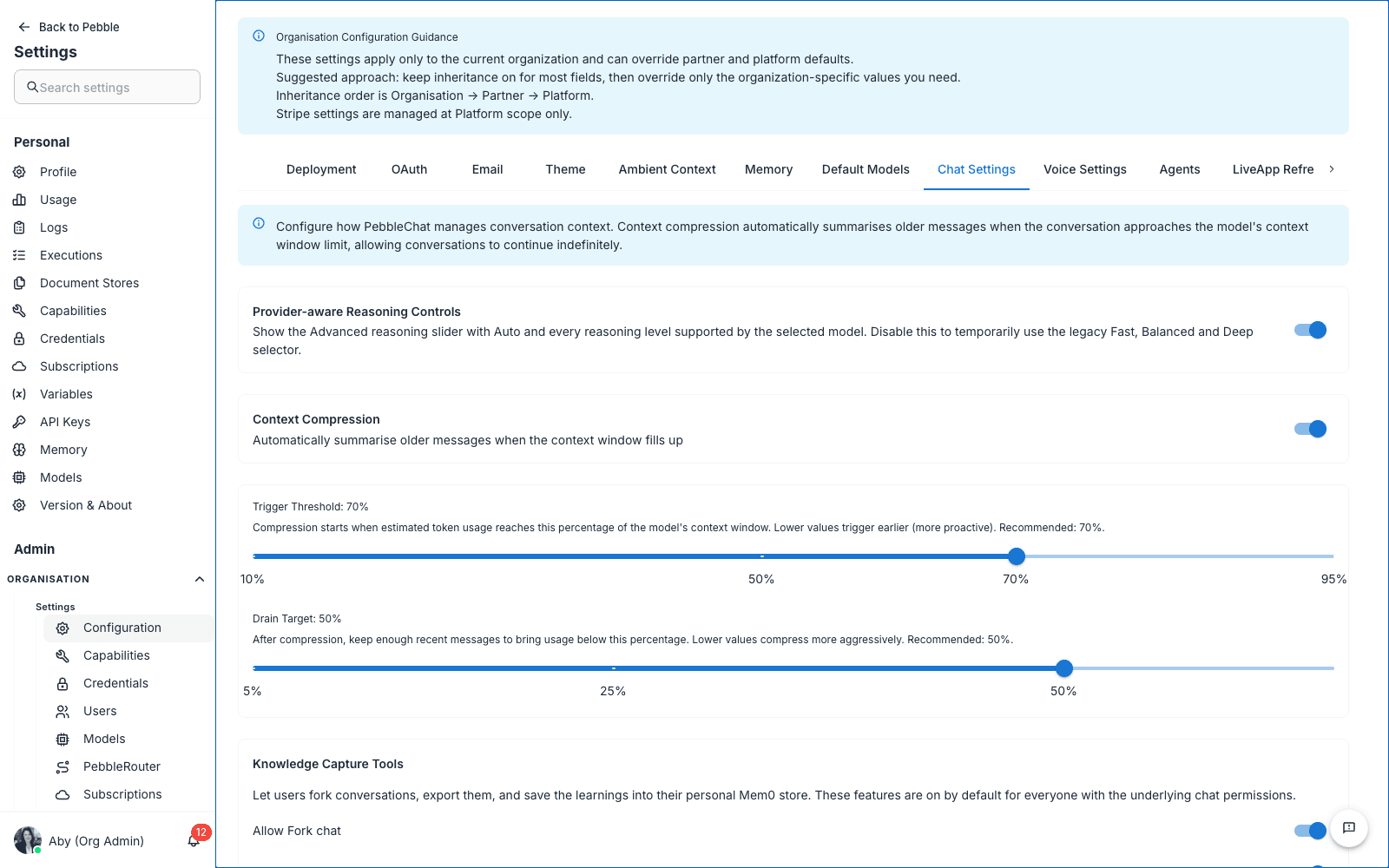
Controls how agents behave for your organisation — the automatic context compression that prevents long conversations from hitting the model’s context limit, the Agent Step Budget and Turn Timeout that bound each agent turn, and the Canvas surfaces available to your users.
What you set here
Context Compression
- Enabled toggle — automatic compression on/off for the organisation
- Trigger Threshold — slider, 10% to 95% (default 70%). Compression starts when the conversation reaches this percentage of the model’s context window. Lower = more proactive (compresses earlier).
- Drain Target — slider, from 5% up to 5 points below the Trigger Threshold (default 50%). After compression, target this percentage. Lower = more aggressive compression (frees more space).
Tuning advice
- 70% / 50% — the default, balanced for most conversations
- 80% / 60% — for long, nuance-heavy conversations where every turn matters
- 60% / 40% — for chat-heavy use where users have lots of throwaway back-and-forth
How compression works in detail
See PebbleChat → Advanced Features → Context Window for the user-side view. The compression itself runs on the Fast model configured in Default Models.
Individual users can bias how far compression drains their conversations with the Context fidelity control in their own chat settings — Balanced follows your Drain Target; High fidelity keeps more; Aggressive frees more.
Step-by-step: tightening compression
- Set Trigger Threshold lower (e.g. 60%) — more proactive
- Set Drain Target lower (e.g. 35%) — more aggressive
- Click Save Chat Settings
- Tell users the change has happened — they may notice older messages being summarised more aggressively
Agent Step Budget
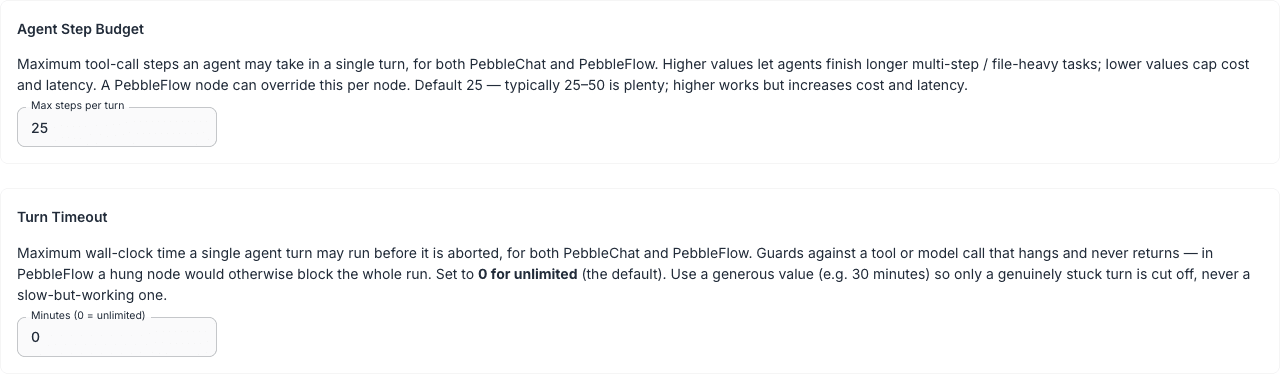
Caps the number of tool-call steps an agent may take in a single turn — for both PebbleChat and flow.
- Max steps per turn — default 25; typically 25 to 50 is plenty. Higher values let agents finish longer multi-step or file-heavy tasks; lower values cap cost and latency
- A flow PebbleChat Task node can override the budget for that node only, via its Max Steps Override field under Advanced Options — useful for a file-heavy sub-agent without raising the org-wide default
- If a run uses all of its allowed steps before producing a final answer, the user sees a clear reached step limit error rather than a vague empty response
Saved with Save Chat Settings.
Turn Timeout
The maximum wall-clock time a single agent turn may run before it is aborted — again for both PebbleChat and flow. It guards against a tool or model call that hangs and never returns; in flow a hung node would otherwise block the whole run.
- Minutes (0 = unlimited) — default 0, meaning unlimited (the feature is off until you set a value)
- Use a generous value (e.g. 30 minutes) so only a genuinely stuck turn is cut off, never a slow-but-working one
- When the timeout fires, the turn is stopped the same way as a user pressing Stop — any partial response already generated is kept in the conversation and the response simply ends
Saved with Save Chat Settings.
Canvas surfaces
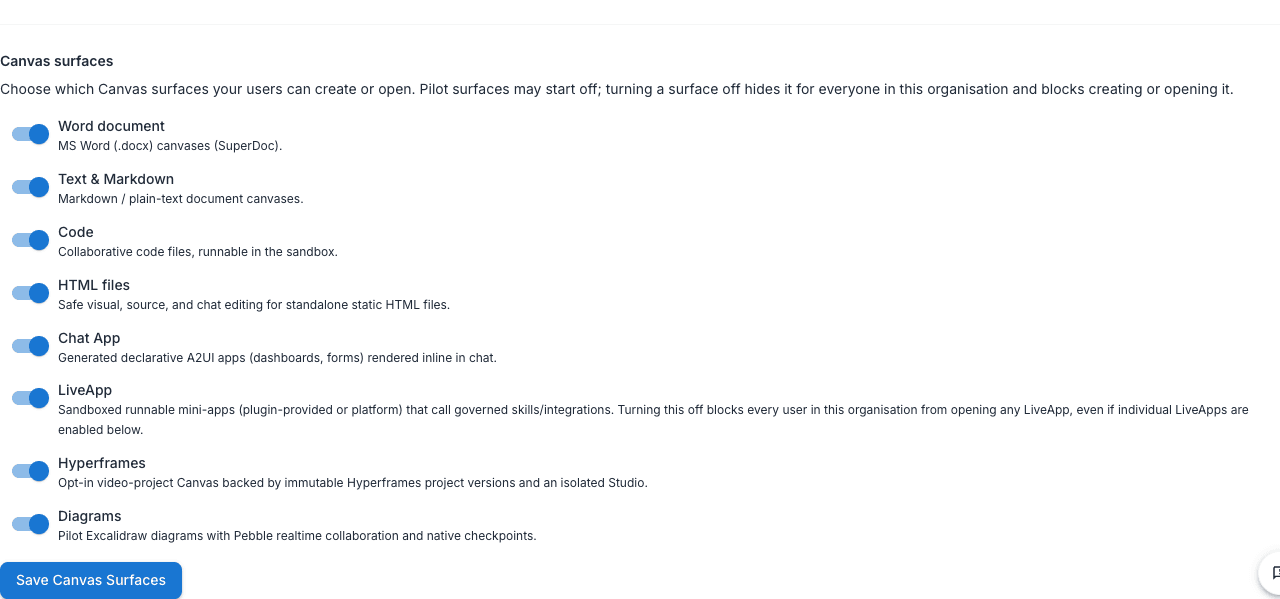
Controls which Canvas surfaces users in your organisation can create or open. All surfaces are on by default; turning one off hides it for everyone in the organisation and blocks creating or opening it.
| Surface toggle | What it covers |
|---|---|
| Word document | MS Word (.docx) canvases |
| Text & Markdown | Markdown and plain-text document canvases |
| Code | Collaborative code files, runnable in the sandbox |
| HTML files | Standalone HTML documents with visual, source and chat editing |
| Chat App | Generated interactive apps (dashboards, forms) rendered inline in chat |
| LiveApp | Sandboxed runnable mini-apps. This toggle is the org-wide kill switch — turning it off blocks every user in the organisation from opening any LiveApp, even ones enabled individually |
| Hyperframes | Opt-in video-project canvas — the one surface that’s off by default |
| Diagrams | Excalidraw diagrams with realtime collaboration |
All surfaces except Hyperframes are on by default. Organisations can restrict further than the platform defaults, never expand beyond them. This section has its own Save Canvas Surfaces button.
Alongside these org-wide toggles, role permissions gate Canvas per role: Use Canvas controls Canvas overall, and separate per-surface permissions — Canvas: Word documents, Canvas: Markdown documents, Canvas: Code, Canvas: HTML documents, Canvas: Apps, Canvas: Diagrams, Canvas: Hyperframes, plus Launch Live Apps — let you restrict individual surfaces for specific roles on the Roles tab.
See PebbleChat → Canvas for the user-side experience and LiveApps for per-app governance.
File Size Limits
The Chat Settings tab also carries a File Size Limits section — the organisation’s view of the per-file-type limits matrix (inline reading limit and sandbox processing limit per category: spreadsheets, Word documents, PDF, PowerPoint, text, email, images, other). Blank values inherit the platform setting; an organisation can restrict below the platform limits but never exceed them. The platform-wide defaults (including the session staging total) live in Platform Admin → Settings → File Limits. See File Attachments for what users experience.
Also on this tab
The Chat Settings tab also houses Knowledge Capture Tools (allow fork, export, and save learnings to memory), Prior Chat Awareness, and the Image Creation section that switches chat image generation on and selects the image model (see Organisation Models for the model side).
9. Voice Settings
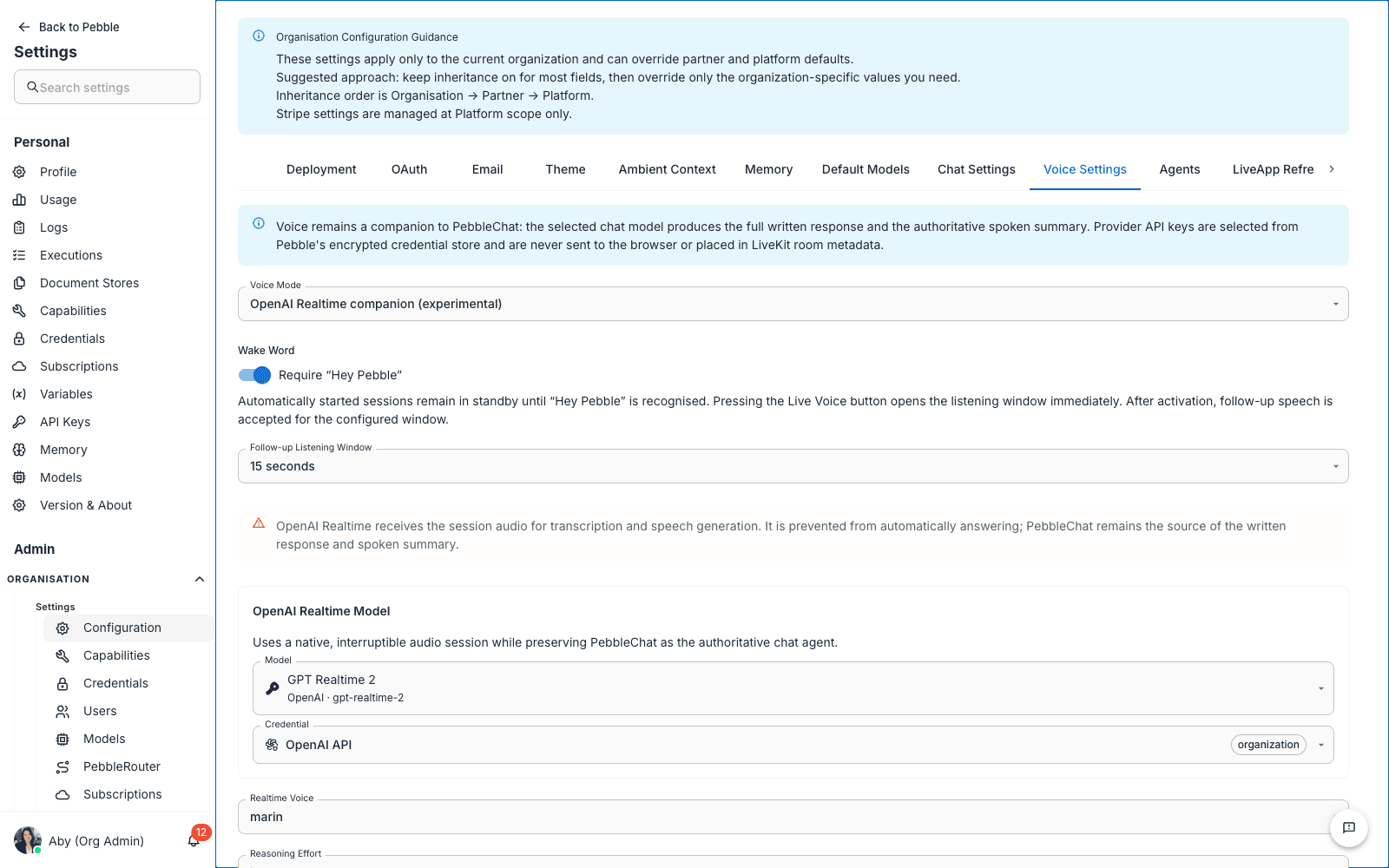
Configures the voice companion used alongside PebbleChat. The selected chat model still produces the written response and spoken summary.
What you set here
- Voice Mode — Cascaded STT + TTS or OpenAI Realtime companion (experimental)
- Wake Word — whether automatically started sessions require “Hey Pebble”
- Follow-up Listening Window — how long follow-up speech is accepted after activation
- Cascaded Voice Models — separate speech-to-text and text-to-speech models and their credentials, when using cascaded mode
- OpenAI Realtime Model, Credential, Realtime Voice, and Reasoning Effort — the controls shown for realtime mode
Step-by-step: enabling voice for the organisation
- Choose a Voice Mode
- Select the models and credentials for that mode
- Set the wake word, listening window, and voice options
- Click Save Voice Settings
Users see the Voice Input feature once it’s configured.
10. Capabilities
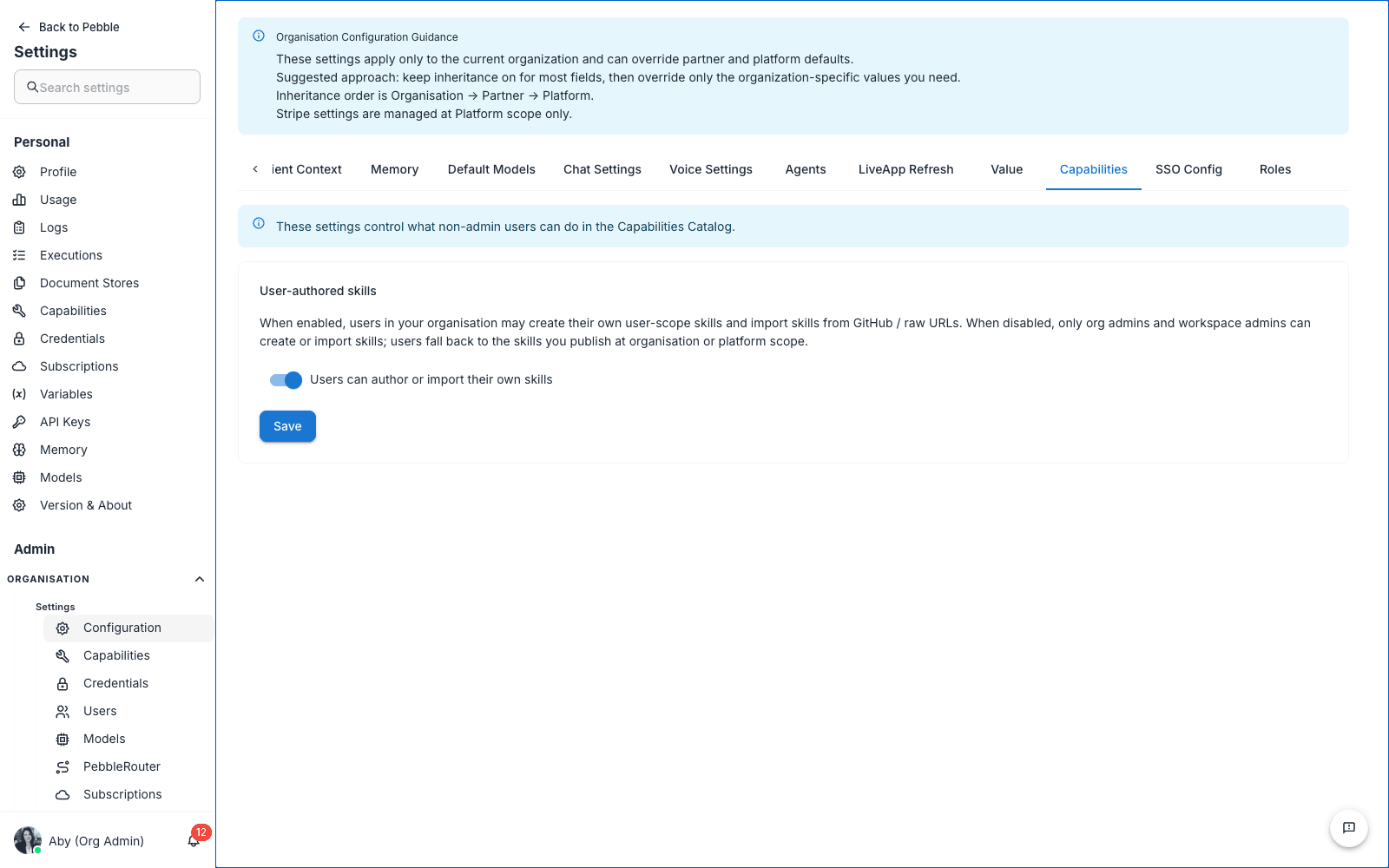
Controls what non-admin users can do in the Capabilities Catalog.
What you set here
- User-authored skills — a switch controlling whether non-admin users may create their own user-scope skills and import skills from GitHub or raw URLs. When it’s off, only org admins and workspace admins can create or import skills; users fall back to the skills you publish at organisation or platform scope. Org and workspace admins are unaffected either way.
Click Save to apply the change.
11. SSO Config
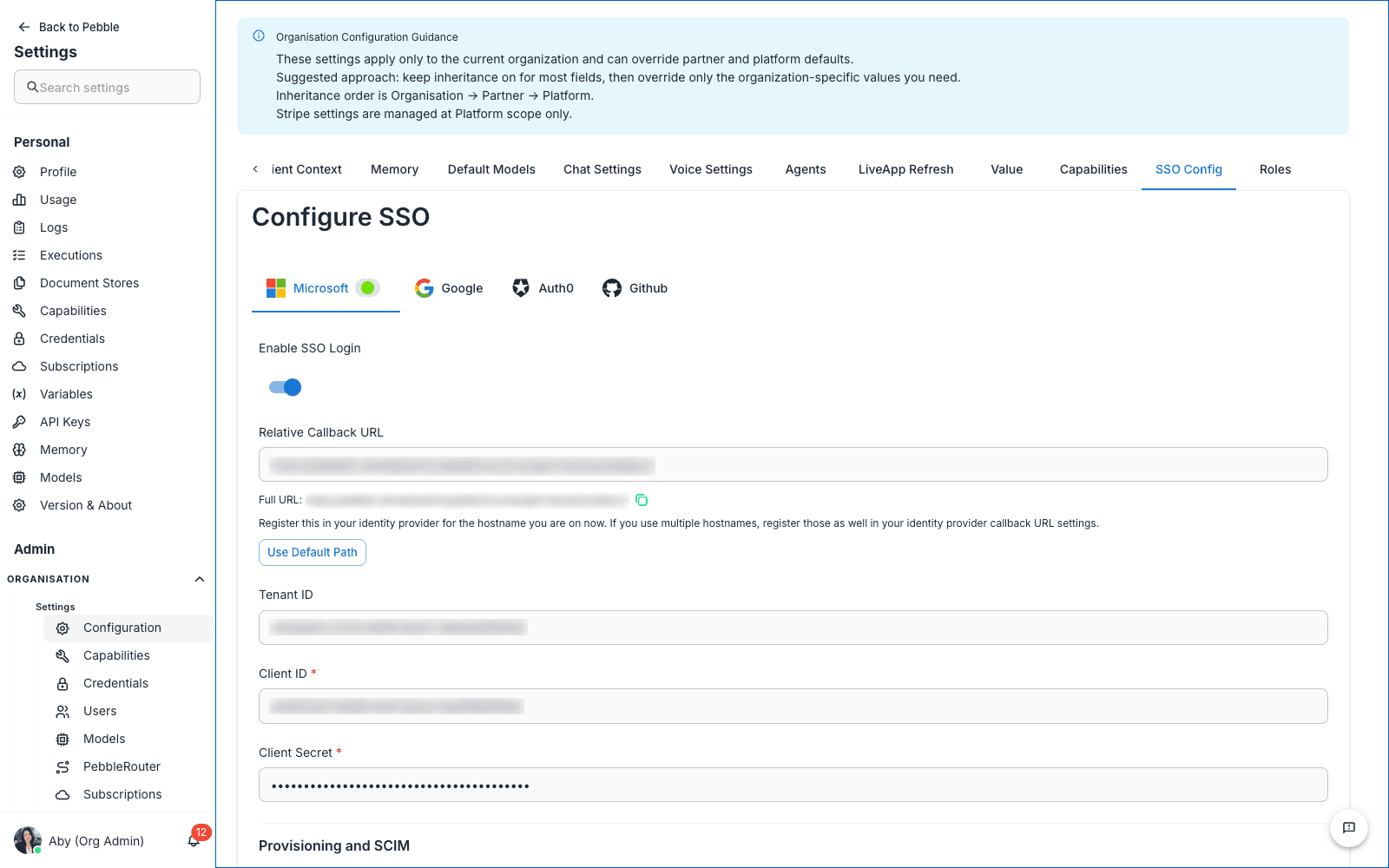
Configures Single Sign-On for your organisation.
What you set here
- Enable SSO Login toggle
- Provider tabs — Microsoft, Google, Auth0, GitHub
- Callback URL — auto-populated from the OAuth Callback URL set in the OAuth tab
- Tenant ID, Client ID, Client Secret — provider-specific credentials
- Provisioning and SCIM — auto-create users on first SSO login, or require manual provisioning
Step-by-step: enabling Microsoft Entra ID SSO
- Toggle Enable SSO Login on
- Pick the Microsoft tab
- Register an Azure AD app (see your Microsoft 365 documentation for app registration)
- Copy the Tenant ID, Client ID, and Client Secret into the form
- Set the redirect URI in Azure AD to the Callback URL shown on this tab
- Optionally enable Provisioning — auto-create new PebbleAI users when they sign in via SSO
- Click Save SSO Settings
- Test by signing out, then signing back in via the SSO flow
12. Roles
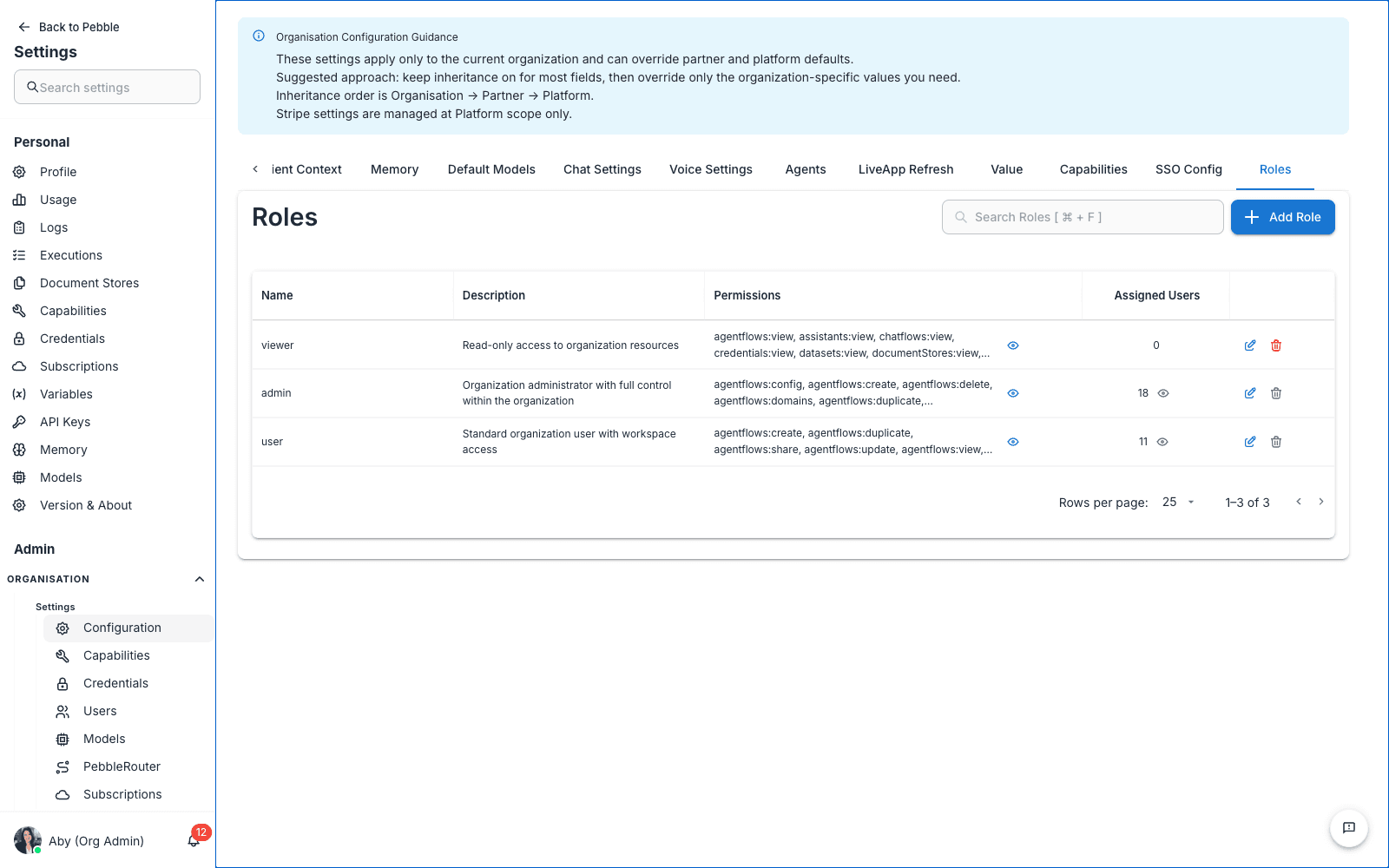
Defines the roles available in your organisation and which permissions each role grants.
What you see here
A table of roles with columns:
- Name — the role name (e.g.
viewer,editor,admin) - Description — a short description
- Permissions — which permission groups this role has (chatflows, agentflows, document stores, credentials, tools, etc.)
- Assigned Users — how many users currently hold this role
Step-by-step: creating a custom role
- Click Add Role in the top-right
- Give the role a name and description
- Tick the permission groups you want this role to have
- Save
- Now assign the role to users in Users
Default roles
Most installs ship with these defaults:
- viewer — read-only access; can see assets but not run or edit them
- editor — can create and edit chatflows, agentflows, tools, document stores, and use PebbleChat with full capabilities
- admin — everything; full control
You can clone and customise any default role to create variations.
Saving and inheritance
Each tab has its own Save button at the bottom (Save Settings, Save OAuth Settings, Save Chat Settings, etc.). Changes don’t take effect until you click Save.
Most fields have a Use inherited value / Override dropdown beside them. Pick Override to set an organisation-specific value; pick Use inherited value to fall back to the platform default.
Troubleshooting
“My change didn’t take effect” — Confirm you clicked the Save button on the specific tab. Saves are scoped to the tab they’re on.
“I overrode a value but it still shows the old behaviour” — Hard-refresh the browser. Some caches don’t pick up settings changes until the next page load.
“The page won’t load” — You may not have organisation admin role. Check with whoever runs PebbleAI for your org.
Related
- Credentials — must exist before you can pick them in OAuth, Email, Default Models
- PebbleRouter — picks up the Default Models you set here as fallbacks
- Profile & Account — where users set the personal layer of ambient context
Other tabs
- LiveApp Brand Kit — the LiveApp Brand Studio: palette, typography, tone of voice and component guidance applied when Pebble generates new LiveApps, with draft/publish revisions and a live preview. See LiveApps → Brand Kits.
- Agents — organisation settings for the Agents capability, where your deployment has it enabled.
- LiveApp Refresh — the organisation’s policy for LiveApp automatic data refresh (users set their own interval per app, above the platform minimum). See LiveApps → Live data.
- Value — the organisation’s labour rate and effort estimates that price what Pebble use is worth. Documented with the usage dashboard: PebbleObserve → Usage → Value.