PebbleChat
PebbleChat is the powerhouse of PebbleAI. Not a chatbot that answers questions and stops — an AI agent you work with to get real work done. It talks to your workflows, your document stores, your tools, and your data. It researches, plans, acts, and explains what it did.
Everything else in PebbleAI exists to make PebbleChat more capable. Flows builds the reusable building blocks it calls on. PebbleObserve measures how well it’s performing. PebbleAgents (coming soon) will let it run autonomously in the background. But the conversation in PebbleChat is the place work actually happens.
What makes PebbleChat different
Your conversations stay inside your organisation. Unlike public AI chat products where every prompt leaves your walls, PebbleChat runs inside the boundary your organisation controls. Model calls route through your own credentials — typically AWS Bedrock in your chosen region (e.g. ap-southeast-2 for Australia) — so data residency, contractual coverage, and compliance regimes like IRAP PROTECTED are respected automatically. Take control of your AI usage and safely leverage the competitive advantage AI brings, without handing your organisation’s data to a third party.
One place for all your AI. PebbleAI’s core promise is consolidation: instead of your team spreading sensitive work across a dozen external AI tools, PebbleChat gives you one sanctioned place to do it. Admins see who is using what, finance sees the cost, and security sees the boundary. Everyone gets the productivity; no one loses the oversight.
It’s connected to your organisation’s knowledge and tools. Type / to reference a specific document store, flow, tool, or skill. Or just ask — PebbleChat automatically discovers the relevant assets your colleagues have built and uses them on your behalf. No plumbing, no lookup tables, no “which bot do I ask?”.
You can work in it together. Share a conversation with a colleague — or a whole project — and it becomes a live room: everyone sees the same responses, works the same canvases, and takes turns with the agent. See Projects & Collaboration.
It runs code, not just talks about it. Skills (Claude Code-compatible prompt templates) can include Python that executes in a platform-hosted, gVisor-isolated code execution sandbox. Ask for a branded PDF, a chart, a spreadsheet, a data analysis, and you get the actual file — uploaded to your user file store and linked in the chat. No desktop handoff, no manual copy-paste. Claude, OpenAI, and Copilot don’t do this inside enterprise chat.
It thinks before it answers. For complex queries, PebbleChat plans its approach, runs web searches or tool calls, synthesises the results, and only then writes the final response. You can watch it work in the Activity Stream, expand reasoning panels for reasoning-capable models, and see exactly what sources it used.
It remembers what you tell it. Personal memory, personal ambient context, workspace context, and organisation-level instructions all stack together — so PebbleChat arrives at your first message of the day already knowing your role, your preferences, and what you’re working on. All of it stored against your organisation, not a public account.
It exports into your workflow. Responses download as PDF, Word, email, and other formats. Nothing is trapped in the chat.
It works in the background. Start a research task, navigate away, come back ten minutes later. PebbleChat keeps going and fires a notification when it’s done.
It listens as well as it reads. Real-time voice input with press-to-talk or hands-free mode. Everything you can do by typing, you can do by speaking — including the tool calls. Speech-to-text and text-to-speech run through providers your admin chooses, so voice stays inside the same boundary as text.
Every interaction is observable. PebbleChat is instrumented end-to-end by PebbleObserve. Admins can see cost, tool usage, latency, and quality metrics without anyone having to enable tracing. You get the productivity benefits of AI without losing visibility into what’s happening.
The PebbleChat surface
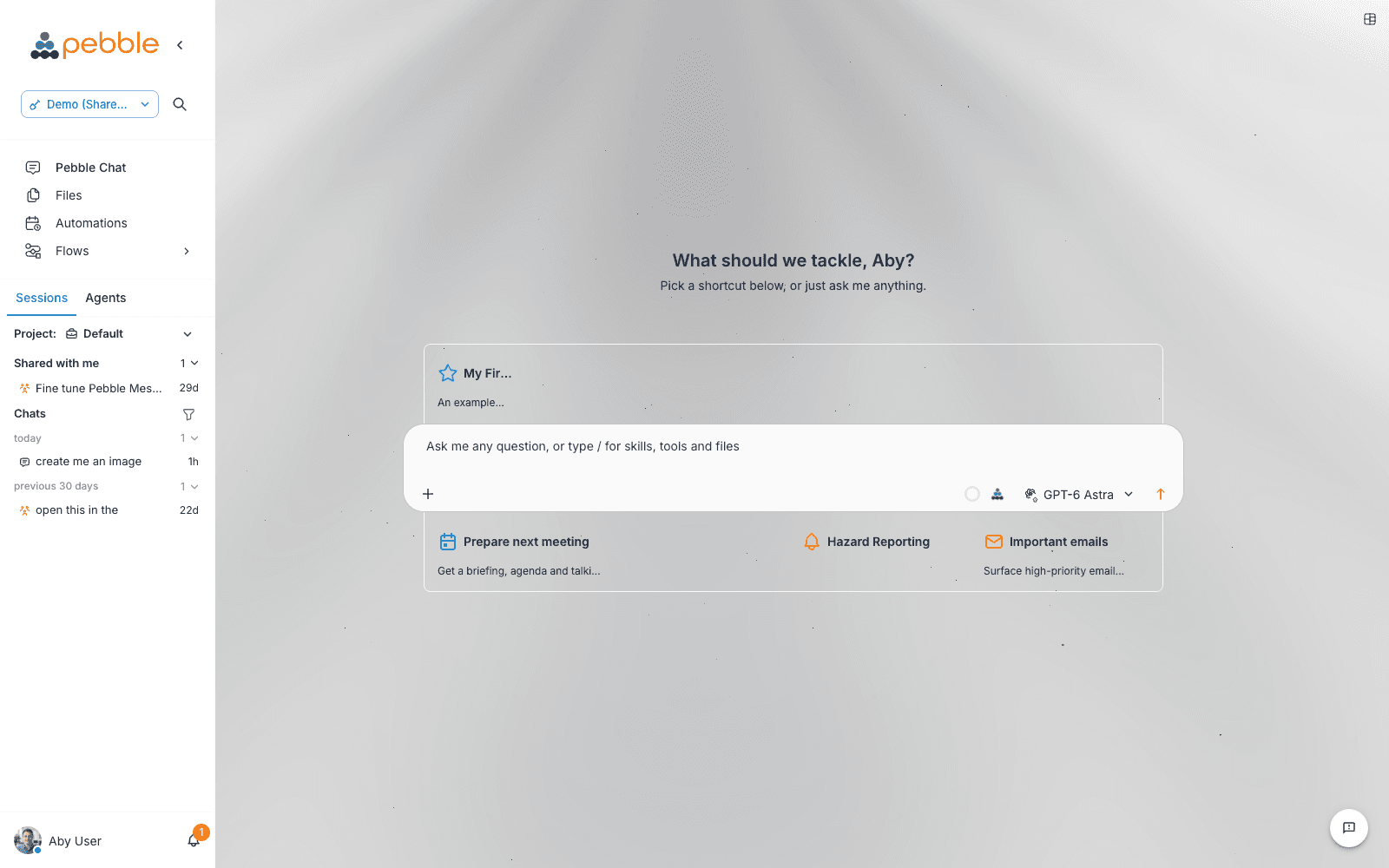
Here’s what’s on screen when you open PebbleChat:
| Area | What it is |
|---|---|
| The sidebar | The whole app in one rail — workspace and search at the top, navigation (Pebble Chat, Files, Automations, Flows), your chat history, and your profile at the bottom. Covered in The Pebble Interface. |
| Chat area | The conversation itself — your messages, the AI responses, the activity stream. |
| Composer | The input area where you type — with the + menu for attachments, context, voice, reasoning effort and per-chat settings, plus the microphone and the model selector. |
| Canvas | The workspace panel that opens beside the conversation for documents, code, diagrams and apps — see Canvas. |
In this section
| Page | What’s inside |
|---|---|
| Getting Started | UI walkthrough and your first conversation |
| Model Selection | Auto routing, Bedrock and other providers, switching models mid-chat |
| Conversations & History | The history in the sidebar, search, filters, shared chats, background indicators |
| Projects & Collaboration | Projects, sharing conversations, and working live with colleagues |
| Messages & Responses | Streaming, thinking panels, message actions, exporting |
| Canvas | Word, Markdown, HTML, code, diagrams and apps beside the chat |
| Capabilities & Context | The / menu — flows, Past Chats, MCP tools, asset discovery — and @ for people |
| Building Flows from Chat | Describe an automation and get a reviewed flow draft |
| Skills | Reusable prompt templates with optional Python code that run in the sandbox |
| File Attachments | Attaching files, size limits, and working with produced files |
| Voice Input | Press-to-talk, hands-free, dictation hotkey, STT/TTS |
| Advanced Features | Background chat, activity stream, context window, reasoning panels |
| Chat Settings | Per-chat behaviour — sound, background processing, alerts |
Quick start
- Click Pebble Chat in the sidebar (it’s the first item) — or just open Pebble; a new chat is the home page
- Start typing in the composer, or click one of the shortcut tiles on the landing page
- Press Enter or click Send
- Watch PebbleChat plan, research, and respond
If you’re brand new, Getting Started walks through the interface element by element.