Tasks & Automations
Tasks give repeatable work a home in PebbleAI. A task is a reusable instruction — “compile my daily briefing”, “summarise this week’s support tickets” — that Pebble runs for you on demand or on a schedule, using the full PebbleChat runtime. Every run produces a conversation you can open and read, and the whole history is reviewable in one place.
You’ll find everything under Sidebar → PebbleChat → Tasks. The Automations sidebar entry opens the same page on its Automations tab.
Tasks run through the same PebbleChat turn path as a normal conversation — the same configured tools, skills, selected context, model recovery and conversation history behaviour.
The Tasks page
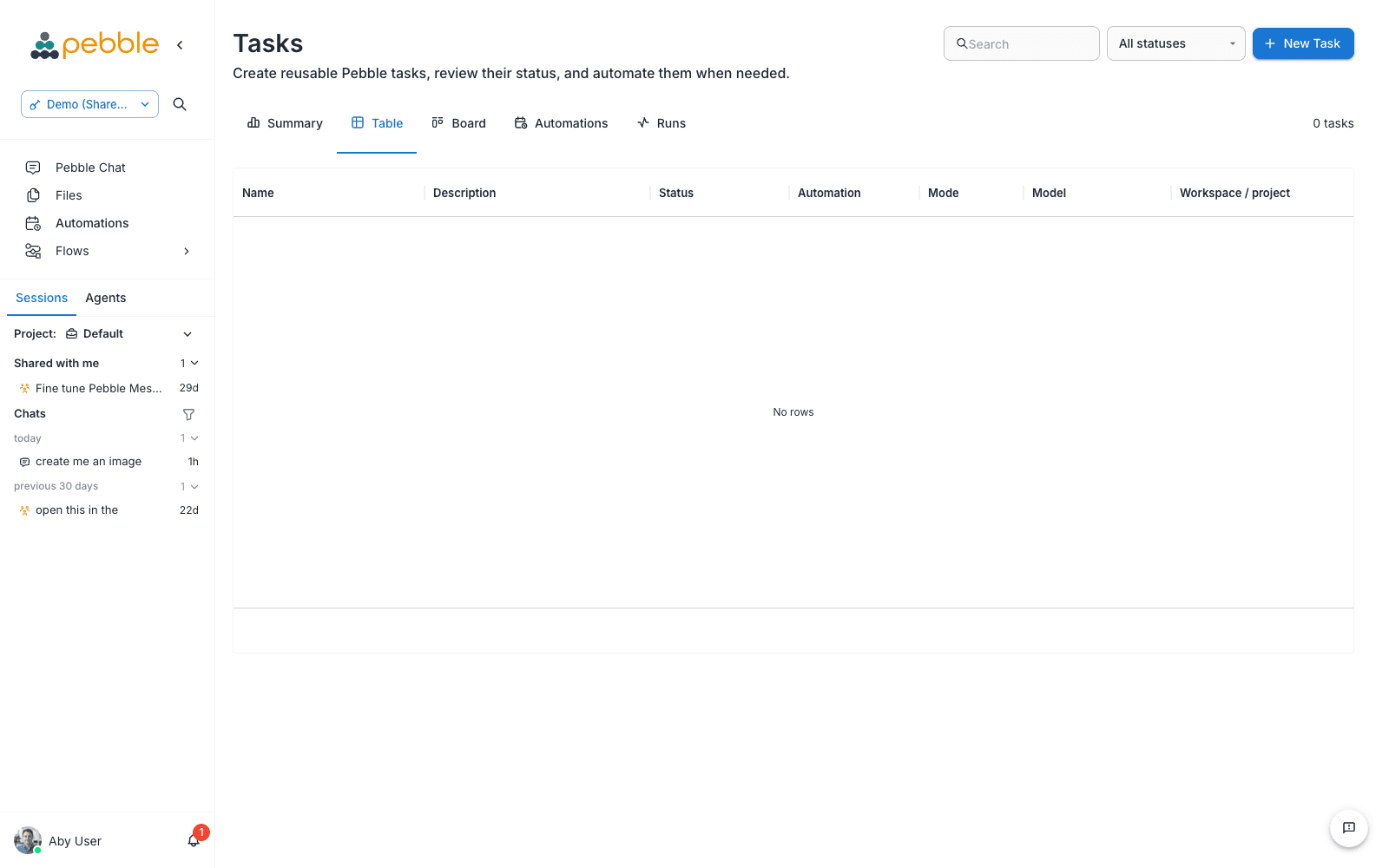
The Tasks page (“Create reusable Pebble tasks, review their status, and automate them when needed.”) has five tabs:
| Tab | What it shows |
|---|---|
| Summary | Metric cards for the last 7 days (completed, updated, created) and tasks due in the next 7 days, plus panels for Status overview, Recent activity, Task mix, Types of work and Team workload |
| Table | Every task as a sortable table with per-row actions |
| Board | The same tasks as a kanban board, grouped by status |
| Automations | The schedules that run your tasks automatically |
| Runs | Execution history across all tasks and automations |
The New Task button, search box and status filter appear on the Table and Board tabs.
Task statuses
Each task carries a status chip derived from its automation and run history:
| Status | Meaning |
|---|---|
| Never run | The task exists but hasn’t been executed yet |
| Automated | The task has an active automation |
| Running | A run is currently executing |
| Healthy | The most recent run succeeded |
| Failing | The most recent run failed |
| Paused | The task’s automation is paused |
Creating a task
- Go to Tasks → Table (or Board) and click New Task — or hover the Tasks row in the main sidebar and click the orange plus (Create task), which opens the same dialog
- Fill in the Create Task dialog:
| Field | Notes |
|---|---|
| Name (required) | A short name, e.g. “Daily briefing” |
| Description | Optional context for teammates browsing the list |
| Instructions (required) | The prompt Pebble follows on every run — write it exactly as you’d type it into PebbleChat |
| Project context | Free-text project context for the run |
| Mode | Ask or Act — the same modes as PebbleChat |
| Model | Free-text model name; leave it as default to use the default model |
-
Optionally expand the Advanced accordion:
- PebbleChat ambient context — a switch labelled “Include platform, organization, workspace, user, and timezone context”. This is on by default for tasks, so scheduled runs know who you are, where you work and what time it is
- System prompt — optional extra system guidance, blank by default
-
Click Save
Every field has an info icon with a short help tooltip if you’re unsure what something does.
Ambient context and system-prompt guidance are injected as hidden system context — they never appear as user-typed text in the run’s visible transcript.
Running a task and reading results
From the Table tab, each row offers icon actions: Edit task, Open task detail, Run task now, Duplicate task and Delete task. Click Run task now to execute immediately without waiting for a schedule.
Each run that produces a conversation gets a View result link that opens the chat in PebbleChat, so you can read the output — and carry on the conversation — exactly as if you’d asked yourself. Task-created conversations also appear in your chat history sidebar with a clipboard icon so they’re easy to spot.
The task detail page
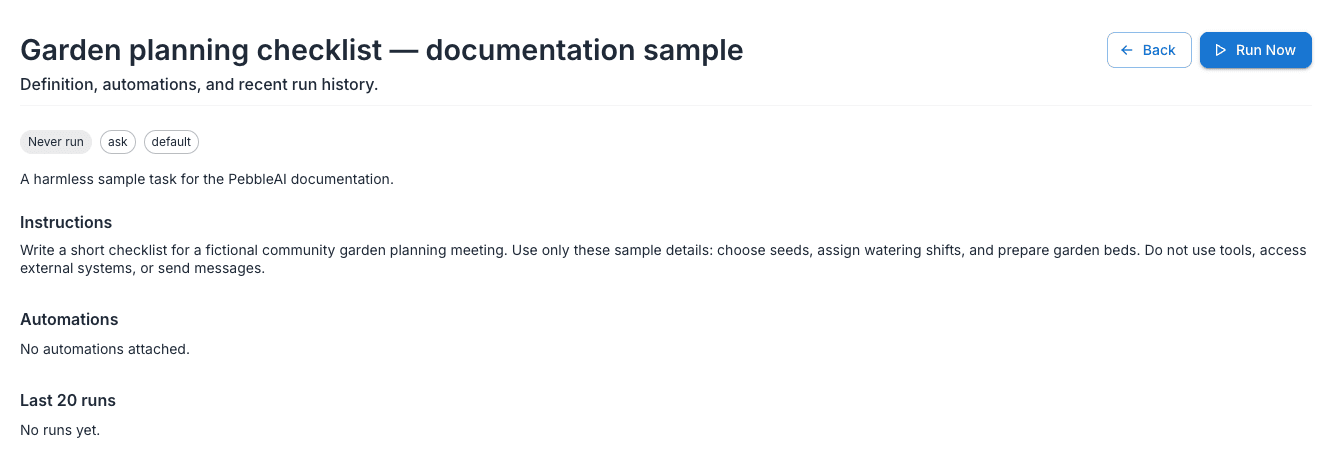
Click Open task detail on any row to open the task’s own page — “Definition, automations, and recent run history.” It shows:
- Back and Run now buttons in the header
- Chips for the task’s derived status, mode and model
- Instructions — the full prompt
- Automations — each schedule with its frequency, an Active/Paused chip and the next run date
- Last 20 runs — each with a timestamp, status chip and a View result link when a chat exists
Automations
Automations run tasks on a schedule. Open the Automations tab on the Tasks page (the Automations sidebar entry takes you straight there) — “Manage automated runs for existing or new Pebble tasks.”
The toolbar has a sort control, search and a New Automation button. If you haven’t created any yet, the empty state (“No automations yet”) offers More ideas starter chips — Daily brief and Weekly review.
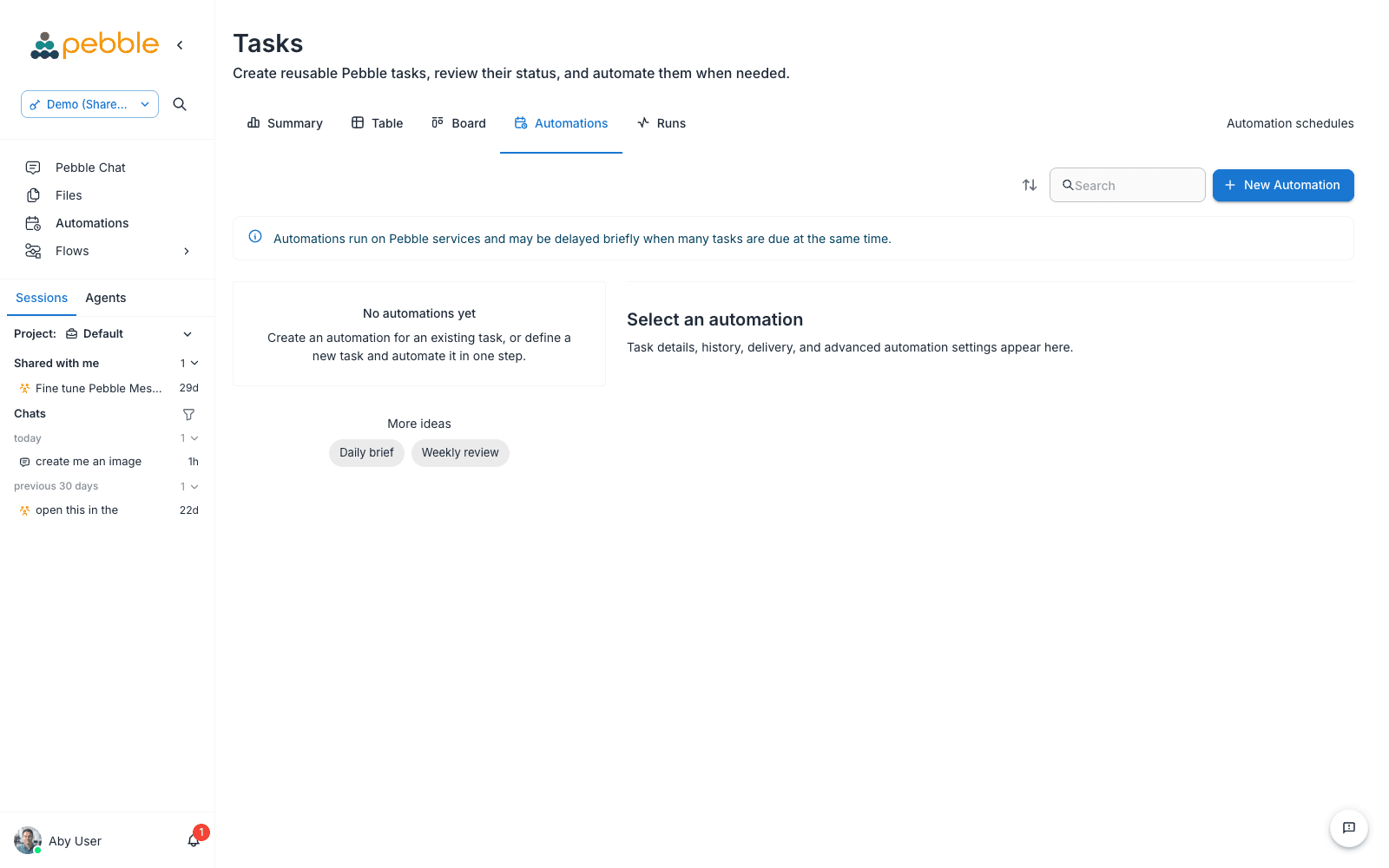
“Automations run on Pebble services and may be delayed briefly when many tasks are due at the same time.”
Creating an automation
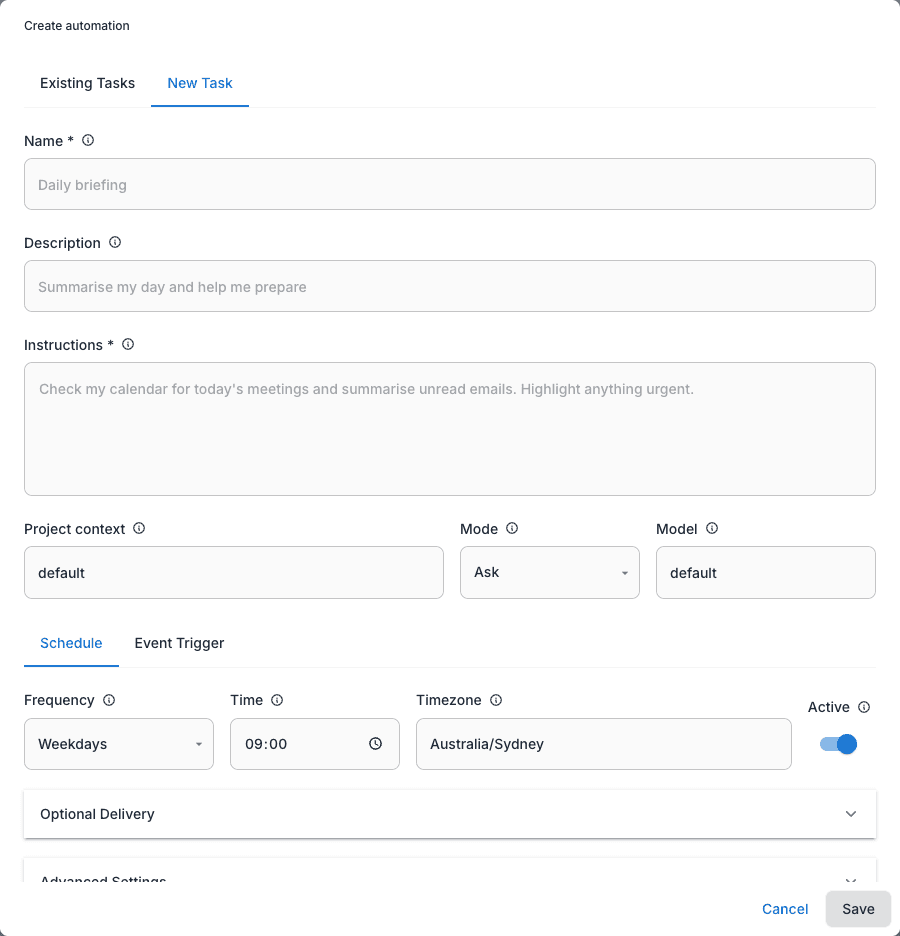
Click New Automation. The dialog has two tabs:
- Existing Tasks — pick a task you’ve already defined from the Task select
- New Task — define a brand-new task inline, with the full set of task fields
Then set the schedule:
| Field | Options and defaults |
|---|---|
| Frequency | Manual, Hourly, Daily, Weekdays, Weekly — default Weekdays |
| Time | Default 09:00; disabled for Manual and Hourly frequencies |
| Timezone | Defaults to your browser timezone |
| Active | Switch — turn off to create the automation paused |
Two optional accordions round out the dialog:
- Optional Delivery — send results somewhere when a run finishes. Choose a Delivery method (None, Email, Teams, or Email and Teams), then fill in Email recipients (comma-separated) and/or the Teams target: Teams target type (Chat or Channel) with a Teams chat ID, or a Team ID plus Channel ID
- Advanced Settings — Backlog policy (Latest only, Run all, Skip missed) controls how missed runs are handled, and Jitter seconds (default 300) staggers start times so many automations don’t fire at exactly the same moment
Managing an automation
Select an automation to open its detail panel:
- Run now, Pause/Resume, plus Edit automation and Delete automation icon buttons
- History — recent runs with status chips (Queued, Running, Succeeded, Failed, Skipped, Coalesced, Cancelled), View result links and any delivery warnings
- Instructions — the task prompt this automation runs
- Repeats — the schedule in plain language (e.g. “Weekdays at 09:00”) with the next 3 upcoming runs
- Delivery and Advanced — the configured delivery targets, backlog policy and jitter
If you edit a task after its automation last succeeded, the panel shows a warning chip — Task changed since last successful run — so you know the next result may look different.
Runs
The Runs tab is the audit trail — “Review task execution history, status, delivery outcome, and result links.”
Filter the history with a Refresh button, free-text search, a status select (All statuses plus Queued, Running, Succeeded, Failed, Skipped, Coalesced, Cancelled), an All tasks select, an All automations select, and From/To date pickers. The table shows Task, Status, Queued, Duration and Result — with a View result button wherever a result exists.
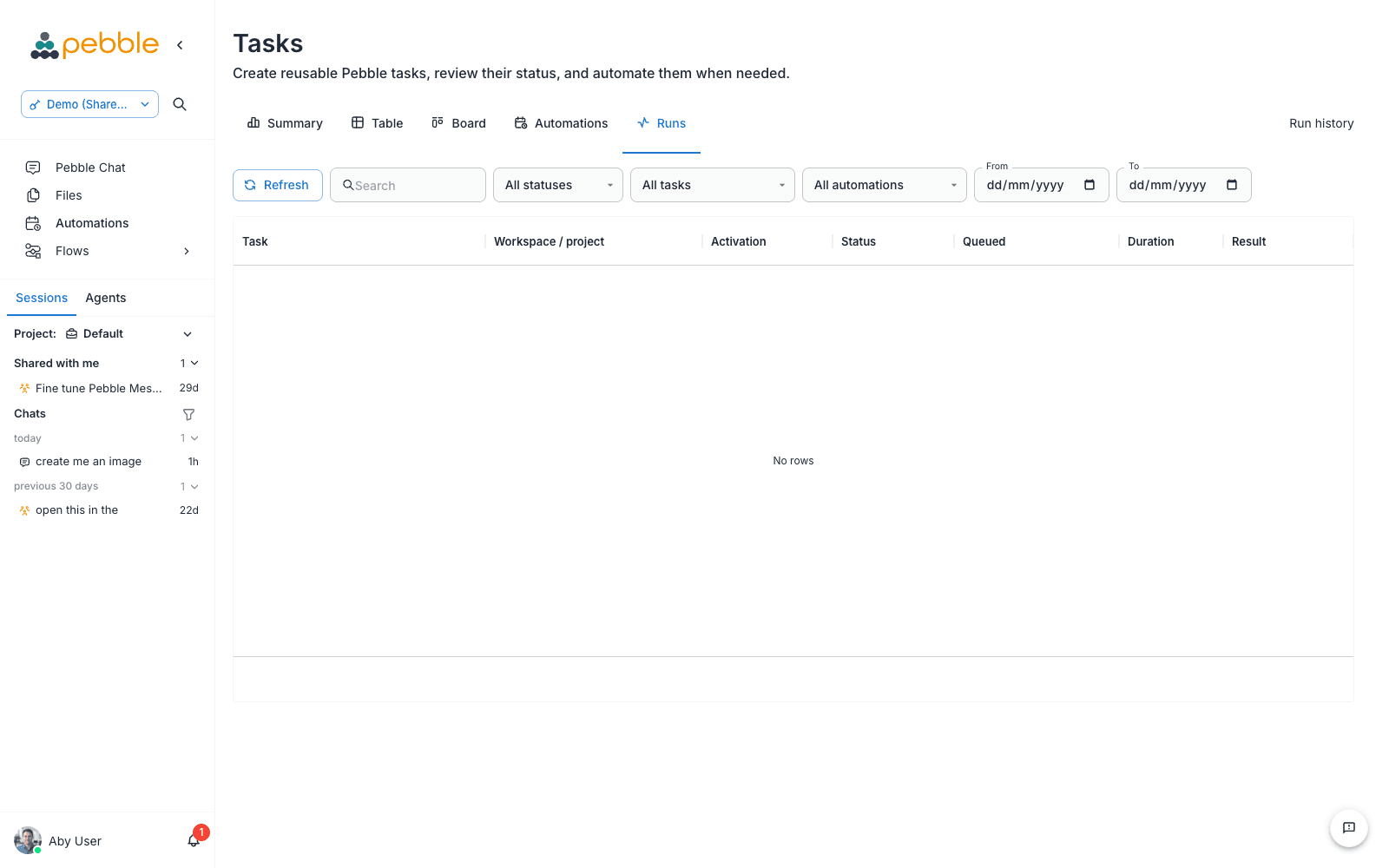
The Runs tab shows task runs. AgentFlow executions are a separate surface — Sidebar → Flows → Executions — with its own inspector and controls, covered next. Don’t go looking for flow executions on the Runs tab.
Stopping and resuming flow runs
Long-running AgentFlow executions got two important controls of their own.
Force-stop an execution
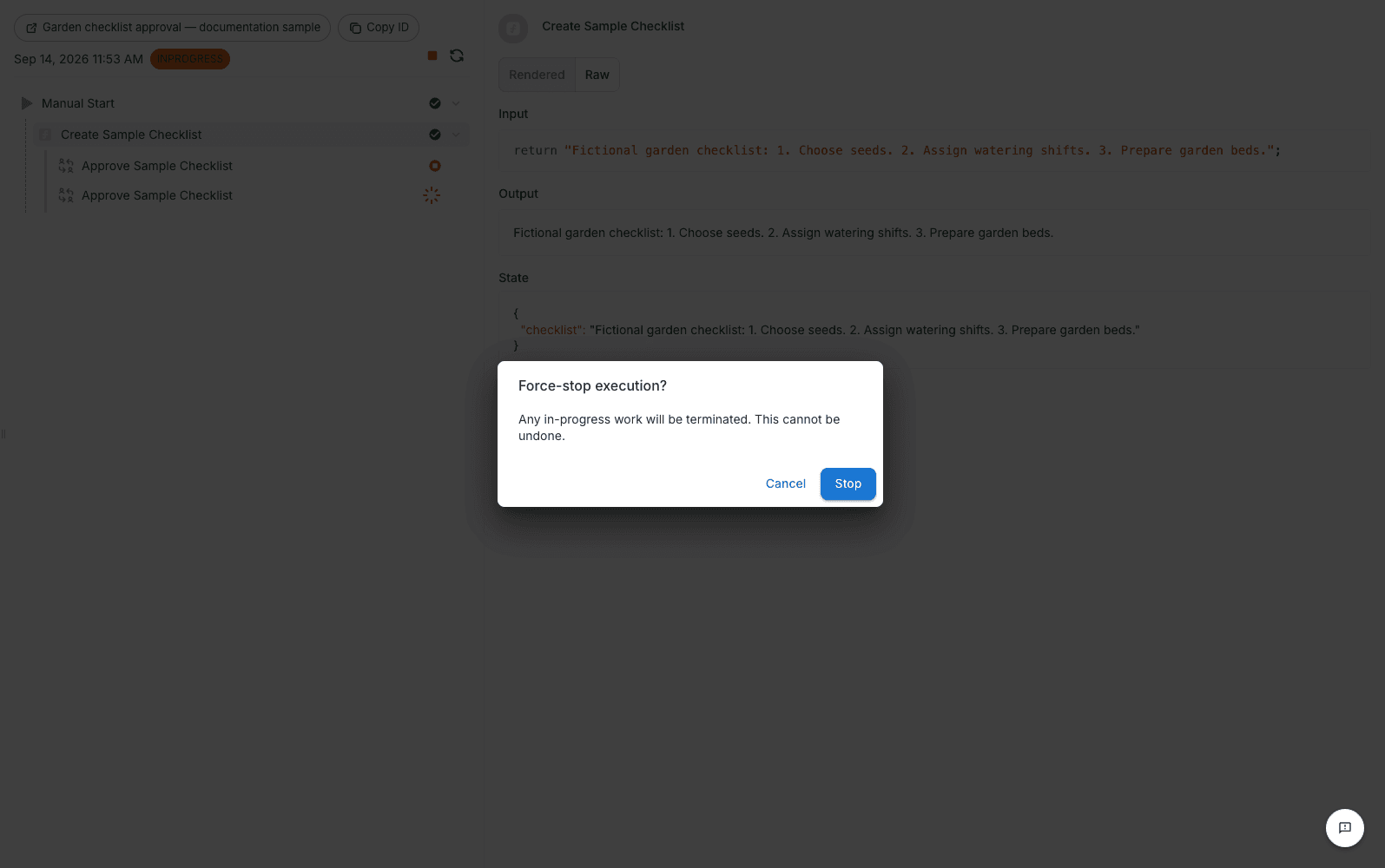
If an execution is stuck or you simply want it gone, you can halt it from the execution detail view:
- Go to Sidebar → Flows → Executions and open the execution
- While the state chip shows INPROGRESS, a red stop icon button appears — tooltip “Force-stop this execution”
- Click it and confirm. The dialog is explicit: “Force-stop execution?” — “Any in-progress work will be terminated. This cannot be undone.” — with Stop and Cancel buttons
- The state chip shows STOPPING… while the stop happens, and an Execution stopped toast confirms success
Force-stop signals the live worker and writes the terminal state on the server, so it also unsticks orphaned runs whose worker died — the execution won’t sit at INPROGRESS forever. The button only appears while the state is INPROGRESS, and is never shown on public or shared execution views.
Leaving and returning to a running AgentFlow
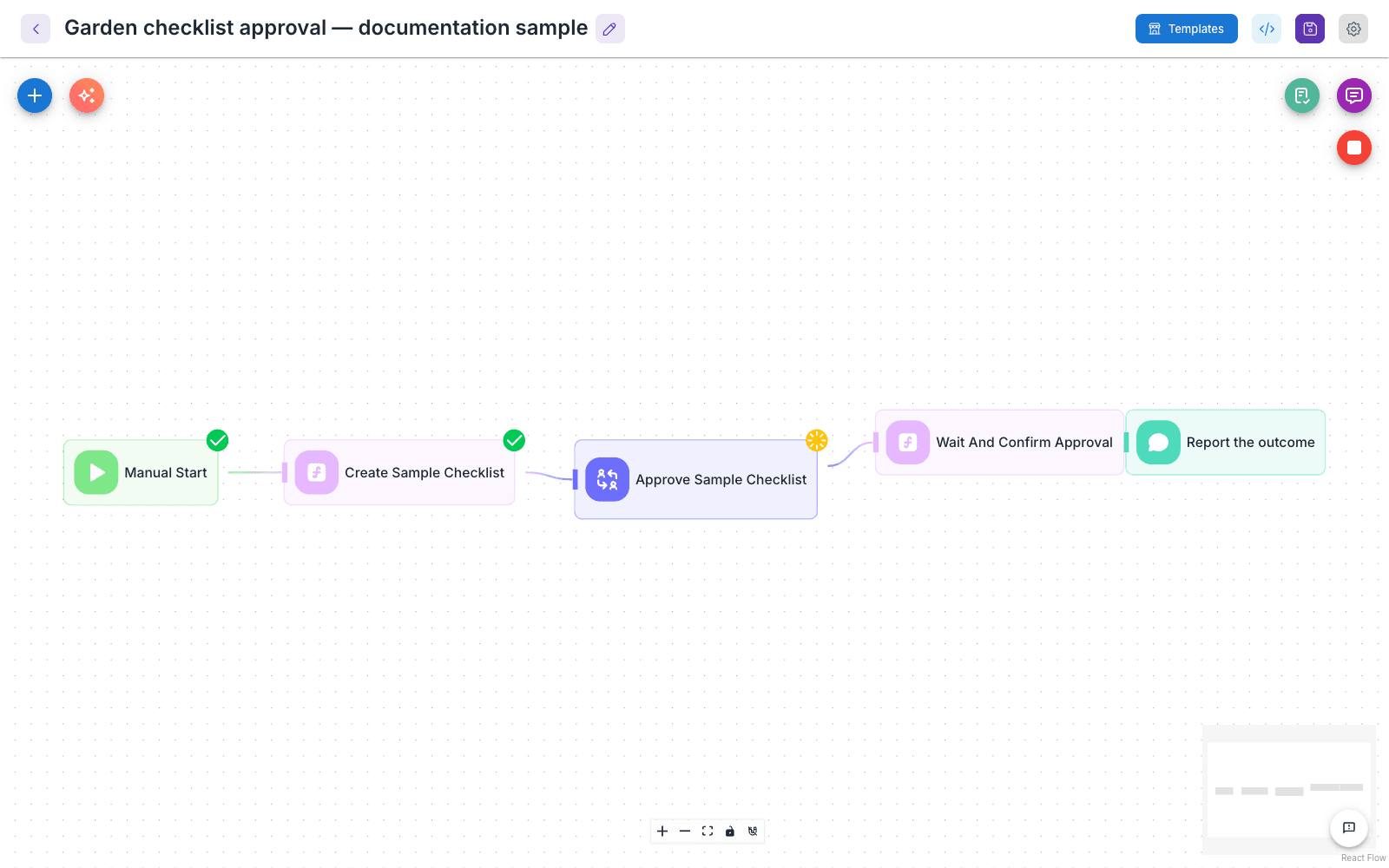
You no longer lose sight of a run by navigating away. If you refresh, leave, or return to an AgentFlow v2 canvas while a run is in progress:
- The canvas restores node statuses from the live execution record and keeps polling while the run continues
- The restored view is strictly read-only — reopening the canvas never re-triggers the run
- A completed run repaints its final state once, without further polling
- If an execution finished but a node was left marked in-progress by an aborted worker, the canvas renders that node as TERMINATED rather than spinning forever
While a run is live on a reopened canvas, a red circular Stop button appears near the top-right (tooltip “Stop running flow”). Click it and the button shows a spinner (“Stopping…”) with a “Stopping flow run…” toast; when the run actually terminates you get a persistent Flow run stopped toast — or Flow run completed / Flow run failed if the run ends naturally first.
Clearing your chat history no longer deletes the execution records behind running or completed flows — progress and history stay available from the Executions screen, where executions are deleted explicitly.
Permissions and requirements
- The Projects, Tasks and Automations pages require the pebblechat:view permission
- Tasks and Automations need an active organisation and workspace — without one the page shows an alert such as “Active organization and workspace are required for automations.”
- Force-stop requires the executions:stop permission. On upgrade it’s granted automatically to platform admins and to organisation-level admin and user roles; the read-only viewer role is deliberately excluded
- The Executions page itself requires the executions:view permission
Don’t confuse this page with PebbleAgents → Task Management — a separate, still-in-development surface for assigning work to autonomous agents and agent teams. Everything on this page ships today under Sidebar → PebbleChat.
Related
- Projects — the workspace surface that groups tasks, automations, runs and conversations
- Conversations & History — where task- and flow-created conversations appear in your chat sidebar
- @Mentions & Tools — the context system tasks inherit, including launching flows from chat
- AgentFlow V2 — building the flows behind the Executions surface
- Background Chat — long-running interactive chats, the conversational cousin of tasks