Login Activity
The Login Activity page under Admin → Organisation is your sign-in audit. Every successful login, every failed attempt, every method (email/password, SSO, password reset) is recorded here with timestamps.
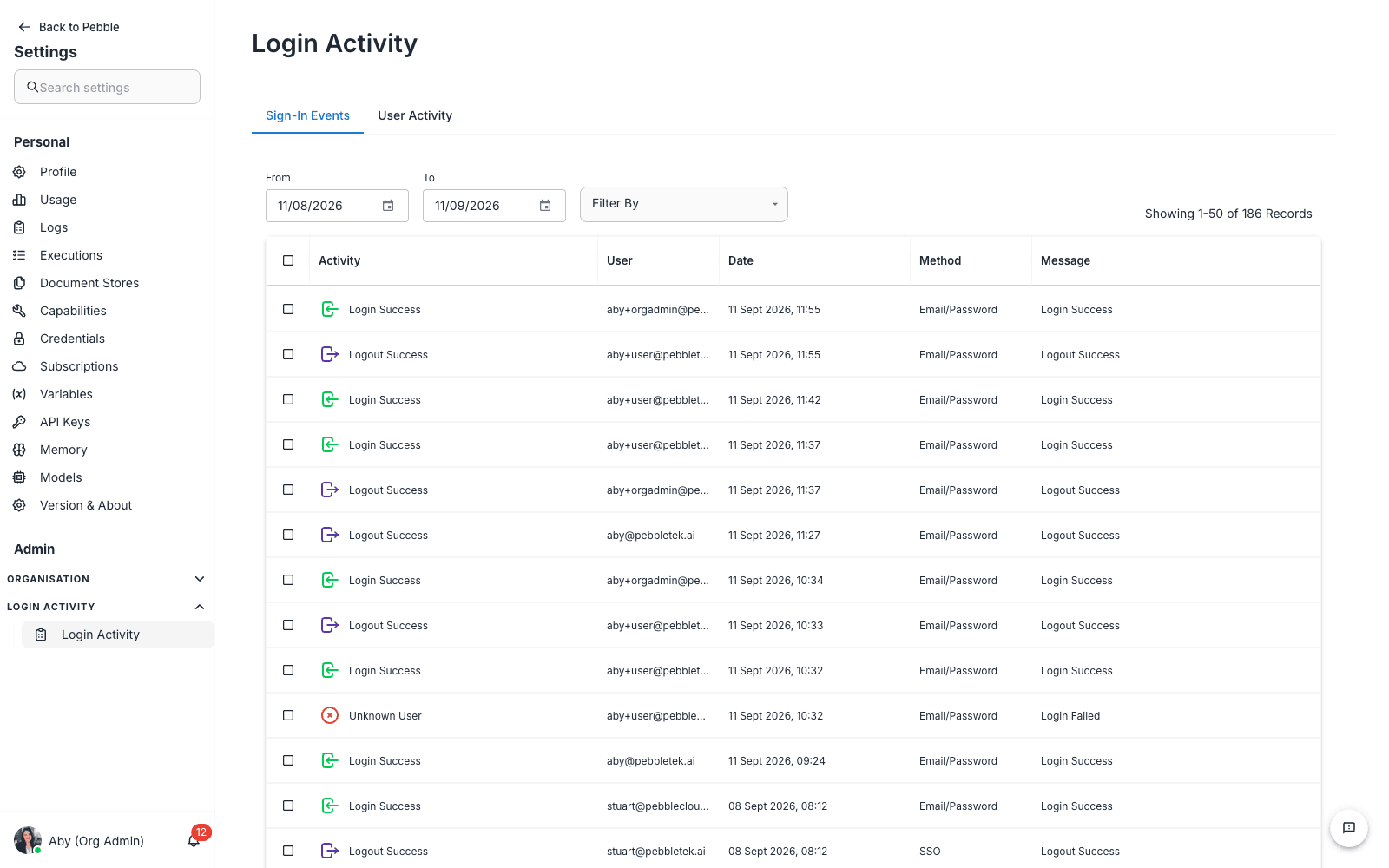
Find it at Admin → Organisation → Login Activity.
Why it matters
Login activity is the first place you look when:
- A user can’t sign in — was their attempt recorded? What error?
- You suspect credential theft — are there logins from unexpected IPs or unusual times?
- Compliance asks — “show me sign-in activity for user X for the last 90 days”
- You want to audit SSO rollout — are users actually using SSO, or still falling back to passwords?
- You’re investigating a security incident — the login record is the start of the trail
Login Activity is not about what users did once they were logged in — that’s Logs. This page is purely about authentication events.
What you see
A filter bar across the top:
- From date picker
- To date picker
- Filter By — drop-down to filter by activity type, status, or method
A table below with columns:
| Column | What it shows |
|---|---|
| Activity | The type of event — Login Success, Login Failed, Unknown User, Incorrect Credentials |
| User | The email address that attempted to sign in |
| Date | Date and time of the attempt |
| Method | How they tried to authenticate — Email/Password, Password, SSO provider names |
| Message | Free-text detail — Login Success, Login Failed, etc. |
The table paginates, with a Showing X – Y of Z items indicator.
Activity types
- Login Success — a user signed in successfully
- Login Failed — generic failure (could be wrong password, expired account, network issue)
- Unknown User — sign-in attempt for an email address that doesn’t exist in your organisation. Often a typo, sometimes a probing attack
- Incorrect Credentials — known user, wrong password
- Password Reset Requested — user clicked “forgot password”
- Account Locked — too many failed attempts in a short period
- SSO Login Success / Failed — sign-in via configured SSO provider
Step-by-step: investigating “I can’t sign in”
- Get the email address the user is trying to sign in with
- Set the time range to cover their attempts (typically last hour or last day)
- Filter by the email address if filtering supports it, or scroll/sort to find them
- Look at the most recent rows for that email
- Read the Activity and Message columns:
Unknown User→ They’ve typed the wrong email, or their account hasn’t been created yetIncorrect Credentials→ They’ve typed the wrong password — direct them to “forgot password”Account Locked→ Too many failed attempts; you can unlock them via UsersLogin Successfollowed by no further activity → They got in but something else is wrong; check Logs
Step-by-step: spotting credential abuse
A pattern to watch for:
- Many
Login FailedorIncorrect Credentialsevents for the same email in a short time → password guessing Login Successevents at unusual hours (3am for a 9-5 workforce)Login Successevents from many different methods on the same account- A spike in
Unknown Userevents → probing attack against your tenant
If you see any of these:
- Force a password reset for the affected user via Users
- Notify the user via a separate channel (Slack, in person)
- Check Logs to see what they actually did once authenticated
- Contact your platform admin if the pattern looks systemic across multiple users
Step-by-step: SSO rollout audit
After enabling SSO in Configuration → SSO Config:
- Set time range to the last week
- Filter by activity type to show only
Login Success - Look at the Method column distribution
- If users are still mostly using
Email/Password, your SSO rollout isn’t landing — communicate it more, or disable password login at the platform level
Filtering tips
- Date range — narrow it as much as possible; broad ranges produce noisy lists
- Filter By — pick a specific activity type when investigating one issue
- Pagination — the table paginates; if you need to see all rows, narrow the filter or export
Retention
Login Activity is typically retained for 90 days in standard PebbleAI installs. If your compliance regime requires longer retention, talk to your platform admin about archival.
Tips
- Glance at this page weekly. Patterns emerge over time that aren’t visible in a single day’s data.
- Cross-reference with Users. Combine with the Last Login column on the Users page to spot accounts that haven’t been used in months — candidates for deactivation.
- Don’t react to every Unknown User row. Probing is constant on any internet-facing service. Worry only about patterns, not individual events.
- Combine with Logs for the full picture — Login Activity tells you who got in; Logs tell you what they did.
Related
- Users — manage user accounts, force password resets, deactivate
- Configuration → SSO Config — set up SSO to reduce reliance on passwords
- Logs — what users did once authenticated