Chat Settings
PebbleChat’s settings live behind the composer’s + button — open it and choose Settings (“Adjust how this chat behaves — sound and notifications, background effects, how much conversation history is kept, and which capabilities are switched on”). The settings surface opens right beside the menu.
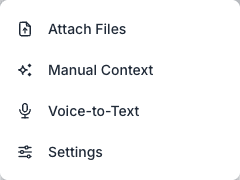
These are personal preferences saved to your account — one configuration applies to all of your conversations, and it follows you across sessions and devices. Changes are saved automatically as you make them.
Looking for profile or account settings? Those live in Collaboration & Profile → Profile & Account. This page is about the per-chat settings inside PebbleChat, not the profile menu at the bottom of the sidebar.
Context fidelity
The popover’s first section is Context fidelity — a three-way choice between Balanced (the recommended default), High fidelity (preserve more recent context) and Aggressive (compress more for speed). It controls how PebbleChat manages the conversation’s context window as it grows. See Context Window for the full explanation.
The three toggles
Chime
Plays an audible tone when a chat response finishes streaming. Useful when:
- You’re running a long research query and have alt-tabbed away
- You’re working on something else while PebbleChat generates a draft
- You want a hands-free cue that a background chat has finished
The chime respects your system audio settings — if your laptop is muted, PebbleChat can’t force the sound through.
Alerts
When on, PebbleChat sends a notification when a background chat completes. Chats keep processing on the server even after you navigate away — with alerts on, you’ll know when one is done without having to come back and check; with alerts off, background chats finish silently.
See Notifications for how the alerts appear and Advanced Features → Background Chat for the full background chat flow.
Animated Background
Shows animated background effects behind the chat. Purely visual — turn it off if you prefer a plain backdrop or want to reduce motion on screen.
Changing settings during a chat
You can change these settings at any point — even mid-stream. A change takes effect immediately:
- Toggling Chime on mid-stream will cause the chime to play when the current run completes
- Toggling Alerts on mid-stream will fire a notification when the current run completes
Turn Timeout (set by your admin)
Organisation admins can set a Turn Timeout — a maximum wall-clock time a single response (one “agent turn”) may run before it’s stopped. It exists to catch a tool or model call that hangs and never returns, and it’s off by default (unlimited), so most organisations will never see it fire.
If a response does hit the timeout, it ends exactly as if you’d pressed Stop: any text already generated is kept in the conversation, and the response simply finishes there. There’s no error banner — the turn just stops. If your long-running tasks are being cut off, ask your admin about the timeout value; the guidance is to use a generous limit (for example 30 minutes) so only a genuinely stuck turn is ever cut off, never a slow-but-working one.
The timeout applies to both PebbleChat and flow runs and is configured in Admin → Configuration → Chat Settings.
Related
- Collaboration & Profile → Profile & Account — Your avatar, display name, timezone, and personal ambient context. This is what used to be documented on this page.
- Collaboration & Profile → Notifications — How notifications appear and how to manage them
- PebbleChat → Advanced Features — The full background chat, activity stream, and context window documentation
- Context Window — The Context fidelity control, which also lives in this popover