Context Window
Every AI model has a hard limit on how much text it can “see” at once — the context window. Once your conversation exceeds that limit, something has to give. PebbleChat handles this automatically: it tracks how much of the context window you’re using, shows you a live indicator, and compresses older messages into a structured summary when you approach the limit — all without losing the thread of the conversation.
The problem context windows solve
A fresh conversation uses almost no context. As you and PebbleChat exchange messages, the context fills up with:
- Every message you’ve sent
- Every response the model has generated
- Every document or file you’ve attached
- The result of every tool call and web search
- The ambient context layers (platform, organisation, workspace, personal)
- System prompts and instructions
Eventually — in a long research session, or a conversation where you’ve attached several big files, or an agent run that made many tool calls — you hit the model’s context limit and the model either starts “forgetting” earlier turns or refuses new requests altogether.
PebbleChat makes this invisible to you: long before you hit the hard limit, it compresses the older portions of the conversation into a structured summary that preserves the key information while freeing up space for new messages.
The context indicator
PebbleChat shows a subtle circle indicator next to the model name in the composer that fills as the conversation grows. At a glance it tells you the current conversation is well within the model’s context window; hover it for the exact numbers.
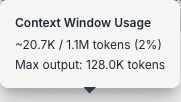
Hovering the circle opens a tooltip labelled Context Window Usage, showing:
- Current / Max tokens — e.g.
4.2K / 200.0K tokens(how much of the model’s input window your conversation is consuming) - Percentage — e.g.
(2%)— the same number as a proportion of the model’s window - Max output — e.g.
Max output: 64.0K tokens— the largest single response this model can produce in one go, regardless of how much input context is free
You don’t need to watch the indicator — compression happens automatically before the model runs out of room — but it’s useful when:
- You’re planning to attach a very large file and want to see if there’s room
- You’re curious why a response took longer (more input context = more tokens to process = more cost per message)
- You’re tuning ambient context and want to see the effect on baseline usage
- You’re switching between models with very different context windows (e.g. from a 200K-token model down to a 32K-token one) and want to check you’ll still fit
- You’re trying to understand the max output cap before asking for a very long response — a model might have 200K tokens of input space but only 64K of output space per turn
Reopening long conversations
Long chats open fast because PebbleChat loads a recent window of messages rather than the entire transcript. The older messages are still there:
- A Load older messages button appears at the top of the conversation whenever more history exists — click it to fetch the next batch (it shows Loading… while it works)
- Scrolling near the top of the message list loads older messages automatically
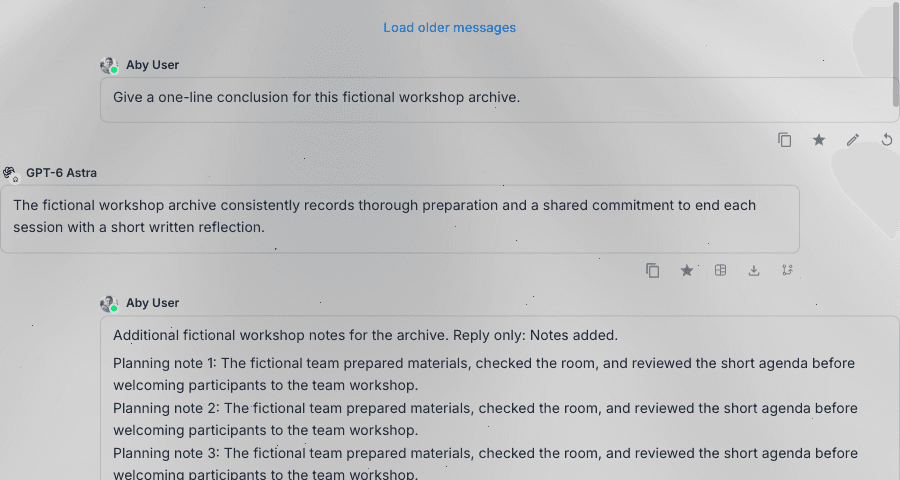
The model still sees everything. The shorter visible window is a display optimisation only. When you send your next message, the context for the model is rebuilt on the server from the full stored conversation — compression, memory, attachments and context policies all apply exactly as they always have. Loading fewer messages on screen never reduces what the model knows.
How compression works
- The trigger threshold — Your organisation admin configures a trigger percentage in Admin → Configuration → Chat Settings (default 70%). When your conversation hits that percentage of the model’s context window, compression starts.
- Background compression — A separate AI call runs in the background, using your organisation’s configured Fast model (see Admin → Configuration → Default Models), to summarise the older messages. Your active chat keeps working; there’s no visible pause.
- The drain target — The admin also sets a drain target (default 50%). Compression continues until the conversation is at or below that percentage, giving you headroom for more messages.
- The summary replaces the originals — The oldest messages are replaced with a structured summary that the model treats as context. Recent messages stay intact so you don’t lose nuance near the top of the conversation.
- A hint below the composer tells you when compression has just run, so you know something changed behind the scenes.
What compression preserves
The structured summary is optimised for preserving the stuff that matters most:
- Key facts and decisions — “Aby decided to use Claude Opus for hard reasoning and Claude Haiku for quick responses”
- Named entities — People, projects, companies, products mentioned in the conversation
- Open questions — Things you were about to answer or revisit
- Stated preferences — Style choices, formatting rules, domain-specific terminology you’ve introduced
- Context from attached files — Not the raw file contents, but the extracted insights you asked about
What it doesn’t preserve perfectly:
- Verbatim earlier responses — If you need to refer to an exact quote from an early message, scroll back and copy it before compression runs, or export the chat
- Fine-grained reasoning traces — Long chains of intermediate thought get distilled to their conclusions
- Multiple small decisions that can be summarised as a pattern — “Aby preferred terse replies throughout” replaces 15 individual “make it shorter” instructions
What you can do about it
Compression is automatic and usually transparent — but you have a direct lever over how aggressively it runs.
Context fidelity
Open the composer’s + menu and choose Settings to open the Chat Settings popover. Context fidelity is a three-way toggle:
| Mode | What it does |
|---|---|
| Balanced | The recommended default — compression follows your organisation’s configured behaviour |
| High fidelity | Preserves more recent context — compression frees less space, keeping more of the conversation intact |
| Aggressive | Compresses more for speed — frees more space by summarising more of the older conversation |
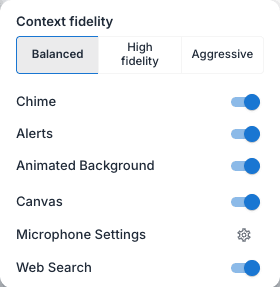
Your choice is saved as a personal preference — it persists across sessions and applies to your chats, not just the current one.
Beyond the fidelity control, a few habits are worth knowing:
- Start a new chat for a new topic rather than piling onto a long one. New chats start with 0% context usage. You can reference the old chat via Past Chats to bring in relevant context selectively.
- Use Background Chat for long research tasks. It doesn’t change context management, but it means long-running conversations aren’t blocking you.
- Watch the indicator when attaching large files — if it jumps significantly, you might want to ask your admin about a higher-context model, or split the work across chats.
- Tell your admin if compression is too aggressive or too conservative for your use case. The thresholds are configurable.
Admin configuration
Organisation admins set compression thresholds in Admin → Configuration → Chat Settings:
- Trigger Threshold (default 70%) — the usage percentage at which compression kicks in. Lower = more proactive (compresses earlier, loses history sooner, more headroom). Higher = more patient (waits longer, keeps more original text, less headroom).
- Drain Target (default 50%) — the usage percentage compression aims for. Lower = aggressive (frees more space, larger summaries replace more of the conversation). Higher = gentle (frees less space, more of the original preserved).
Each user’s Context fidelity choice (see above) shifts the effective drain target within these limits — High fidelity drains less than the configured target, keeping more of the conversation intact, while Aggressive drains further, freeing more space. The trigger threshold itself is unaffected.
Typical tuning advice:
- 70% / 50% — the default; good balance for most conversations
- 80% / 60% — use when users do long, nuance-heavy conversations where every turn matters
- 60% / 40% — use when users have lots of throwaway back-and-forth that can be aggressively summarised
The Fast model’s role
Compression is an extra LLM call, so your organisation configures a dedicated Fast model for it (see Admin → Configuration → Default Models). A fast, cheap model — Claude Haiku, GPT-4o mini, or similar — handles compression in the background without slowing the active chat or driving up cost.
Related
- Chat Settings — the popover that holds the Context fidelity control
- Chat Settings admin page — where thresholds are configured
- Default Models admin page — which model runs compression
- Messages & Responses — how the post-compression conversation looks