Organisation Credentials
The Credentials page under Admin → Organisation → Settings is where you manage credentials that are shared across the organisation — the API keys, OAuth tokens, and secrets that power your shared models, your routing, and your team’s flows.
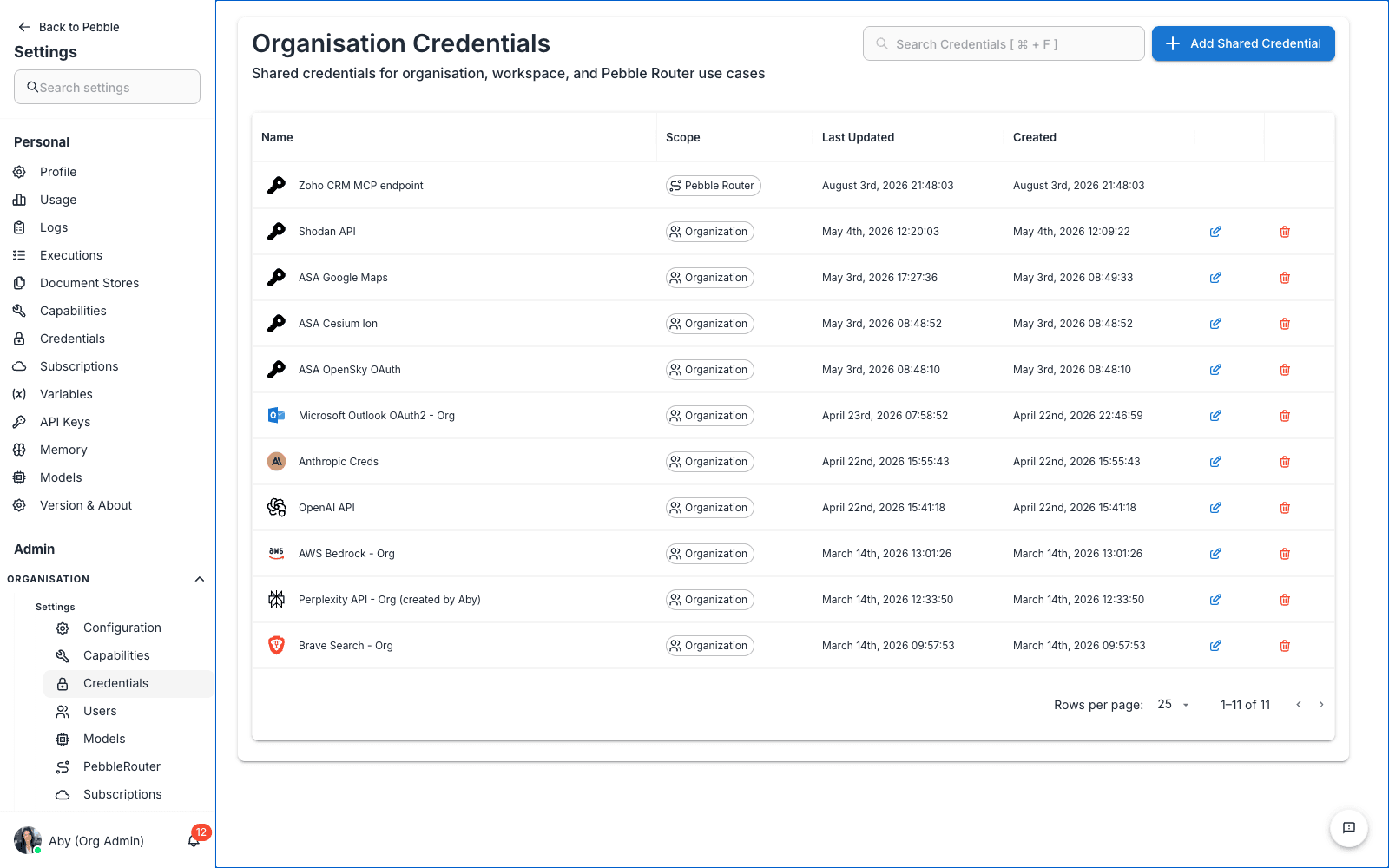
Find it at Admin → Organisation → Settings → Credentials.
What you see
A table of every shared credential, with columns:
| Column | What it shows |
|---|---|
| Name | Friendly name (e.g. AWS Creds, Brave Search API - Org) |
| Scope | Organisation (visible org-wide) or Workspace (only inside one workspace) |
| Last Updated | When the credential was last modified |
| Created | When it was first added |
| Actions | Edit or delete |
Above the table are a search box and an Add Shared Credential button.
Personal vs organisation vs workspace
Credentials in PebbleAI exist at three scopes:
| Scope | Where it lives | Who can use it |
|---|---|---|
| Personal | User Settings → Credentials | Just you |
| Workspace | This page (with Workspace scope) | Everyone in the workspace |
| Organisation | This page (with Organisation scope) | Everyone in the organisation |
When a flow, model, or tool needs a credential, PebbleAI looks for one in this order: personal → workspace → organisation. The first match wins.
For shared infrastructure — your AWS Bedrock account, the OpenAI key your whole team uses, the Brave Search API your flows depend on — you want organisation scope. For things only one workspace needs, use workspace scope.
When to add an org credential
You’ll typically add organisation credentials for:
- AI providers — AWS Bedrock account credentials (used by every Bedrock-hosted model in your org), OpenAI API key, Anthropic API key, Google API key
- Search providers — Brave Search, Perplexity, Tavily for web search tools
- MCP server secrets — API tokens for Microsoft 365, Jira, Salesforce
- Vector store connections — Pinecone, Weaviate, Chroma — used by document stores across the org
- Webhook secrets — for tools that POST to external URLs
Step-by-step: adding an AWS Bedrock credential
- Click Add Shared Credential in the top-right
- Pick the credential type — for AWS, this is typically
AWS Credentials - Fill in the fields — Access Key ID, Secret Access Key, Region (e.g.
ap-southeast-2), optionally a Session Token - Give the credential a clear name —
AWS CredsorAWS Bedrock - Production - Set the scope to Organisation so every Bedrock model in the org can use it
- Click Save
The credential is now available to pick in Default Models, Models, PebbleRouter, and any flow that uses an AWS service.
Step-by-step: adding an OpenAI credential
- Click Add Shared Credential
- Pick
OpenAI APIfrom the credential type list - Paste your OpenAI API key
- Optionally set Organisation ID (if you use OpenAI organisation-level billing)
- Name it — e.g.
OpenAI - Org - Save
Now models from models.json that point to OpenAI providers can resolve this credential automatically.
Editing a credential
Click any credential row to open the editor. You can:
- Rename it
- Replace the secret value (the existing value is not shown — just type the new one)
- Change the scope (organisation ⇄ workspace)
Deleting a credential
Click the delete icon and confirm. Deletion is permanent. Any flow, model, or tool that was using the credential will start failing on its next call until you provide a replacement.
Always check what depends on a credential before deleting. A common mistake: deleting a credential because it “looks unused”, only to discover it was the auth key for half the org’s models.
Looking for credential field details?
Each credential type has its own set of required fields. The authoritative reference for what fields each type needs lives in the Flows integration documentation, since the credential schemas are defined there:
- Flows Integrations — every integration with its credential schema
- Flowise Overview — upstream Flowise project reference
When you add a credential of type Pinecone, for example, the fields you see in PebbleAI are exactly the fields documented in the Pinecone integration page in Flows. The same is true for every other integration type.
Security best practices
- Use the narrowest scope you can get away with. A credential only needed by one team should live in their workspace, not at organisation scope.
- Use scoped tokens where the provider supports them. A read-only Bedrock IAM role is much safer than a full AWS root credential.
- Rotate periodically. Quarterly rotation is a good baseline for production credentials. If a credential could be compromised, rotate immediately.
- Watch usage in PebbleObserve → Logs. Unusual call volume is the first sign a credential has been leaked or misused.
- Never paste credentials into PebbleChat. This page is the right place — pasted credentials are sent to AI models and logged.
Related
- User Settings → Credentials — the personal equivalent
- Configuration → Default Models — picks credentials defined here
- Models — every shared model needs a credential from here
- Flows Integrations — credential schema reference for each integration type