Building Flows from Chat
You can build a flow without ever opening the flow canvas: describe the automation you want in a PebbleChat conversation, and Pebble plans it with you, builds it, checks it, and leaves you a draft flow to review and run. There’s no button for this — it’s entirely conversational:
Build me a flow that checks the support mailbox every morning,
summarises new tickets, and posts the summary to the team channel.
Pebble may ask one short round of questions first — which mailbox, which channel, where the data comes from — then proposes a plan.
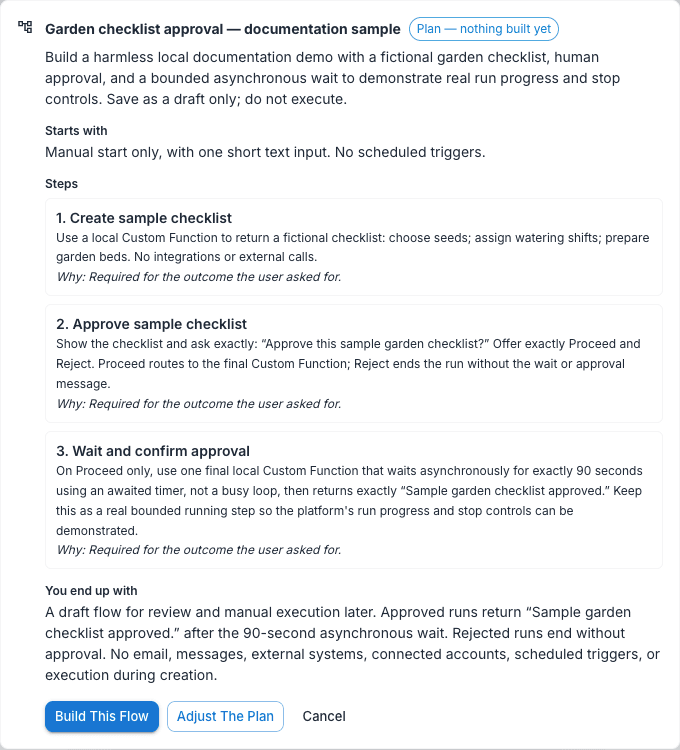
The plan comes first
Before anything is built, Pebble shows a plan card in the conversation, labelled Plan — nothing built yet. It lays out the goal, then Starts with, Steps (up to eight, each with what it does and a Why line), and You end up with. Steps that need a connected account carry a chip saying so; if a flow tool isn’t connected but your chat already has the matching integration, the step is routed via PebbleChat instead — say “use flow tools” if you’d rather connect the account to the flow directly.
If anything is still unresolved, the card lists it under Before I build this.
Three buttons:
- Build this flow — builds exactly the approved plan
- Adjust the plan — nothing is built; tell Pebble what to change and it re-proposes
- Cancel — nothing is built
Your click lands in the transcript as a message, so the decision survives a reload.
The draft flow
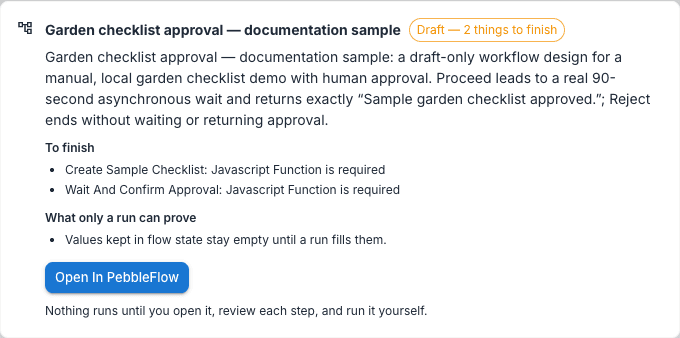
When the build finishes, a flow card appears with the flow’s name and a status chip:
- Draft — setup checked — the automatic checks came back clean
- Draft — N things to finish — the checks found things that need your attention, listed under To finish (typically accounts to connect or fields to fill)
- Draft — checks didn’t finish — the checks couldn’t complete, so nothing is confirmed; open the flow and review it yourself
The card also lists What only a run can prove — things no static check can confirm, like whether a call to an outside system actually works — and closes with the golden rule: “Nothing runs until you open it, review each step, and run it yourself.”
Click Open in Flows and the draft opens on the flow canvas, where you review each step and run it when you’re happy. The flow is a real flow in your workspace — it also appears on your Flows page and on the Flows tab of your Capabilities page as a Draft row.
Behind the scenes, Pebble validates the generated flow and auto-repairs what it can before handing it over; what remains is surfaced honestly rather than blocking the hand-off. Wiring problems are described in plain language (e.g. “decides between outcomes but nothing is connected to any of them, so the flow stops here”) and left for you to resolve on the canvas.
If you built the flow in a shared chat, the card notes “Shared with the people in this chat” — the other participants get edit access to the draft too.
Editing and undo — in chat
You don’t need to leave the conversation to iterate:
- “Add a step that…” — Pebble patches the step in and leaves everything else exactly as it was.
- “Restructure it to…” — a bigger change rebuilds the flow from the revised description, same flow, same link.
- “Undo” — steps back one version at a time, most recent first. Ask “what versions exist?” for a Versions card listing each saved state.
Versions capture the flow as it was before each change made from chat — edits saved on the flow canvas itself aren’t versioned this way. If the flow changed on the flow canvas since the chat last touched it, Pebble warns you before overwriting.
When a running flow needs you — human input in the conversation
Flows can include a Human Input step. When a flow you invoked from PebbleChat reaches one, the run pauses and the question comes to you in the conversation:
- For a simple approval you get ”… needs your approval” with two buttons — Proceed and Reject — or you can simply reply with your decision in words.
- If the step asks for input, you get ”… needs your input” with a Your response box and Submit & Proceed, plus a separate Reject button.
Your answer resumes the paused run from exactly where it stopped. If you reply about something unrelated instead, Pebble answers normally and leaves the flow paused until you come back to it. Whether the flow’s question reaches you word-for-word is the flow builder’s choice — the Human Input step’s Relay Question Verbatim in PebbleChat toggle is on by default.

Permissions
Building and editing flows from chat requires the create agent flows permission — the same right you’d need to build on the flow canvas; opening the result needs flow view access. Without create rights, Pebble tells you plainly: “You do not have permission to create agent flows.” Generated flows count toward your organisation’s flow quota, and generation uses your current chat model selection.
Related
- Capabilities & Context — referencing an existing flow with the / menu, and how flow replies are relayed
- Flows — the flow canvas where drafts are reviewed, edited, and run
- Projects & Collaboration — how drafts built in shared chats are shared
- Admin → PebbleObserve — flow-run cost attribution in the usage explorer