Workspace Switcher
The workspace switcher sits at the top of the sidebar on every page in PebbleAI. It shows the name of the workspace you are currently in and lets you jump to any other workspace you are a member of — its menu also offers Create workspace and Manage workspaces.
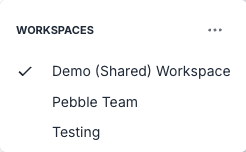
Switching workspace
- Click your current workspace name at the top of the sidebar
- Pick the workspace you want from the dropdown
- The page reloads into the new workspace
Anything you were doing in the previous workspace (an open PebbleChat conversation, a flow you were editing) stays there — you can come back to it later by switching workspaces again.
What changes when you switch
| Layer | What changes |
|---|---|
| PebbleChat sidebar | You see the new workspace’s conversation history (and only that workspace’s) |
| Flows | Flows, agentflows, assistants, document stores and tools all filter to the new workspace |
| Credentials | Workspace-scoped credentials swap; user-scoped credentials stay the same |
| Model selector | Only models shared with the new workspace appear |
| Ambient context | The workspace layer of your system prompt changes |
| Shortcuts | The workspace-curated shortcut tiles on the PebbleChat landing page change |
| Usage dashboards | Metrics scope to the new workspace |
What doesn’t change:
- Your user profile (name, avatar, timezone)
- Your personal credentials and API keys
- Your personal ambient context
- Your theme preference (light/dark mode)
Being a member of multiple workspaces
You can belong to as many workspaces as your organisation gives you access to. Common patterns:
- One workspace per team — You work in your team’s workspace day to day and only switch when collaborating with another team.
- Shared utility workspaces — Everyone in the company belongs to a shared “Company” workspace for common flows and document stores.
- Personal sandbox — Some organisations give each user a personal workspace for experimentation.
How to get added to a workspace
Only a workspace admin (or an organisation admin) can add members. If you need access to a workspace you’re not in, contact the owner of that workspace or your organisation admin. See Organisation Admin → User Management.
Troubleshooting
“I don’t see a workspace I expect to be in”
- Log out and back in — session caches can occasionally lag.
- Ask a workspace admin to check your membership.
“I see an asset I know exists but can’t open it”
- It may be in a different workspace. Check the top of the sidebar to confirm which workspace you’re in.
- It may have been shared with stricter permissions than your role has.
“Switching feels slow”
- The first switch after login rebuilds caches. Subsequent switches should be near-instant.