Quick Start
Welcome to PebbleAI — your AI-powered workspace where conversation, automation, and observability come together. This guide gets you from logged-in to productive in about five minutes, starting with PebbleChat, the powerhouse of the platform.
Prerequisites
- A PebbleAI account on your organisation’s PebbleAI install (e.g.
demo.pebblecloud.io) - A working web browser
- Your organisation admin has provisioned at least one model for you (most installs do this automatically — if not, see User Settings → Models)
You do not need an API key from any LLM provider. Your organisation has already set up shared credentials, so the moment you log in you can start chatting.
1. Open PebbleChat
After logging in, click PebbleChat in the left sidebar — it’s the first item, with a chat icon. You land directly in the chat interface, ready to type. There is no “open chat” or sub-menu step.
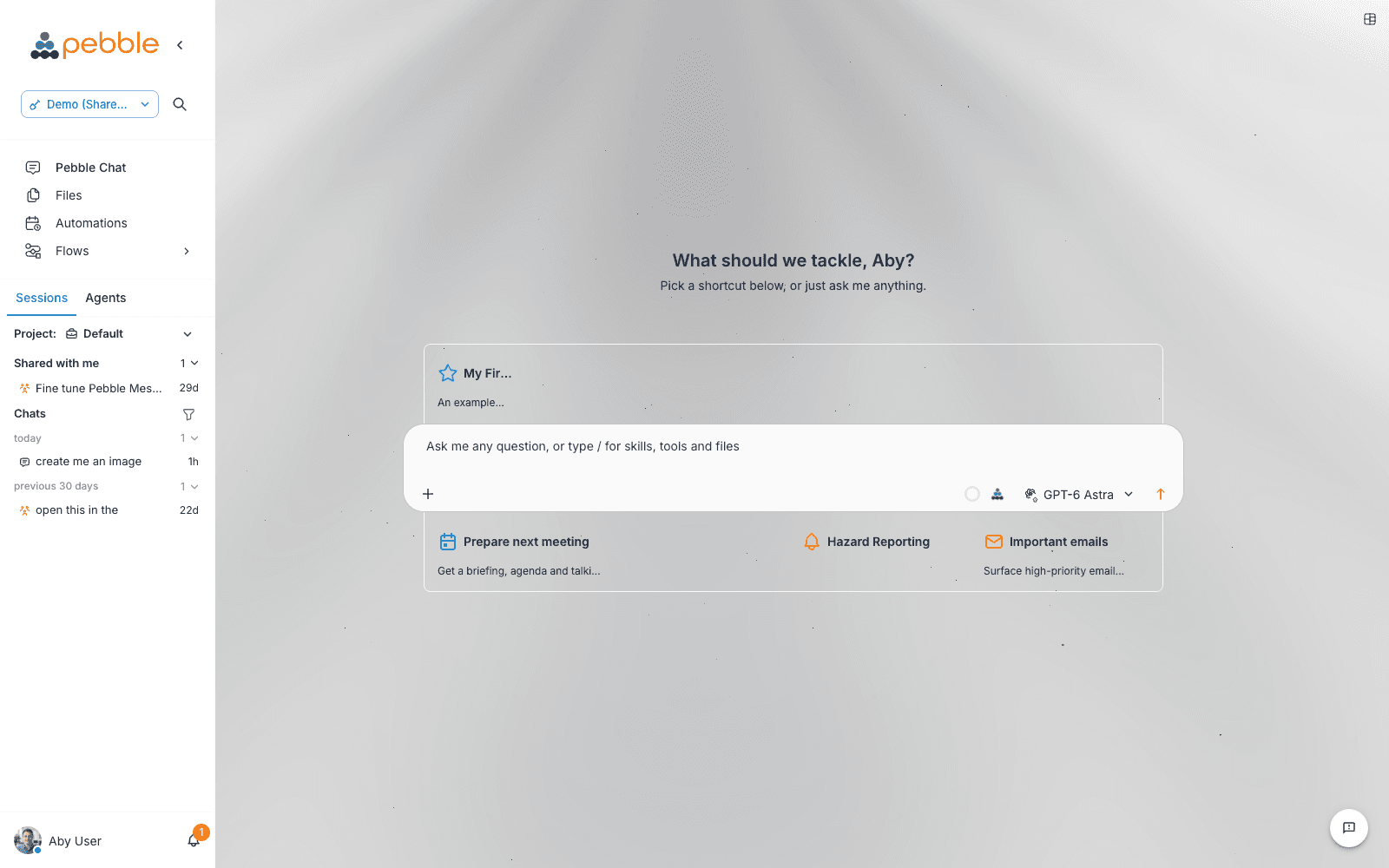
You’ll see:
- A personalised greeting (“What should we tackle, Aby?”)
- Your shortcut tiles — personal and organisation-curated launchers for common tasks
- The composer with an input box, a + menu (attachments, context, voice, settings), a microphone, and a model selector
2. Send your first message
Type a question and press Enter, or click one of the shortcut tiles. Some prompts that show off PebbleChat well:
Summarise the three biggest risks in rolling out a new CRM to a 500-person sales team, and recommend a mitigation for each.What are the latest Anthropic Claude releases in 2026? Include dates and a one-line summary of each.I'm presenting to the board on Thursday about AI adoption. Produce a 5-slide outline with talking points for each slide.The response streams in progressively as formatted markdown — you can start reading before it finishes. For research-heavy questions you’ll see a Research & Tools activity stream banner above the response showing the model planning, searching, and synthesising in real time.
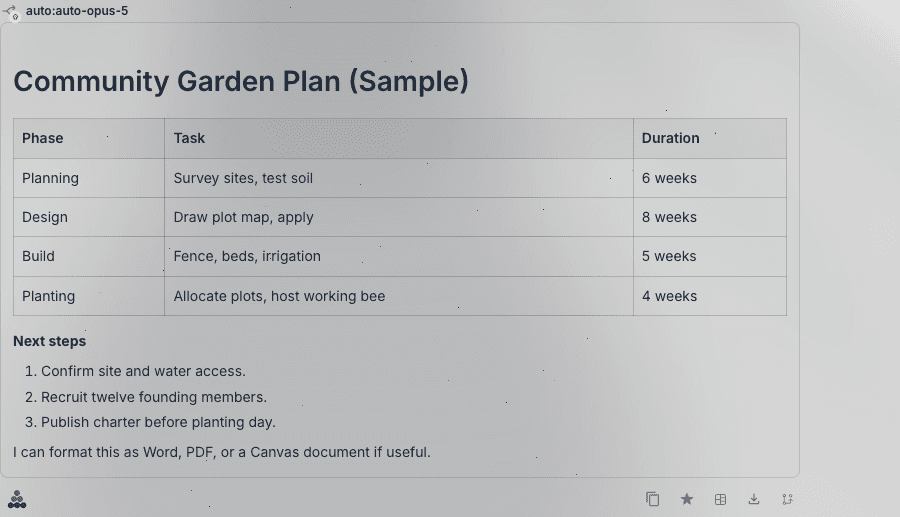
When the response is complete, hover over it to see message actions: copy, edit your prompt (and resend), retry, and export to PDF / Word / email / markdown / HTML.
No thumbs up / down here. PebbleChat doesn’t have per-message rating buttons. To send feedback, use Help → Submit Feedback in the profile menu — it’s a draggable modal that supports up to five screenshots and lands directly in the engineering team’s Jira queue. See Help Menu & Feedback.
3. Choose a model — or let PebbleChat choose
The model selector sits to the left of the Send button. By default it shows Auto — that means PebbleChat is using your organisation’s PebbleRouter to intelligently pick the best model for each message based on cost, capability, and availability.
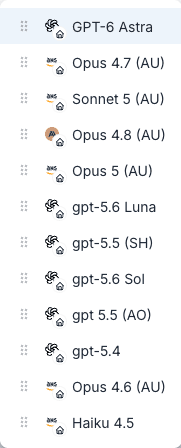
In most installs, the available models come from AWS Bedrock (Claude Opus, Sonnet, Haiku) — Bedrock keeps your data inside your AWS region (e.g. ap-southeast-2 for Australia), which is important for compliance, data residency, and contractual coverage. Your organisation may also expose direct OpenAI, Anthropic, or Google models depending on its setup.
When to switch from Auto to a specific model:
- You started with a fast model and want a more capable one for the next, harder question
- You want deterministic behaviour — the same model every time, regardless of routing
- You want to compare how Opus vs Sonnet vs Haiku handles the same prompt
Switching mid-conversation is allowed — the full conversation history goes with the new model.
See Model Selection for the full picture.
4. Reference your organisation’s tools and knowledge
PebbleChat isn’t just a chat with a model — it’s a chat with everything your organisation has built. Type / in the composer, or choose + → Manual Context, to open the Capabilities & Context menu:
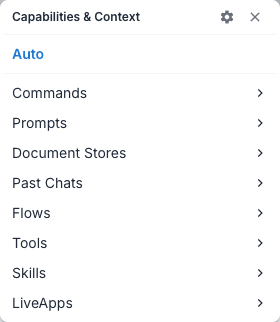
You can reference:
- Document Stores — knowledge bases your team has indexed for RAG
- Past Chats — earlier conversations, used as context for the current one
- Flows — reusable workflows built in Flows
- Tools — web search, MCP integrations (Microsoft 365, Jira), custom HTTP tools
- Skills — reusable instructions and supporting resources
- Prompts — saved prompts you can insert and edit before sending
- LiveApps — interactive apps that open beside your conversation
Or just leave it on Auto and let PebbleChat discover the right asset automatically — it uses embedding similarity to find the most relevant flows, agents, and document stores in your workspace and pulls them in without you naming them. You’ll see what was discovered in the Research & Tools activity stream.
See Capabilities & Context for the full feature. Type @ when you want to mention a colleague and share the chat with them.
5. Use power features as you need them
PebbleChat has several features designed for serious work. You don’t need them right away, but they’re there when you do:
-
Background Chat — long-running conversations keep processing on the server when you navigate away. A spinner in the sidebar shows what’s still running. Open + → Settings in the composer and enable Alerts to be notified when the response finishes.
-
Activity Stream — the Research & Tools panel above each response shows exactly what PebbleChat did to produce it. Click any step to verify sources, see tool inputs/outputs, and trust the response.
-
Thinking & Reasoning — for reasoning-capable models (Claude Opus, o1, o3), an expandable Thinking panel shows the model’s chain-of-thought before the final answer.
-
Voice Input — talk to PebbleChat in press-to-talk or hands-free mode. Full feature parity with typing.
-
File Attachments — upload PDFs, Word documents, spreadsheets, code, emails, images. PebbleChat reads and reasons about them in the conversation.
-
Export — every response can be exported as PDF, Word, email, markdown or HTML. The “Submit Feedback” modal in the help menu is your channel for telling the team what’s working.
6. Building Custom AI Workflows with Flows
Once you’re comfortable in PebbleChat, the natural next step is to build reusable assets that PebbleChat can call on — flows, agents, document stores, custom tools. That’s where Flows comes in.
Flows isn’t a separate product from PebbleChat; it’s the thing that makes PebbleChat more powerful. Every flow you build in Flows becomes available to PebbleChat in three ways:
- As a mention — users pick the flow from the composer’s
/menu to invoke it - Via asset discovery — if marked discoverable with a clear description, PebbleChat finds it automatically
- Via API — call it from your own backend, mobile app, or CI pipeline
When to build something in Flows
- Repetitive tasks that need automation
- Multi-step processes where you want the same flow every time
- Custom RAG pipelines over your team’s documents
- Integrations with services PebbleChat doesn’t have built in
- Workflows you want everyone in the org to be able to invoke from PebbleChat
Start with Agentflows, not Chatflows
Flows ships with three builders:
- Agentflows (recommended) — multi-step, multi-agent, branching, looping. The most powerful builder and where new work should start. Supports everything the others do, plus more.
- Chatflows — linear single-agent chat flows. Still supported for existing flows, but new work should use Agentflows — Chatflows are being gradually phased out in favour of Agentflow V2.
- Assistants — beginner-friendly single-purpose helpers. Good for prototypes.
To start building, click Flows in the sidebar, then Add New. Drag nodes onto the canvas, connect them, configure each one, and save.
The full Flows documentation lives at Flows — start with the Using Flowise → Agentflow V2 section.
7. Understanding Your AI Usage with PebbleObserve
Once people in your organisation are using PebbleChat and Flows in earnest, the obvious next question is: what’s it costing? what’s it doing? is it working? That’s PebbleObserve.
Every PebbleChat conversation, every Flows agent run, and every API call is automatically traced — no instrumentation, no setup, nothing for users to enable. You can see:
- Cost — dollar-accurate spend per user, per workspace, per model, per tool
- Activity — what’s being asked, by whom, with what tools
- Performance — latency, error rates, retries
- Quality — set up evaluations to measure response quality systematically
Personal usage lives at My Usage (in your profile fly-out). Organisation-wide usage lives at Admin → Usage and Admin → Logs — only org admins can see those views.
You’re set
That’s the five-minute tour. Where to go next depends on your role:
If you’re a regular user
- PebbleChat → Getting Started — element-by-element walkthrough of the interface
- Collaboration & Profile → Profile & Account — set your timezone, personal ambient context, avatar
- User Settings → Models — enable additional models for your account
If you’re going to build flows
- Flows — the visual builder overview
- Flows → Using Flowise → Agentflow V2 — the recommended starting point for new flows
If you’re an admin
- Organisation Admin — Configuration, Capabilities, Credentials, Users, Models, PebbleRouter
- Admin → PebbleRouter — configure intelligent routing for your organisation
- Admin → Configuration — the 11-tab settings panel covering deployment, OAuth, theme, ambient context, memory, and more
Tip: bookmark PebbleChat — it’s where you’ll spend most of your time, and everything else exists to make it more powerful.