Background Chat
Background Chat lets PebbleChat conversations continue on the server even when you navigate away, close the tab, or start a brand new chat. When the background conversation finishes, you get a notification with a direct link to the completed response.
Why it matters
Before Background Chat, any long-running conversation — deep research, multi-step agent runs, big document-store retrievals — blocked you from doing anything else in PebbleAI. You’d kick it off, then sit watching progress bars or risk cancelling it by navigating away.
Now you don’t have to wait. A typical pattern:
- Ask a research-heavy question — “Summarise the 2026 EU AI Act enforcement timeline and identify the three biggest compliance risks for a financial services company”
- Navigate away to do something else — open another chat, go into Flows, check PebbleObserve, or close the browser tab entirely
- Come back later — or stay in PebbleAI working on something else
- Notification fires when the response is ready, with a deep-link to the completed conversation
- Click and you’re back in the finished chat, ready to read or iterate
When to use it
- Deep research — anything that triggers multiple web searches and sources
- Long-form content generation — drafting a full document, multi-page report, or complex plan
- Agent runs — invoking a flow that makes many steps and tool calls
- Document store queries over large knowledge bases — where retrieval takes noticeable time
- Anything you can’t afford to babysit
Short conversational turns don’t benefit from background mode — the response comes back before you could navigate away anyway. Save it for the 30-second-plus responses.
Configuring completion alerts
Background processing is always enabled. Open the composer’s + menu and choose Settings to configure how you’re notified when a response finishes.
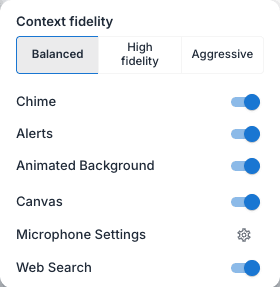
The relevant controls are:
- Chime — audible notification when the background chat finishes
- Alerts — visual notification (and optional browser notification) with a deep-link to the result
See PebbleChat → Chat Settings for the full popover.
What you see in the sidebar
Any conversation currently processing in the background shows a spinner icon next to its title in the conversation history sidebar. At a glance you can see which chats are still running and which have finished.
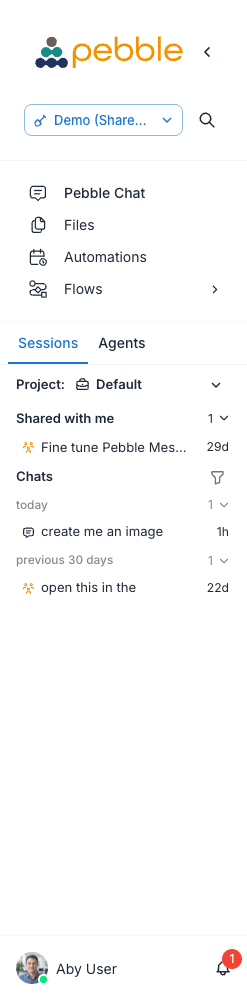
The spinner updates in real time. When the background chat finishes, the spinner clears and the row returns to its normal state.
When the background chat finishes
Three things happen:
- The spinner disappears from the sidebar row and is replaced with the normal conversation icon
- If Chime is enabled — an audible tone plays
- If Alerts is enabled — a notification appears in the bell beside your avatar at the bottom-left of the sidebar, and (if you have permission) a browser notification appears with a deep-link to the completed conversation
Click the notification to jump straight to the result.
What happens if you close the browser
Your server-side background chat keeps running. When you come back:
- The conversation is already complete and waiting for you
- The notification is still in your notifications panel (you can click it to jump to the chat)
- Nothing was lost
Background sessions have a server-side timeout (typically several minutes), after which an unfinished chat is terminated with a failure notification. For most use cases this timeout is long enough that you’ll never hit it.
Interrupting a background chat
If you change your mind about a background chat (it’s heading in the wrong direction, or you no longer need the answer), come back to the chat and click Stop. The server-side processing is cancelled and the partial output is preserved.
Combined with voice input
Background Chat is particularly effective with voice input — you can talk a long research task to PebbleChat while you walk out of a meeting, then let it process while you do something else, and come back to the finished response. See Voice Input.
Saved preferences
Your completion sound and alert preferences are saved to your account and apply across conversations. Changes in + → Settings are saved automatically.
Tips
- Enable Alerts if you often run long queries and want to know when they’re ready.
- Use descriptive chat titles so you can tell which background chats are running when multiple are in flight — rename them via the sidebar right-click menu.
- Combine with shortcuts — if your workspace admin has published research-style prompts to the org tray, clicking one of them delegates a long task that completes while you do something else.
Related
- Chat Settings — completion alerts and other preferences in the composer’s + menu
- Notifications — how completion alerts appear
- Activity Stream — watch what the background chat is doing while it runs