Help Menu & Feedback
The help menu — Help in the profile menu at the bottom-left of the sidebar — is the quickest way to get unstuck, replay the interface tour, check what’s new, jump to these docs, or report a bug.
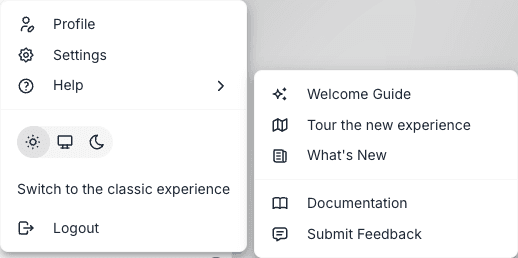
What’s in the menu
| Item | What it does |
|---|---|
| Welcome Guide | Replays the onboarding carousel you saw on first login — a four-slide overview of PebbleChat, Flows, and PebbleObserve with an optional narrated video |
| What’s New | The current release notes — a summary of the features in the version you’re running, so you always know what’s changed since yesterday |
| Documentation | Opens docs.pebbleai.app in a new tab |
| Submit Feedback | Opens the in-app feedback modal — the single best way to tell the team what’s broken, what’s missing, or what’s delightful |
Submit Feedback
The feedback modal is more than a contact form. It is wired directly to the engineering team’s Jira project, which means:
- Every submission becomes a ticket your team can track
- You can attach up to five screenshots — captured, pasted, or uploaded — so the team can see what you saw
- The modal is draggable on desktop, so you can move it out of the way while you point at the thing you’re reporting
- Drafts are preserved for the rest of your browser session, so if you accidentally close it you won’t lose what you typed
- Submissions land in the right triage queue automatically — you don’t need to know who to contact
When to use it
- Bugs — Something is clearly broken or producing wrong output. Include a screenshot of the state and describe what you expected.
- Feature requests — “I wish PebbleChat could…” Share the use case, not just the solution you have in mind.
- Content corrections — A response was factually wrong or a model behaved unexpectedly. The team uses these reports to tune prompts, ambient context, and model choices.
- Praise — Tell the team when something works brilliantly. It’s rare, and it matters.
What happens after you submit
- The submission is created as a Jira ticket in the PebbleAI engineering project
- Your screenshots are attached to the ticket
- Your organisation identifier is captured for context
- Triage happens during the next engineering cycle
You won’t normally get a direct reply on a single submission, but urgent issues are escalated quickly. If the issue is time-critical, also tell your organisation admin.
Welcome Guide — re-watching onboarding
The Welcome Guide is a four-slide carousel:
- Welcome to PebbleAI — what the platform is
- PebbleChat — conversational AI overview
- PebbleAgent (Flows) — building custom AI workflows
- PebbleObserve — monitoring, analytics, and insights
It plays an optional narrated video and can be dismissed at any time. Your dismissal choice is stored server-side, so it won’t come back to haunt you next time you log in from a different device.
What’s New
The What’s New panel shows the release notes for the version of PebbleAI you’re running right now — a short, plain-language summary of new features, improvements, and fixes. Like the Welcome Guide, it loads if you’ve not seen the latest changes, and dismissing the message will prevent it automatically showing again. So once you’ve read this release’s notes they won’t pop back up the next time you log in.
If later on you want to see the full changelog history, you can browse back to this menu item.
Quick tips
- Use Submit Feedback early. The team would rather see five slightly speculative reports than zero. Screenshots are pasted from the clipboard in one click.
- Check What’s New after every release. A few lines of reading prevents “how do I…” questions about features that shipped last week.
- Re-watch the Welcome Guide any time you onboard a colleague over their shoulder — it’s the fastest way to orient someone who has never used PebbleAI before.