PebbleRouter
PebbleRouter is your organisation’s LLM gateway and routing control plane. It sits between PebbleChat (and any other client) and the underlying AI model providers, deciding which actual model handles each request based on the routing profile you configure.
When a user picks Auto in their PebbleChat model selector, PebbleRouter is the thing making the choice. When a flow calls a “Smart” or “Fast” alias, PebbleRouter is the thing resolving the alias.
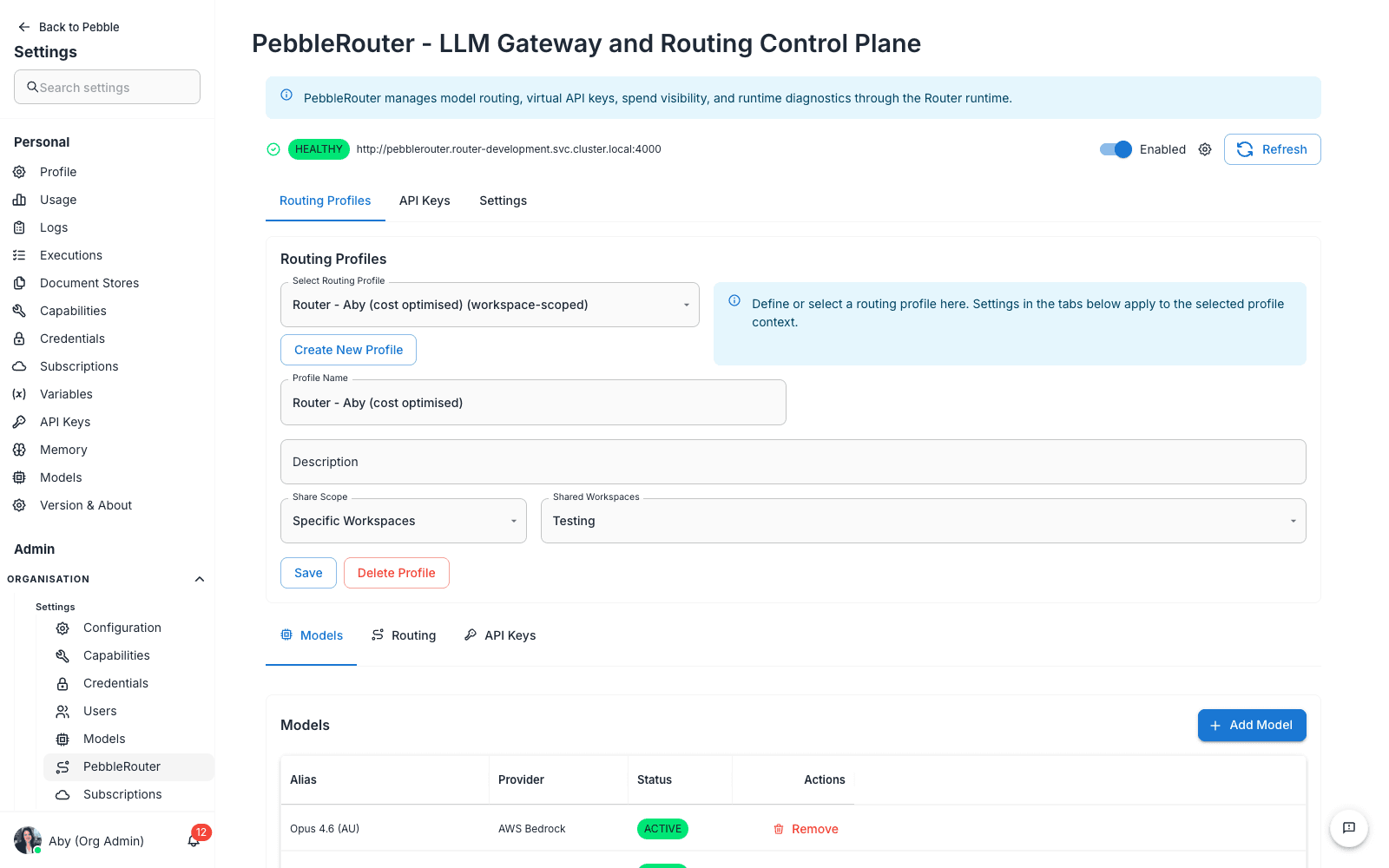
Find it at Admin → Organisation → Settings → PebbleRouter.
Why a router exists
You could give every PebbleAI user direct access to every model and let them pick. That works on day one. By month three:
- Costs are unpredictable because users default to the most expensive model
- Outages aren’t handled gracefully — when one provider goes down, every chat using that provider breaks
- You can’t enforce data residency rules (some models leave your region; users won’t notice)
- You can’t enforce rate limits or quotas at the org level
- A/B testing a new model means asking every user to switch manually
PebbleRouter is the answer to all of those:
- Cost optimisation — route cheap requests to cheap models, save expensive models for hard problems
- Failover — if one model is rate-limited or down, route to a sibling automatically
- Compliance — enforce that all traffic goes through providers in your region
- Quotas and limits — enforced at the gateway, not the client
- Single integration point — clients call one URL with one API key, the router handles the rest
PebbleRouter is the routing gateway. PebbleAI provides the management UI, multi-tenancy, attribution, and integration with PebbleChat on top of it.
The three tabs
PebbleRouter has three tabs at the top of the page:
- Routing Profiles — the meat of the page; where you define routes
- API Keys — generate keys clients use to call PebbleRouter
- Settings — gateway-level cache configuration
Above the tabs is an Enabled toggle that turns the entire router on or off, plus a Health URL display showing where the gateway is reachable.
Routing Profiles tab
A routing profile is a named bundle of settings that defines:
- A friendly name (e.g.
Auto,Org Global Default) - A description
- A routing strategy that controls how the profile picks between models
- A list of models the profile is allowed to use (with optional weights)
- Per-profile API keys
When a client calls PebbleRouter, it specifies which profile to use, and PebbleRouter follows the profile’s rules to pick a concrete model.
The profile selector
At the top of the Routing Profiles tab is a profile picker. Pick an existing profile to view/edit it, or click Create New Profile to make a new one. New profiles are blank — they don’t inherit models or settings from another profile.
Routing profile fields
For the selected profile, you’ll see:
| Field | What it does |
|---|---|
Route (e.g. Auto) | Internal name; this is what clients pass to PebbleRouter to use the profile |
| Description | Free-text human description of what the profile does |
| Strategy | The routing algorithm, set on the Routing sub-tab — see below |
| Models sub-tab | The list of models in this profile (one row each) |
| Routing sub-tab | The Routing Strategy picker plus fallback configuration (Fallback Source Model, Fallback Targets (comma separated)) |
| API Keys sub-tab (per profile) | Keys scoped to this specific profile |
Routing strategies
The Routing Strategy field on the Routing sub-tab offers five options:
- Round Robin (simple-shuffle) — distributes requests evenly across the profile’s models
- Least Busy — load-balances towards the model with the least in-flight work
- Lowest Latency — picks the model with the lowest current latency
- Cost Optimized — picks the cheapest model that can serve the request
- Dynamic — lets the router decide per request based on live conditions
Step-by-step: creating a routing profile for cost optimisation
- Click Create New Profile
- Name it
Cost Optimised - Description:
Routes each request to the cheapest capable model - On the Routing sub-tab, set Routing Strategy to Cost Optimized and click Save Routing
- Switch to the Models sub-tab
- Click Add Model and add the models the profile may choose between — e.g.
claude-haiku,claude-sonnet,claude-opus - Save
Step-by-step: configuring fallbacks
Fallbacks aren’t a separate strategy — they’re set on the Routing sub-tab and work alongside any routing strategy:
- Select (or create) the profile
- On the Routing sub-tab, set Fallback Source Model — the model or alias whose failures should trigger a fallback (e.g.
balanced) - Set Fallback Targets (comma separated) — the models to try instead, in order (e.g.
powerful,fast) - Click Save Routing — the neighbouring Test Routing button lets you check the outcome
When the source model fails, PebbleRouter tries the fallback targets in order.
How profiles relate to PebbleChat’s Auto
When a user picks Auto in their PebbleChat model selector, PebbleChat sends the request to PebbleRouter using the default profile for the organisation. The default profile is typically named Auto and is the one a user would experience.
You can have many profiles — one for chat, one for batch processing, one for testing, one for cost optimisation — and route different parts of your platform through different profiles by changing which profile a client is configured to use.
API Keys tab
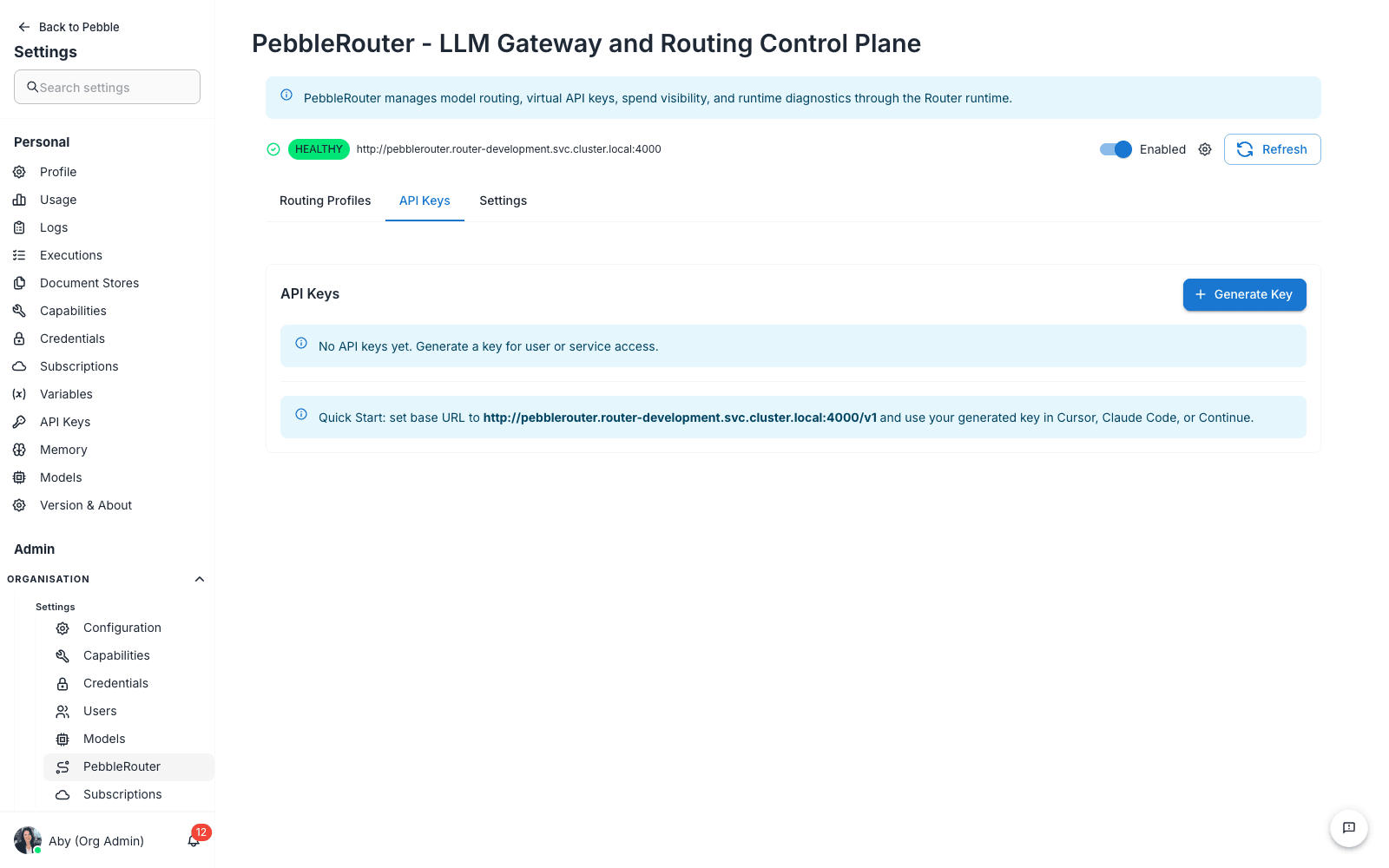
Generate API keys clients use to authenticate calls to PebbleRouter.
Three different API key concepts (don’t confuse them)
PebbleAI has three different things called “API Key” — make sure you know which is which:
| Type | Where to find it | What it authenticates |
|---|---|---|
| PebbleRouter API Keys (this tab) | Admin → PebbleRouter → API Keys | Calls to the routing gateway from external clients |
| Flows API Keys | User Settings → API Keys | Calls to individual flows you’ve published in Flows |
| Per-profile API Keys | Admin → PebbleRouter → Routing Profiles → (a profile) → API Keys sub-tab | Calls to the gateway, scoped to a single routing profile |
Step-by-step: generate a router API key
- Click Generate Key
- Give it a descriptive name —
Production App,Mobile Backend,CI Pipeline - Optionally restrict it to a specific routing profile, or leave it global
- Save
- Copy the displayed key value — this is the only time you’ll see it in full
- Store it in your application’s secure secrets system
Quick start hint shown in the UI
The page includes a quick start hint: “Quick Start: set base URL to <your-router-url>/v1 and use your generated key in Cursor, Claude Code, or Continue.”
This points AI coding tools at the gateway — set the tool’s OpenAI-compatible base URL to your router URL plus /v1 and authenticate with a generated router key.
Using a router API key
curl -X POST https://<your-router-url>/v1/chat/completions \
  -H "Authorization: Bearer <your-router-api-key>" \
  -H "Content-Type: application/json" \
  -d '{
    "model": "Auto",
    "messages": [{"role": "user", "content": "Hello"}]
  }'
The model field is the route name (Auto, Cost Optimised, etc.) — PebbleRouter resolves it to a concrete model based on the profile.
Settings tab
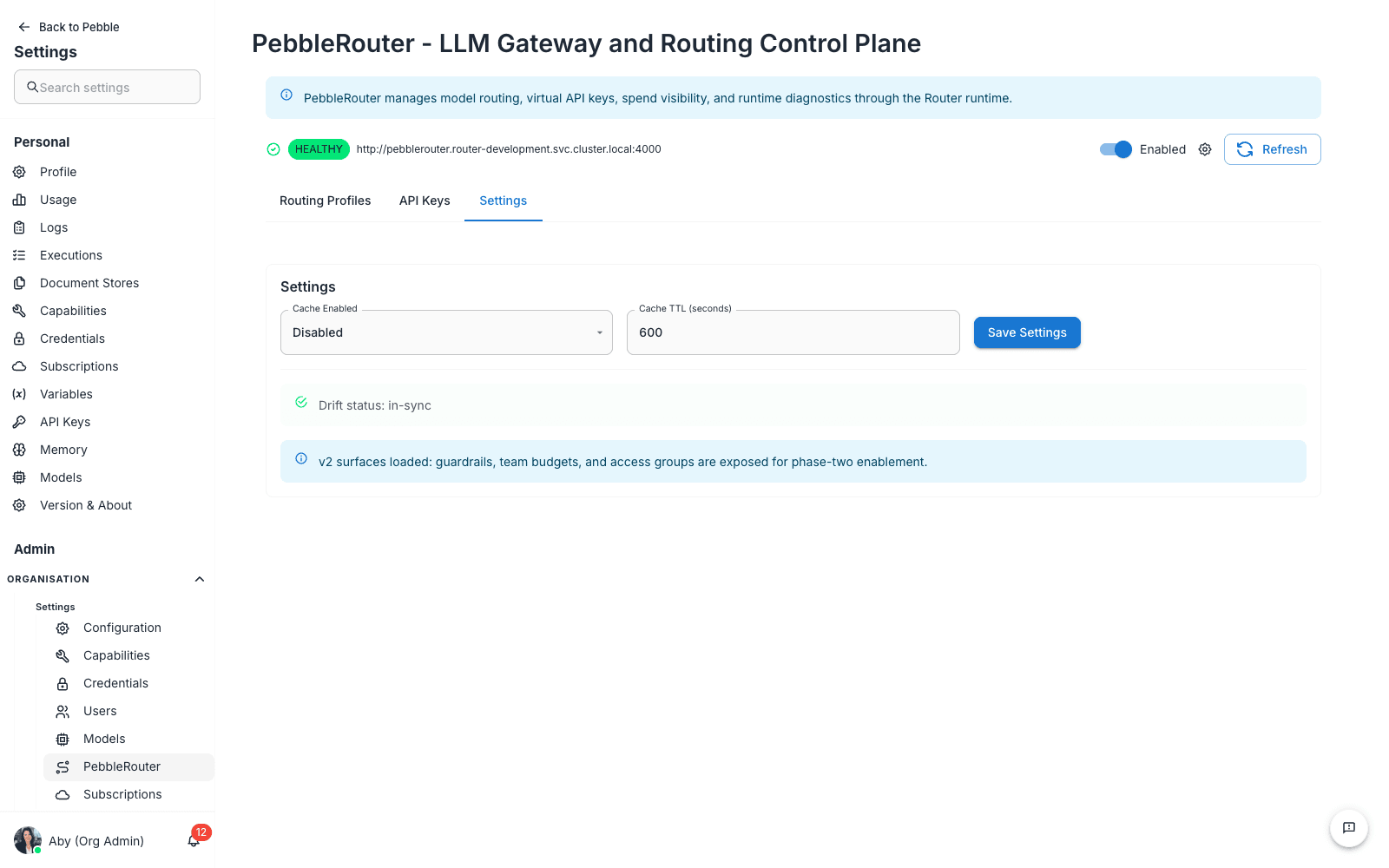
Gateway-wide configuration that applies to every routing profile.
What you set here
- Cache Enabled — Enabled / Disabled. Turns response caching on or off. Caching reduces cost and latency for repeated identical prompts.
- Cache TTL (seconds) — How long PebbleRouter keeps a cached response before it expires.
Tips
- Set cache TTL to 0 if you’re testing prompt changes — caching will hide your changes from view
- Enable caching when serving public-facing applications with high request volume — it’s a free win
Models composition
Within each routing profile, the Models table at the bottom of the page shows which models are part of the profile. Each row has:
- Model — the model identifier (matching one in Organisation Models)
- Provider — provider name
- Status — Active / Inactive
- Actions — remove from profile
Click Add Model to add a model. The dialog has two fields: Enabled PebbleChat Model — a dropdown of provisioned instances from Organisation Models, shown with their scope — and Router Alias (optional) (e.g. auto-fast).
A model must be provisioned in Organisation Models first — as a runnable instance with Organisation or PebbleRouter only target scope — before you can add it to a routing profile.
PebbleRouter onlyis the scope for models that should back routing profiles but not appear in user model selectors.
PebbleRouter only instances can also serve as your organisation’s (or a workspace’s) default Embedding Model — set on Configuration → Default Models — so embeddings run through the router without the model being user-pickable.
Step-by-step: a complete first-time setup
For a fresh organisation:
- Add credentials in Credentials — at least one for each provider (AWS, OpenAI, Anthropic)
- Enable models in Organisation Models — pick the half-dozen models you want available
- Come here and create the
Autorouting profile - Add models to the profile from the enabled catalogue
- Pick a strategy on the Routing sub-tab —
Round Robin (simple-shuffle)orLowest Latencyis a good starting point - Save the profile
- Generate a router API key (API Keys tab) for any external clients you have
- Toggle the Enabled switch at the top of the page
- Test from PebbleChat — pick
Autoin the model selector and send a message; verify the response works - Watch the Activity Stream to see which model PebbleRouter picked
Troubleshooting
“Auto in PebbleChat shows ‘No Models Available’”
- Check the Enabled toggle is on
- Check the
Autoprofile has at least one model in its Models table - Check the model’s credential is valid in Credentials
“Routing always picks the same model even though I have multiple”
Cost Optimizedwill legitimately keep picking the cheapest model — tryRound Robin (simple-shuffle),Least Busy, orLowest Latencyto spread traffic- Check the routing logs in PebbleObserve
“Latency is high”
- Enable response caching with a short TTL
- Check which models are in the profile — slow models drag down latency-based strategies
“I want different routing for different teams”
- Create separate profiles per team, give each team its own router API key tied to that profile
Related
- Organisation Models — the source of models for routing profiles
- Credentials — credentials for the underlying providers
- PebbleObserve → Usage — see what PebbleRouter is actually doing
- User Settings → API Keys — the other kind of API key (for individual flows, not the router)