Personal Memory
Memory Management is where you see what PebbleChat has learned about you from past conversations — and where you control how it’s used in future ones.
What memories are
When memory is enabled for your organisation, PebbleChat automatically extracts salient facts, preferences, and context from your conversations and stores them as short memories. On your next session, relevant memories are retrieved and made available to the AI model so it can be more helpful without you having to re-explain yourself every time.
Examples of things PebbleChat might remember:
- “Aby is a marketing analyst focused on B2B SaaS campaigns”
- “Aby prefers Australian English and concise responses”
- “Aby is working on the Q2 campaign launch — deadline is 30 June”
- “Aby’s team uses HubSpot as their CRM”
Memories are per-user — only your own sessions can retrieve them. Your colleagues have their own separate memory stores.
Memories vs ambient context
Both shape how PebbleChat behaves for you, but they work differently:
| Memory | Ambient Context | |
|---|---|---|
| How it’s created | Automatically from your conversations | Written by you explicitly |
| How it’s retrieved | Relevance-ranked at query time | Always included |
| Token cost | Low per message (only top matches injected) | Fixed per message (full layer always in context) |
| Best for | Things you’d rather not have to repeat | Persistent instructions you always want followed |
| Edited where | Settings → Memory (this page) | Profile → Ambient Context |
See Profile & Account for ambient context.
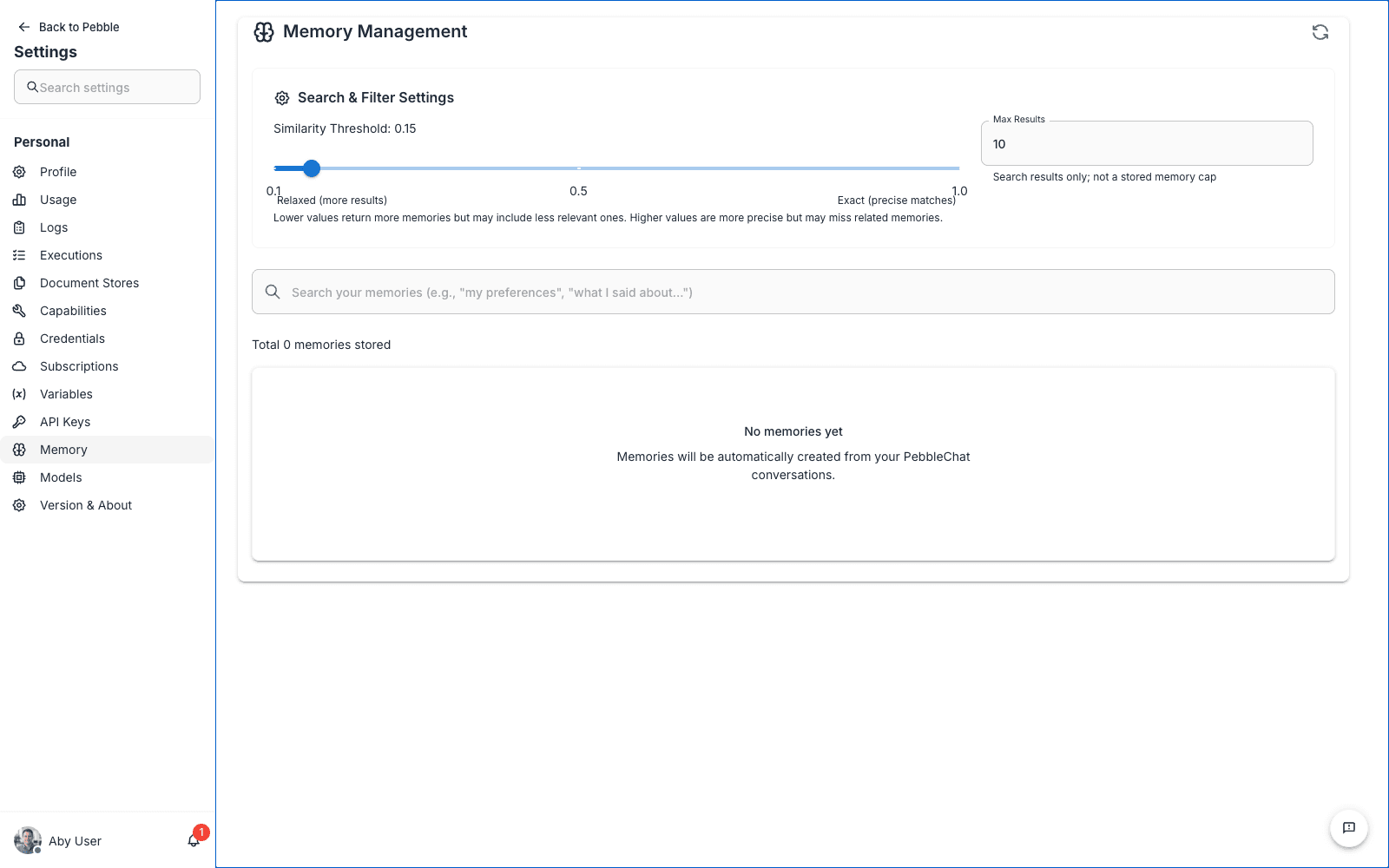
Search & Filter Settings
At the top of the page, two controls shape how memories are retrieved:
Similarity Threshold
Controls how semantically close a memory needs to be to your current question before it gets included in the context. Values run from Recent (more results) to Exact (fewer results).
- Lower threshold (Recent) — More memories match, including loosely related ones. Higher recall, lower precision. Best if you want PebbleChat to surface distant connections.
- Higher threshold (Exact) — Only tightly matching memories are retrieved. Higher precision, lower recall. Best if your conversations span unrelated topics and you don’t want cross-contamination.
The default sits in the middle — a good balance for most users. Tune it if you notice PebbleChat bringing up irrelevant memories, or failing to remember things you’d expect it to.
Max Results
The maximum number of memories retrieved per message. Higher values give the model more context but consume more tokens from the context window (and cost more per request).
The memories list
Below the filter controls is a searchable list of every memory currently stored for your account. Each row shows:
- Memory text — What PebbleChat remembers
- Category — Auto-assigned (preferences, facts, projects, etc.)
- Last used — When this memory was last retrieved into a conversation
- Actions — Edit or delete
Use the search bar above the list to find specific memories by content.
Editing a memory
Click a row to edit the memory text. Useful when PebbleChat has captured something slightly wrong — correct it once and the corrected version is what gets used from then on.
Deleting a memory
Click the delete icon on a row. Deleted memories cannot be recovered. Next time PebbleChat has a similar conversation it may re-create a new memory about the same topic, but the specific wording is lost.
Disabling memory
If you’d rather PebbleChat didn’t remember anything from your conversations, ask your organisation admin to disable memory at the org level (Admin → Configuration → Memory). There is no per-user memory disable toggle today.
How memories interact with privacy
- Memories are stored against your user account, encrypted at rest
- Your colleagues and your organisation admin cannot view your personal memories
- Memories are never shared across organisations
- If you delete your PebbleAI account, your memories are deleted with it
- Sensitive details you don’t want remembered should be deleted from this page as soon as you notice them
Tips
- Review memory occasionally. A quick scroll through the list every month or so keeps the quality high and lets you catch anything you’d rather forget.
- Tune the threshold slowly. Change one end at a time and try a few sessions before tuning again. Over-tuning leads to flaky behaviour.
- Correct, don’t delete. If a memory is almost right, editing it is usually better than deleting it and hoping PebbleChat re-creates a better one.