LiveApps
A LiveApp is a governed, interactive mini-app — a small application that Pebble writes and runs for you, opening in the Canvas pane beside your PebbleChat conversation. A LiveApp collects input, computes, and keeps rendering fresh views over governed data. Think of a cyber-incident console, a data-entry form, a live dashboard, a calculator: a real, clickable app surface that lives next to the chat instead of inside it. You interact with what a LiveApp computes — and to change what it shows, you revise the app.
LiveApps can come bundled with plugins, be created by you, or be generated by Pebble right in the conversation and saved to the catalogue for reuse — with a proper version history once saved.
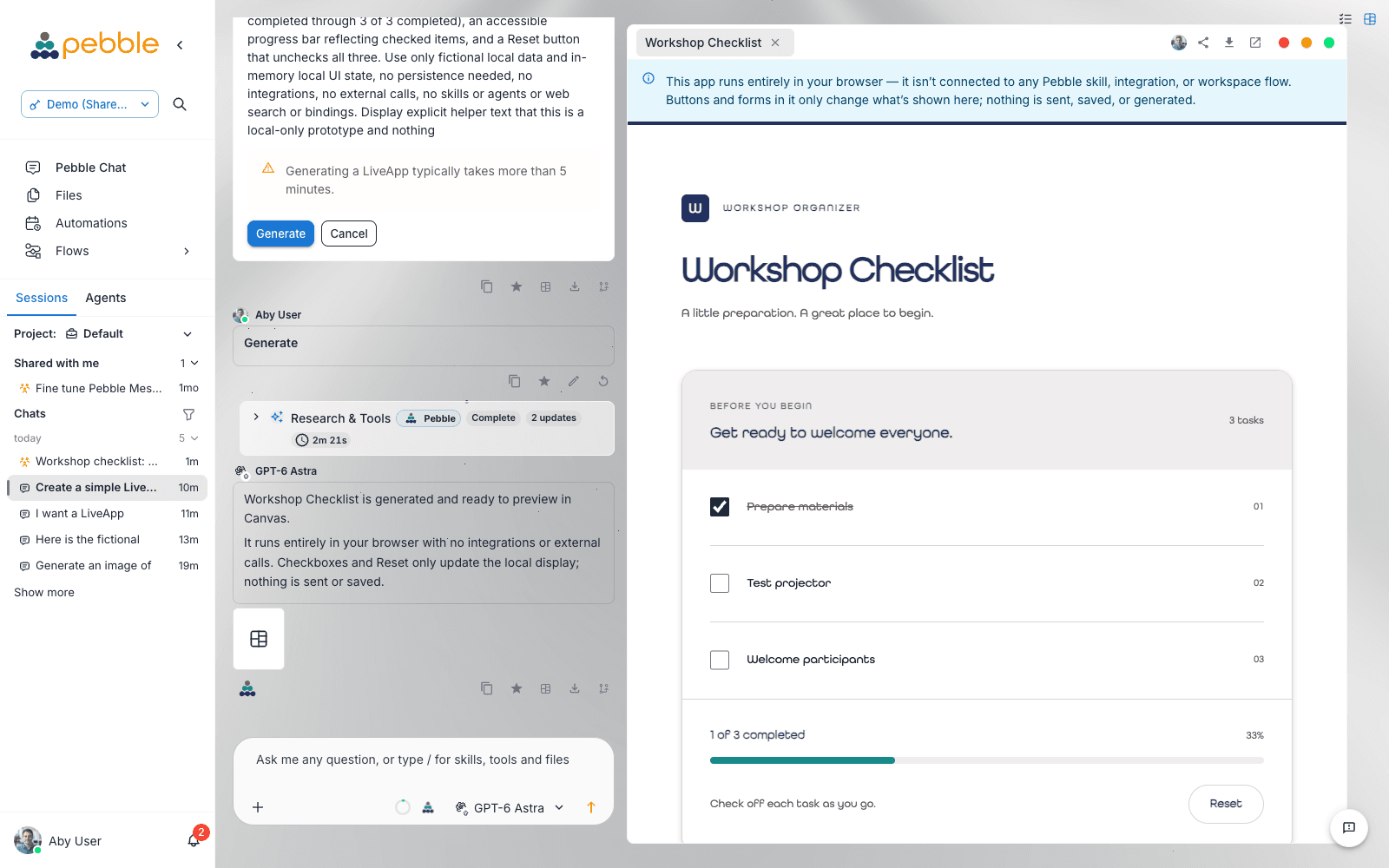
What makes a LiveApp different from a random web widget is the word governed. Every LiveApp runs in a locked-down sandbox:
- Sandboxed iframe with an opaque origin — no access to PebbleAI cookies, storage, or the surrounding page
- No external network — a strict Content Security Policy blocks every outbound call
- No credentials — API keys and secrets never enter the app; only governed tool results do
- Capability allow-list — the only things an app can reach beyond its own UI are the Pebble skills, connected tools, and flows on its declared allow-list
- Your permissions still apply — every call is additionally checked against your own entitlements, so an app can never do anything you couldn’t do yourself
What a LiveApp is not
A LiveApp is a tool that keeps computing its output — it is not a document you edit. If what you want is finished content — a report, a styled page, a document to review, print, or hand over — a LiveApp is the wrong tool, and a Canvas document surface is the right one:
- Not a viewer or editor for an existing document. A LiveApp doesn’t display your finished file — it’s an application that re-synthesises content around it. To view and edit a document faithfully, open it on a Canvas document surface — Word, Text/Markdown, or the HTML surface for a styled HTML report — where the thing you see is the content and you edit it directly.
- Not a way to restyle or present a finished report. Asking for a LiveApp of your report means Pebble builds and debugs an application whose only job is to show static text — and the result still isn’t your document. Ask Pebble to put the report on an HTML or Word canvas instead, then refine it there.
- Not every dashboard. A dashboard that keeps computing — collecting input, filtering live data, recalculating as things change — is a LiveApp. A one-off snapshot laid out as a nice page is a document: it belongs on a Canvas.
The quick test: do you want to edit what you’re looking at? Use a Canvas document. Do you want a tool that keeps computing it? Use a LiveApp.
Opening a LiveApp
There are four ways to open a LiveApp — the first two don’t involve the AI at all:
| From | How | What happens |
|---|---|---|
| The / menu | Type / in the composer and pick the LiveApps category | The app opens in Canvas immediately — no chip is inserted and no chat message is sent |
| A shortcut tile | Click a LiveApp shortcut in the shortcuts tray | The app opens deterministically — no AI round-trip, no chat message |
| Asking in plain language | Type something like “open the cyber console” | Pebble knows which LiveApps are available to you and opens the one you named |
| Pebble itself | The agent can open a LiveApp mid-conversation as part of its work | The app appears in Canvas alongside its response |
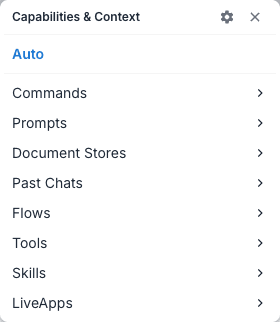
The / menu and the plain-language launcher only list LiveApps that are enabled for you. If someone shares a new app with you and it doesn’t appear, enable it first from the catalogue — see Browsing and enabling below.
Pinning a LiveApp as a shortcut
To put a LiveApp one click away permanently:
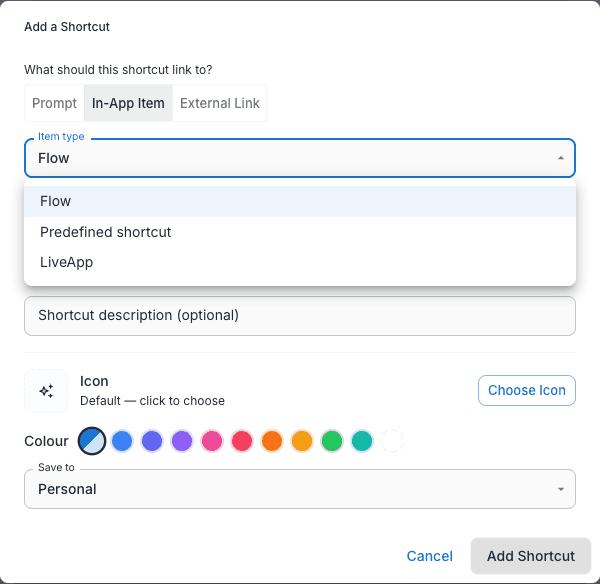
- Hover the shortcuts tray on the composer and click the + button (Add shortcut)
- In the Add a Shortcut dialog, under What should this shortcut link to?, choose In-app item
- Set Item type to LiveApp (the other options are Flow and Predefined shortcut)
- Pick your app in the Select a LiveApp picker and save
Choosing Predefined shortcut instead pins a ready-made shortcut from the catalogue — the tile copies that shortcut’s own icon, subtitle and name. See Shortcuts for the full tour of trays, tiles, and customisation.
Browsing and enabling LiveApps
The catalogue lives at Settings → Capabilities. Its tab strip includes a LiveApps tab and a Shortcuts tab alongside your other capabilities.
The LiveApps tab shows each app with these columns:
| Column | What it tells you |
|---|---|
| LiveApp | The app’s name and key |
| Description | What it does |
| Scope | The level the app belongs to — User, Workspace, Org, or Platform. Plugin-bundled apps carry a Bundled chip naming their plugin |
| Status | Whether it’s enabled for you |
| Actions | Open, share, and manage |
Admins additionally see Owner and Deploy to all users columns — see Admin → Capabilities. An app that has been created but never built or published shows a No runnable release chip — opening it would show nothing until a version is published.
To discover apps you don’t have yet, use the Add Capability browse dialog on the Capabilities page and enable what you need. Enabling a plugin also surfaces any LiveApps and Shortcuts it bundles as their own rows on these tabs.
Creating a LiveApp
Asking Pebble to build one
The fastest route is to describe the app you want in chat. Pebble asks a few focused questions, then builds the app as a real source project — every generated LiveApp is a reviewed React/TypeScript project under the hood, though you only ever deal in friendly versions: Version 1, Version 2, and so on.
If the app connects to live data, you first get an approval card — “Approve LiveApp build testing” — listing each data source with its connection state, and three choices: Build and test with live data, Build without live data, or Cancel. Building with live data lets Pebble verify the app against your real sources in a hidden preview before showing it to you; data access stays within your existing permissions. While it works, the canvas shows “Building and checking your LiveApp” with progress phases. If Pebble needs a decision mid-build (“which calendar?”), it pauses and asks in the chat, then resumes the same build with your answer.
The finished preview renders under a warning banner:
Agent-generated — review this Live App before trusting it with real data.
If you like it, click Save (or confirm in chat). The Save Live App dialog names the app, sets Save to (Personal — only visible to you — or Workspace), and requires one honest checkbox: “I reviewed the automatic bindings, dependencies, inputs, capabilities, and agent access.” Saving creates Version 1 in your catalogue.
An app whose allow-list is empty tells you so, plainly: “This app runs entirely in your browser — it isn’t connected to any Pebble skill, integration, or workspace flow. Buttons and forms in it only change what’s shown here; nothing is sent, saved, or generated.” And if an app crashes at runtime, the pane shows “This Live App hit a runtime error” with the error message rather than a blank frame.
Creating one from the catalogue
Users with the Create LiveApps permission see a Create LiveApp button on the Capabilities → LiveApps tab. This is a describe-and-generate dialog — you don’t paste code:
| Field | Notes |
|---|---|
| Describe the LiveApp | Plain language — “Create a tabbed dashboard that loads my current tickets and calendar, then summarizes the results.” |
| Allowed skills | The governed skills the generated app may call |
| Allowed connected tools | Viewer-scoped tools from your connected integrations |
| Agent options | Optionally allow an isolated PebbleChat agent binding to synthesise declared results, and allow it to search the web |
| Name / Description / Save to | Personal or Workspace |
Generate draft builds the source project and shows a review block — the source files, each data binding (marked Automatic on open or Manual), and any Brand warnings — with the same reviewed-bindings checkbox before Create LiveApp saves it.
Editing a LiveApp
Right-click the LiveApp’s canvas tab and choose Edit to enter edit mode. From there you can work at three levels:
- Select and restyle. The Select elements tool lets you click elements in the running app; a formatting bar offers font, size, weight, alignment, and fill — with colours drawn from your organisation’s Brand Kit tokens rather than a free-for-all colour picker.
- Revise through chat, scoped to a selection. With elements selected, the composer shows a chip — “N LiveApp elements selected” — and your next request edits only those elements; everything unselected is off-limits to the change.
- Edit source. The Edit source view opens the app’s project files (“Editing app name — Version N”). Manifest, grants, bindings, imports, and Brand Kit inheritance are read-only; Save validates, builds, scans, and reviews the exact source you wrote.
Every save creates the next immutable version — it never changes what other people are running. If you edit an app that’s shared with you or owned more widely, Pebble asks first: Update this app (a new version) or Create a personal copy and leave the original unchanged.
Older apps created before the source-project era show a permanent review banner and a one-way door out of it: Regenerate as source-backed v3 rebuilds them into the current format.
Versions, publishing, and rollback
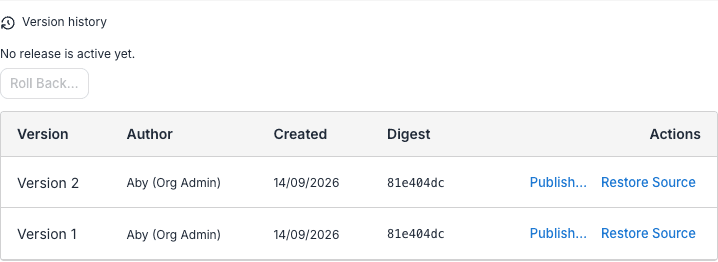
Open a LiveApp’s catalogue detail and the Version history section shows every saved version — author, date, build digest, scan status — and which one is the active release:
- Publish… makes a version the active release for everyone who can see the app.
- Roll back… repoints the release to an earlier version without rebuilding anything. Viewers are asked to consent again.
- Restore source copies an old version’s source forward as a brand-new version — nothing is rebuilt, and the active release stays put until you publish.
Two useful defaults keep this simple day to day: you always see your own latest version while working, viewers see the active release; and the first time you share an unpublished app, its latest version is published automatically so recipients aren’t handed an empty app.
Publishing and rollback are gated by the publish permissions below; restore needs create rights.
Live data — bindings, consent, and refresh
A LiveApp reaches governed data through bindings — declared connections to skills, tools, or flows on its allow-list. Two kinds matter to you as a viewer:
- Automatic on open — reads that populate the app when it opens. The first time, the app asks: “This LiveApp will run N reviewed automatic binding(s) when it opens” — with Allow automatic refresh or Not now. Decline and the app stays structural until you allow it.
- Manual — actions you trigger, like a form’s submit button. These run every time you ask, no deduplication — two submits produce two runs.
The app’s toolbar gives you Refresh all and an Auto refresh interval (“15m”, “2h”, or “Off” — off by default, with a platform minimum of 5 minutes), plus a “Last refreshed” stamp.
LiveApps can run your flows
A LiveApp’s allow-list can include flows — so a form’s submit button can dispatch a real flow and render its result. The same governance applies doubly: the flow must be on the app’s allow-list and be a flow you can access yourself; otherwise the app shows “Flow “X” is not in this LiveApp’s capability allow-list.” or “Flow “X” is not available to you.”
Brand Kits
Organisation admins can give every generated LiveApp a consistent look and voice: Admin → Organisation → Settings → LiveApp Brand Kit opens the LiveApp Brand Studio — palette (light and dark), typography, density, chart colours, tone of voice, preferred and avoided terms, with a live preview. Changes apply only to newly generated LiveApps; existing apps are never rewritten, and publishing a Brand Kit draft always requires an explicit action here. Authors see any deviations as non-blocking Brand warnings at generation time, and the element formatting bar offers the Brand Kit’s tokens by name.
Sharing and publishing
Open a LiveApp’s catalogue detail (or use the per-row Share action) and you get two sharing modes:
- Publish availability — makes the app immediately available to an audience: Publish to Workspace, Publish to Project, and Publish to Organization; each flips to a “Published to…” confirmation once done.
- Share with individuals — a people picker (select people or paste a user ID) plus a Share button for handing the app to specific colleagues.
Publishing buttons are permission-gated: without the matching publish permission for a scope, that button is disabled with a tooltip explaining why. Plugin-bundled and platform-managed apps never show publish or share controls at all — they’re governed through enablement and deployment instead. And an app that has never been saved can’t be shared: “Save this LiveApp before sharing it.”
Permissions and governance
What you’ll see as a user
Because every call is checked server-side, permission problems surface as clear in-app messages rather than silent failures:
| Situation | What happens |
|---|---|
| You lack the Launch Live Apps permission | Launching is blocked with a permission error, and any skill call from an app is denied with “You do not have permission to use LiveApps.” |
| The app calls something outside its allow-list | The app receives (and typically displays) a clear ”… is not in this LiveApp’s capability allow-list.” message |
| The app calls something you personally aren’t entitled to | The call is denied — an app can never call anything you couldn’t call yourself |
| The app has no allow-listed capabilities at all | The app states it runs entirely in your browser and nothing is sent or saved |
How admins govern LiveApps
Admins control LiveApps at three levels, from broadest to narrowest:
| Level | Where | Effect |
|---|---|---|
| Platform default | Admin → Platform → Settings → Canvas Surfaces → LiveApp switch | The platform-wide default for every organisation. Also requires the platform Canvas master switch (Feature Flags → Canvas group → Canvas) to be on |
| Organisation kill switch | Admin → Organisation → Settings → Configuration → Chat Settings tab → Canvas surfaces section → LiveApp toggle | Turning this off blocks every user in the organisation from opening any LiveApp, even ones enabled individually |
| Per-app enablement | Admin → Organisation → Settings → Capabilities → LiveApps tab | Toggle individual apps — including blocking a single plugin-bundled app org-wide without disabling its parent plugin — and use Deploy to all users to push an app to everyone |
Access is then refined per user through RBAC permissions:
| Permission | What it gates |
|---|---|
| Launch Live Apps | Opening or using any LiveApp at all |
| Create LiveApps | Creating apps, editing source, and restoring old versions |
| Share LiveApps with Individuals | The people-picker share |
| Publish LiveApps to Workspace / Project / Organization | Each publish scope separately — these also gate version publishing and rollback |
By default the standard organisation user role can launch, create, and share with individuals; the organisation admin role additionally holds all three publish permissions. See Admin → Capabilities for how capability governance fits together across the platform.
Activity and audit
Skill executions triggered from LiveApp buttons are recorded and surfaced in PebbleObserve → Usage under the Capability Activity panel, alongside skills and connected-tool calls, with a Type filter to narrow to LiveApp-sourced runs. Usage attribution by LiveApp is also a break-down dimension in the usage explorer. Every version carries its build digest and security-scan status in the version history.
LiveApps and Canvas
LiveApps are one of several Canvas surfaces. The Canvas pane also hosts document surfaces (Word, Text/Markdown, HTML, Code, Diagram) where the content is the thing itself and you edit it directly — see What a LiveApp is not for when to use which. Within the app-shaped surfaces, LiveApps are easy to confuse with the Chat App surface — both put an “app” beside your conversation. The distinction:
| Surface | What it is |
|---|---|
| Chat App | Generated declarative apps — dashboards, forms — rendered inline in chat. Display-oriented, produced on the fly, render-only |
| LiveApp | Sandboxed runnable mini-apps (plugin-provided, user-created, or agent-generated) that call governed skills, tools, and flows. Catalogued, versioned, shareable, and governed |
Each surface has its own admin toggle in the Canvas surfaces settings, so an organisation can allow one without the other.
Limits and caveats
- Not on mobile yet. LiveApps haven’t shipped in the PebbleAI mobile app — today the mobile app opens app-type shortcuts in your device browser instead.
- Shortcut tiles aren’t permission-filtered. You may see a LiveApp shortcut tile even without the Launch Live Apps permission — the permission error appears when you click it.
- Pinned tiles snapshot the catalogue shortcut. A pinned predefined shortcut copies the catalogue entry’s icon, subtitle and target at pin time; if an admin later retargets the catalogue shortcut, existing pinned tiles don’t update.
- Enablement is separate from discovery. A freshly published or shared app may need enabling from the Capabilities catalogue before it appears in your / menu.
- Versions are immutable. A saved version’s content can never change — every edit becomes a new version, which is what makes rollback trustworthy.
Related
- Canvas — the pane LiveApps open in, and its other surfaces
- Shortcuts — trays, tiles, and pinning LiveApps for one-click launch
- Capabilities & Context — the / menu where the LiveApps category lives
- Skills — what LiveApps call through their capability allow-list
- User Settings → Capabilities — your personal capability view
- Admin → Capabilities — governance and deployment at scale
- Mobile — the PebbleAI mobile app (LiveApps not yet supported there)